
Summary:
This article introduces solutions to fix the SD card not reading issues and offers an excellent SD card recovery method for you.
Many users are complaining that their SD Card has regularly “being on strike,” but why? We know that the SD card is famous for its convenient and inexpensive storage space. It is universally used in camcorders, music players, Android smartphones, tablets, digital cameras, and other portable devices. However, the SD card cannot read is definitely uncomfortable. Can we fix it without paying too much time and money? Yes, please read this page to recover your SD card free.
Tip: When you repair an SD card that cannot read, and if you worry about a data loss disaster, download the best SD card recovery software to recover the critical data first.
How to recover data from a not reading SD card?
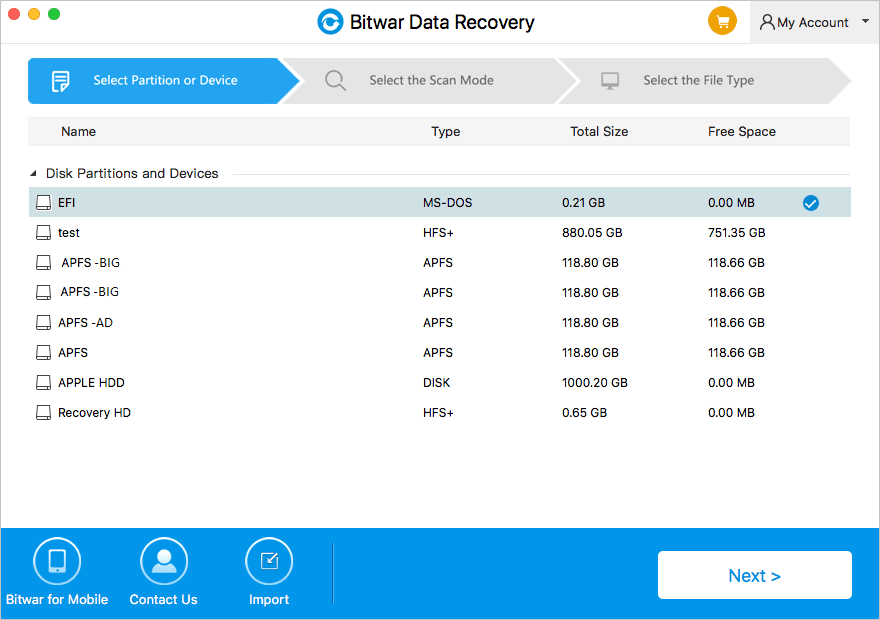
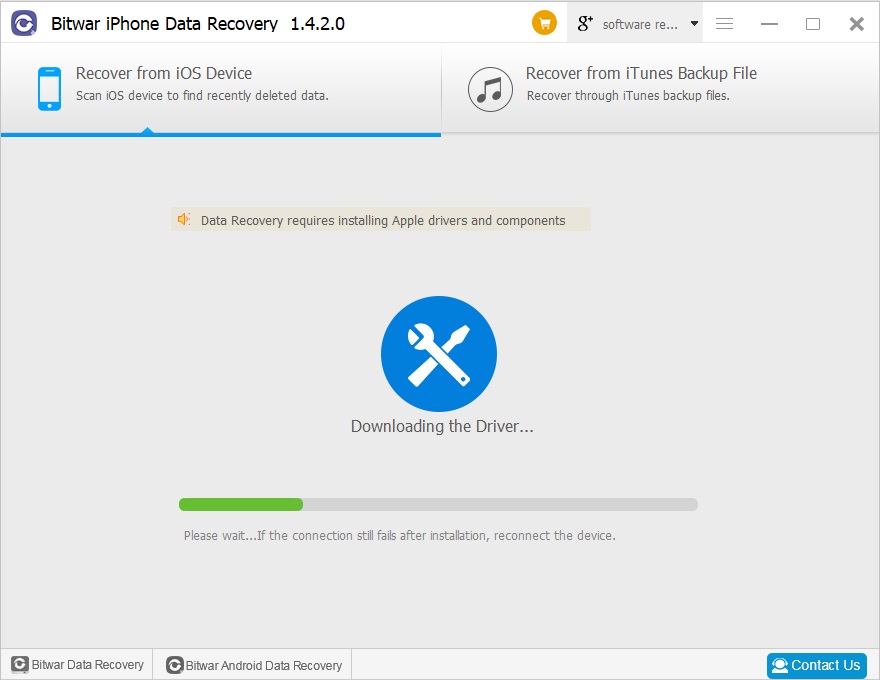
If you are worried about how to retrieve your data, don’t worry and your best shot is to let Bitwar Data Recovery help you. It is a fast, reliable and free data recovery software. You can recover audios, videos, pictures, archives, compress files, and documents.
Free download and then install Bitwar Data Recovery Software on your computer. Then insert your SD card into the slot provided in your computer or by using an external card reader. No matter what the commander prompts, make sure the computer recognizes it.
Steps to recover data with Bitwar Data Recovery?
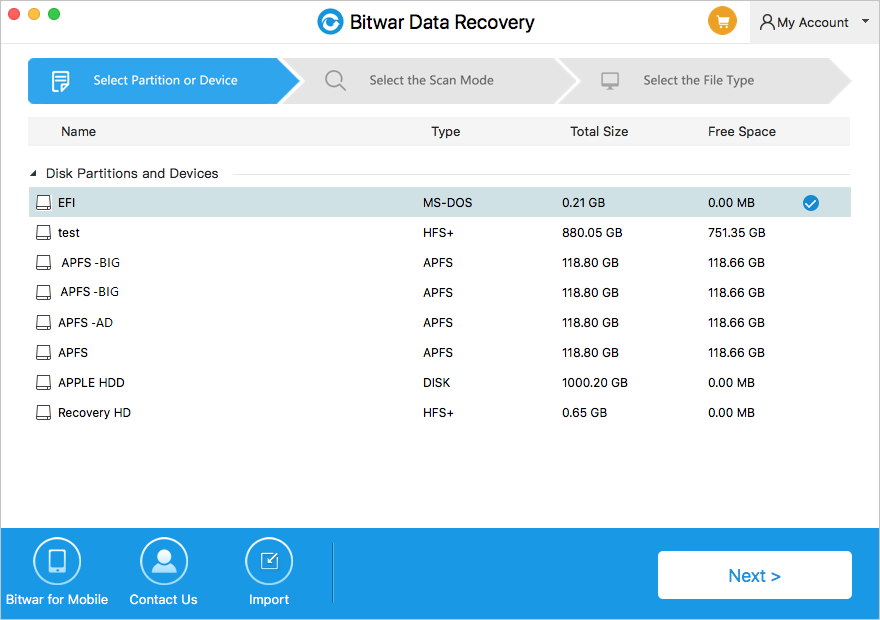
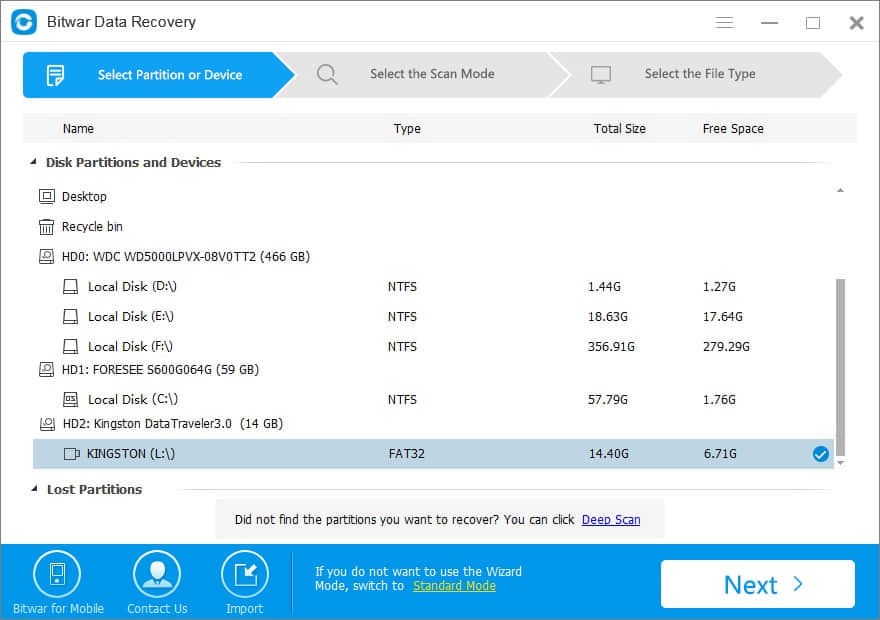
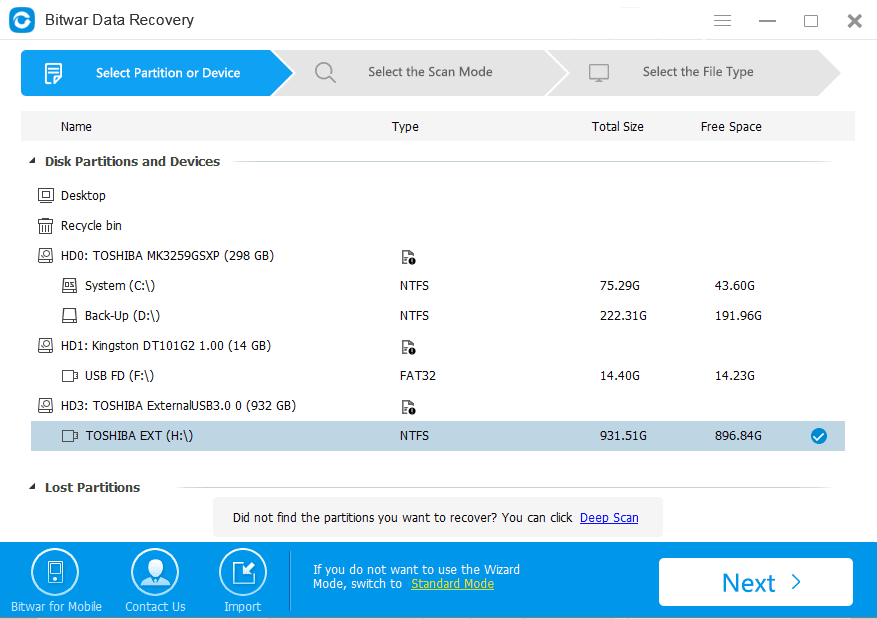
● Step 1: Launch Bitwar Data Recovery software on your windows and select the SD card and then click “Next.”
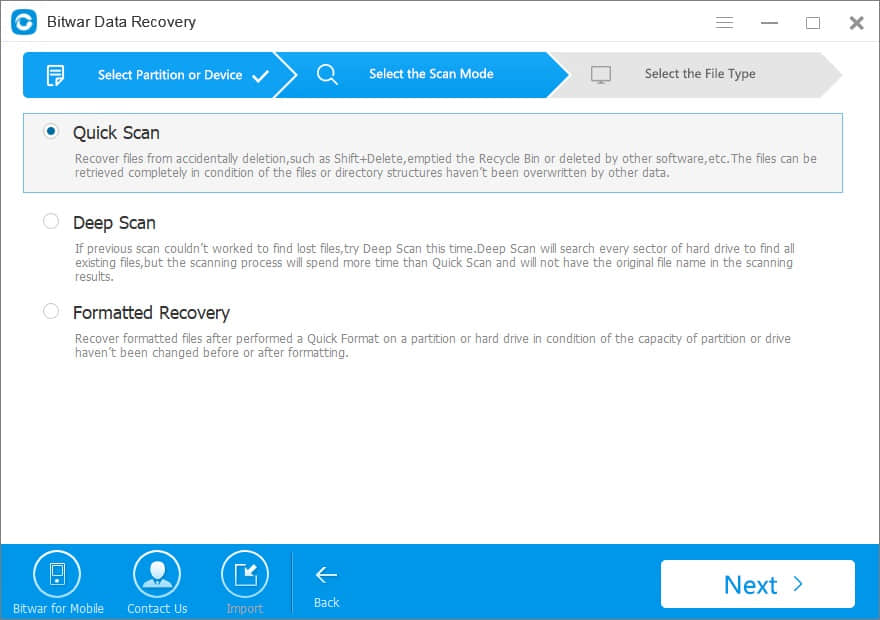
● Step 2: Choose “Quick Scan” mode to scan the SD card first, If you cannot find files on this mode, try Deep Scan.

● Step 3: Select the file types you want to recover and then click “Next” to start scanning.
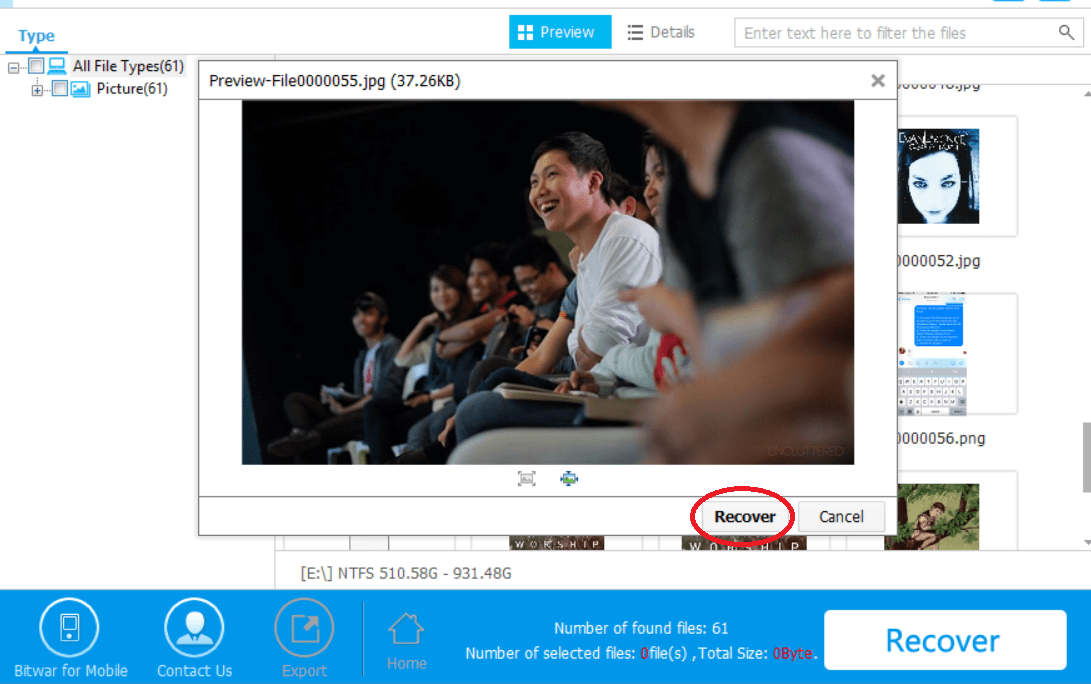
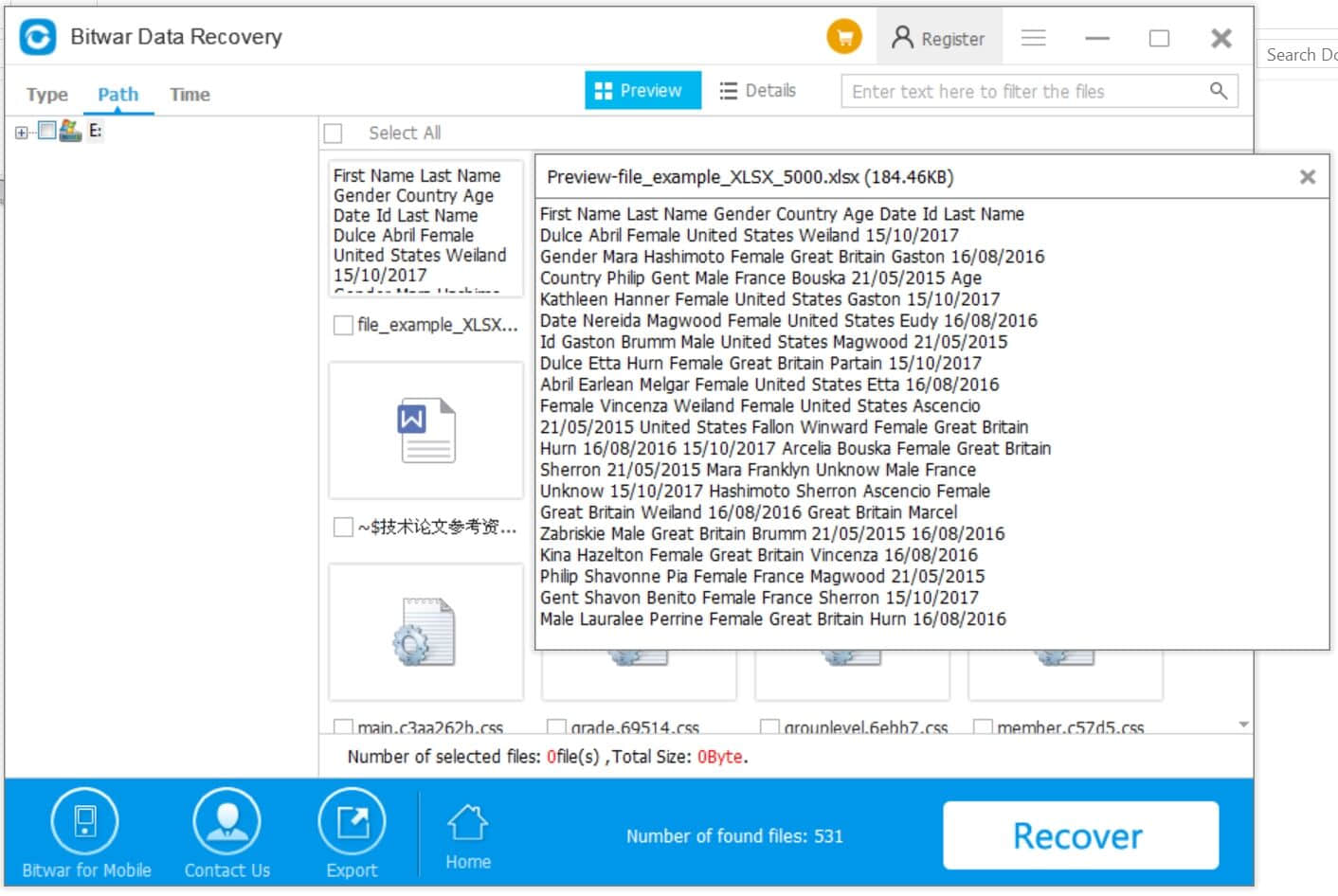
● Step 4: After the scan, you can preview and select the ones you want, and click the “Recover” button to save it to hard disk or other external devices.
How to fix the SD card not reading?
Method 1: Try to use SD Card on another device
Just in case, insert the SD card to other mobile device or connect it to other PC to see if it works. Usually, a new card will incompatible with your device for the first time.
Method 2: Change the drive letter
In some cases, if your SD card can’t be read by a computer when connecting via a card reader, it could be that the computer is unable to assign drive letters (like C, D, E) to the reader.
1. Connect your SD card via a card reader to your computer. Right-click on My Computer/This PC and choose Manage.
2. Click Disk Management on the left. Right-click on your SD card and choose Change Drive Letter and Paths.
3. Then select the right drive letter from the drop-down list. Click OK and then see if the SD card can be recognized now.

 Bitwar Data Recovery