Recover Deleted Files for Free

In terms of data usage, there is always something unexpected that can happen. Your data lost due to accidentally pressing Shift+Delete on an important file, intentionally deleting files not knowing you would need them later, Virus, Spyware or Trojan attacks, lose data when a hard drive crashes or gets damaged and other reasons. These are just some of the numerous scenarios that can be the cause of losing important folders and files. Fortunately, you can easily restore them on your own with the best-deleted file recovery software with the full version.

Bitwar Data Recovery is among the most comprehensive of tools with the full version that you can use for recovering lost data or deleted files. It works not only with your internal hard drive but also with any external hard drive, USB drives, memory cards, camera or any other memory storage device connected to your PC.you can easily recover lost files, pictures, documents, videos and more from deleting, formatting, partition loss, OS crash, virus attack and other data loss cases.

How to Recover Deleted File with Bitwar Data Recovery

Free download deleted file recovery software with full version and install it in your computer:
https://www.bitwar.net/data-recovery-software/.And then follow the next steps to restore deleted files.
 
Step 1: When the installation is complete, launch Bitwar Data Recovery and select the location where you lost your data or deleted files and click “Next.” If you want to recover data from another device, please connect it to your computer and select it.

Step 2: Select Quick Scan if you deleted data by shift+delete on the hard disk, or by deleted on external storage devices, you can also select Quick Scan when you accidentally emptied from the recycle bin. If files are not overridden by other data, files can be fully recovered.
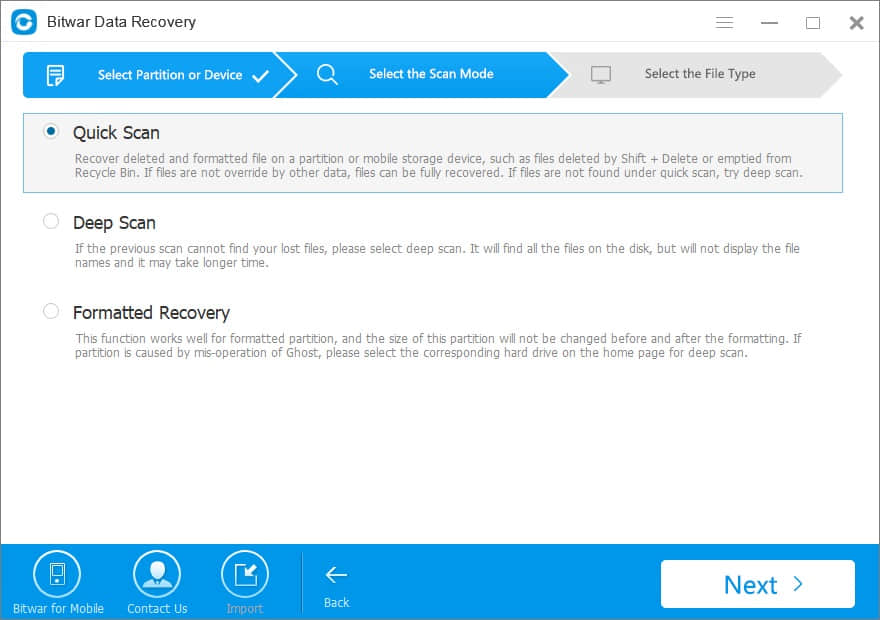
Select Scan Mode

Step3: You can recover all types of files with Bitwar data recovery software. choose them you want to recover and click “Next” to start scanning.
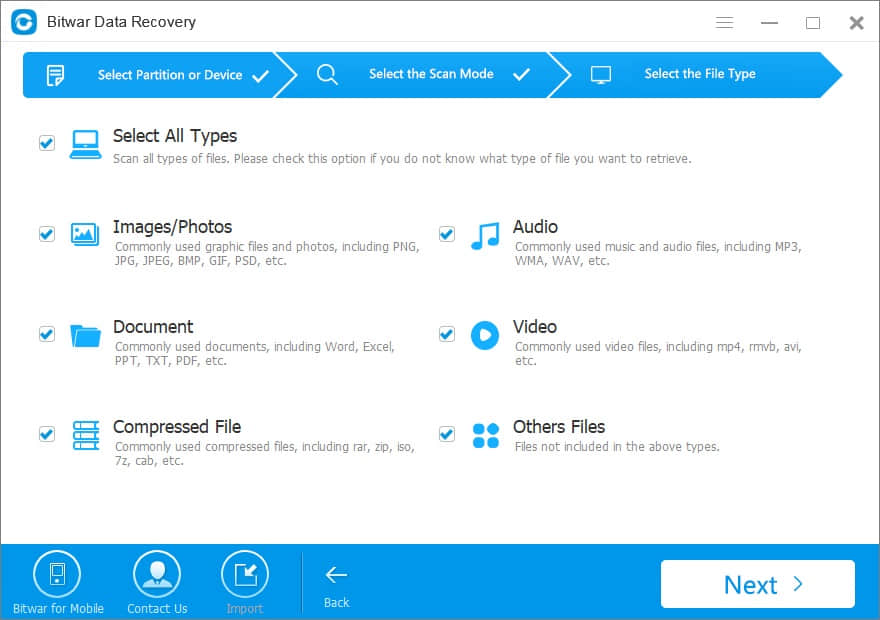
Select File Type

Step 4: Bitwar Data Recovery full version will start to quickly scan. After it completed, you can simply preview the recovered files and get them back. If you can’t find your files at quick scan result, go to scan again with “Deep Scan” on step 2. While it will take more time to complete the scan.

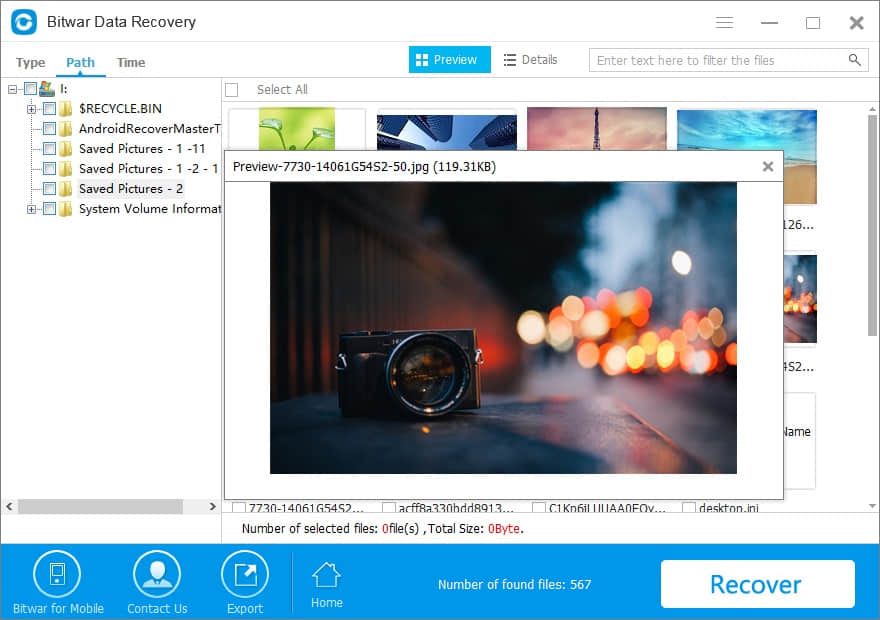
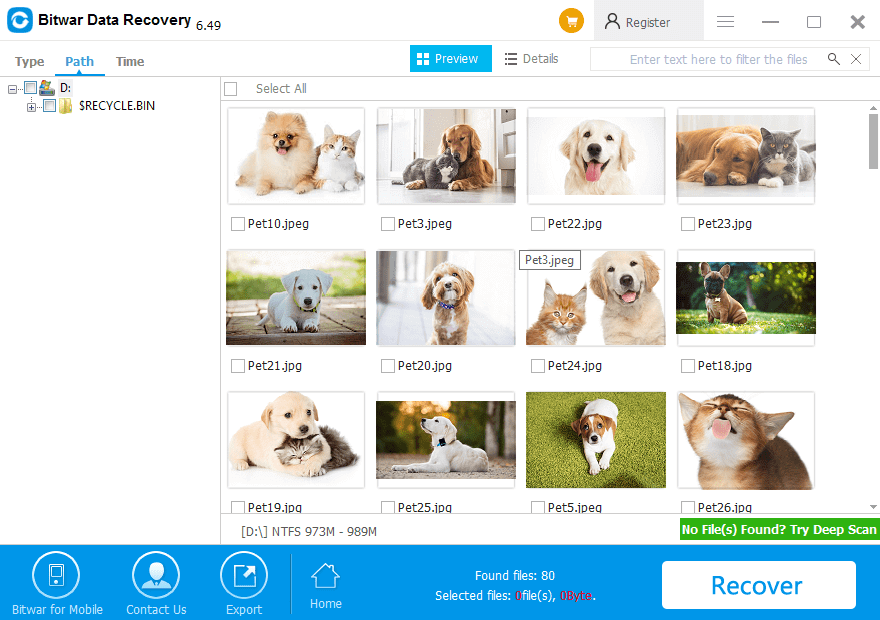
After the scan is complete, you will get a list of all the files that you can recover. Bitwar Data Recovery full version allows previewing specific recoverable files. After the preview or file filtering, you can target the tracked files and press “Recover” button to get everything you want back now.

(Please Note: DO NOT save the files into the hard drive or device where you lost the data.)
 

Why not have a try?

Please refer here for more about Deleted File Recovery.
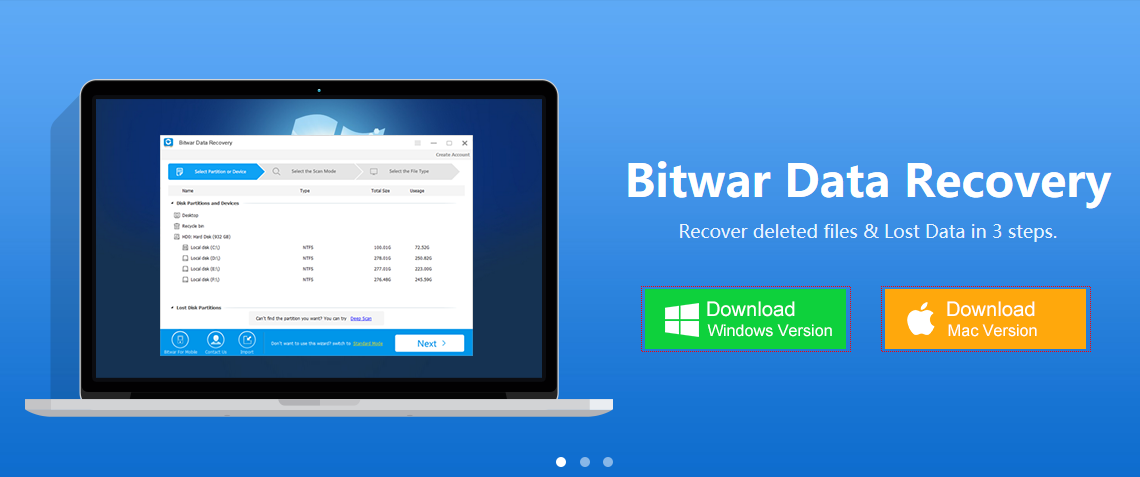
Format Hard Disk Recovery Software

You may lose your data when formatting a disk or other devices. How to recover it? This article will offer you an easy and efficient way to get the formatted data backBitwar Data Recovery software allows you to free restored formatted files without any other problems.

Free download formatted data recovery software to restore formatted files

Sometimes, you may format the disk without backup, for reasons such as misoperation or poisoning. After you formatting the files, the system will erase the formatted partition/SD card/memory card/USB flash drive. If there is no backup, your data will disappear altogether. In this case, free formatted data recovery software can solve this problem quickly. If you accidentally format or reformat a disk, you can still recover formatted files with the best file recovery software–Bitwar Data Recovery. 
Thanks to the development of technology, you don’t have to worry about system compatibility problem. Format data recovery software – Bitwar Data Recovery fully supports all Windows systems such as Windows 10/8/7/XP/Vista, etc. At the same time, it also can be applied to Mac OS X (Mac OS X 10.6, 10.7 and 10.8, 10.9, 10.10 Yosemite, El Capitan, Sierra) on iMac, MacBook, Mac Pro, etc.
Now, download and install Bitwar Data Recovery here to effortlessly recover data from reformatted disk or other formatted storage devices.

How to use Bitwar Data Recovery to restore formatted files

Step1: Download Bitwar Data Recovery software on the website: https://www.bitwar.net/data-recovery-software/
Tips: Remember not to save or install Bitwar Data Recovery to the formatted partition.

Free Download Format Data Recovery Software to Restore Formatted Files

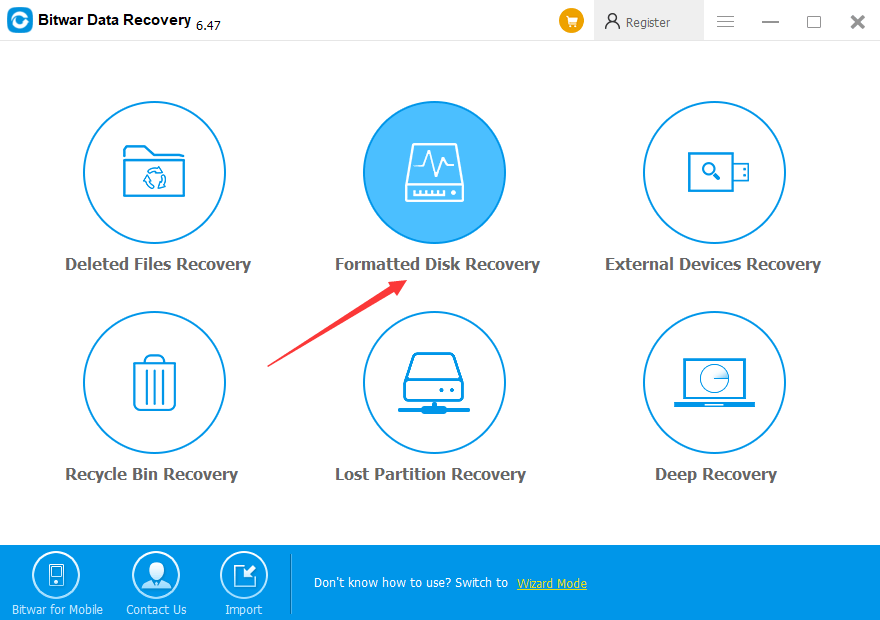
Step2: Launch Bitwar data recovery software and select Formatted Disk Recovery when you want to restore the formatted files.

Free Download Format Data Recovery Software to Restore Formatted Files

Step 3: Select the partition you formatted and click Next.
Step 4: Select the type of file that you want to recover and click “Next”. If you’re going to retrieve all sorts, you can choose “Select All Types” and click “Next” to start the scan. 
Notes: During the process of hard disk data recovery, do not write new data to the source disk. Don’t defragment the drive and restore data as soon as possible. 
Step 5: After scanning, Bitwar will list all the files that it has found. You can preview the files in the window by clicking them. If there is too much data to be scanned, you can also filter by the file type, path, or time in the left list.

all format data recovery software

Let’s try it now!

Please refer here for more about formatted data recovery.

Deli PDF Converter

We all know that online PDF editor on the internet is free and faster. They can convert or edit your PDF files fast and without any technical skills too. While some users will look for an expensive high-quality professional PDF editor to perform faster work and better performances.

What if there is a professional PDF software in which the price is less than 10USD a year? What if your PDF Files are important and confidential? Is it really that Deli PDF Converter is more worthy over other online PDF editors?

Continue with the article below and you can find out more why users choose Deli PDF Converter over Online PDF Editor.

Why Deli PDF

1. Easy Account Set-up

Deli PDF Converter provides multiples of ways for users to create an account for FREE. You can log in to the software by using Facebook, Twitter, Google+, or your Email address. By logging in to your account, you can enjoy the privilege of the software for an unlimited expiry date. If you tend to forget your login details, don’t worry you can retrieve your account or license back easily with our backstage support team.

2. Variety of Format Conversion

The software supports multiple types of formats for conversion. You can convert your PDF to DOC, DOCX, RTF, WPS, Image, TXT, HTML, FLASH, and CBZ. Besides, you also can do it vice versa by converting Microsoft Office files or images to PDF format. Batch converting is also available in the software. It allows you to save more time and be more efficient with your files conversion.

As the software keeps on improving and evolving, more and more formats will be supported in the software as Deli PDF Converter is always updating and upgrading to be better and better.

3. Additional PDF Tools

PDF tools

Image by free stock photos from www.picjumbo.com from Pixabay

Most PDF Converter software doesn’t have PDF tools because of limited performance or technical features. While some PDF editor software doesn’t support format converting. With a perfect mixture, Deli PDF Converter provides most of the basic PDF tools such as encrypting/ decrypting PDF filessplitting PDFmerging PDF and compressing PDF.

Therefore, PDF Converter is more compatible and welcomed by users because of the mixture of supporting format converting and PDF tools.

4. Premium and Excellent Supporting Team

Whenever Deli PDF users encounter any problems or issues when using the software, they can always contact our 24-hours customer support for help. We have a very professional and high-technical team to solve any difficulties or problems regarding your PDF files or software issues. We have a remote assistance system that can connect directly to you, to help you solve your problem faster and efficient!

Try now!

Please refer here for more about PDF Converter.

Retrieve Bookmarks from Chrome

The common situation of Chrome bookmarks disappeared issues generally are upgrading to Windows 10 or update to the latest Chrome browser itself. For this reason, we may lose all of our favorite websites. How to fix this issue? This article will offer you 3 ways to get back these bookmarks.

According to the datasheet, Chrome is the most used browser with the highest market share (about 60%) from August 2017 to July 2018, which beats all of its rival browsers and occupies the first position worldwide, and you know what? The number of internet users in 2018 is 4.021 billion, then should we say there are almost 2.4 billion people now using Chrome to surf on the internet?

Then I believe that you should feel calm that chrome bookmarks disappeared issue is not only happen to you but also to everyone is using the Chrome Browser. However, we are not here to complain about the Chrome browser, in contrast, we are willing to lead you step-by-step to fix 3 common faults of missing Chrome bookmarks.

How to Fix Chrome Bookmarks disappeared after update Windows 10?

We’ve found many users asking the same question on the internet: Should I upgrade to Windows 10 and complains that lost all of the Chrome bookmarks after upgraded to Windows 10. As we all know, no matter you will upgrade Windows XP/7/8 to Windows 10, the installation requires format the C partition.

And it’s pity that Chrome program installed on C and even worse than the backup of bookmark files also located at C partition. This means all of files will be erased if you are trying to upgrade to Windows 10.

How to find back the Chrome bookmarks by using a Synchronous account?

Install Chrome browser again and log in to the account, click Sync, if you have backup the bookmarks, browser histories, Add-ons, settings, auto-fills, passwords, applications, themes with this account before, you will then get back all of the data you want.

How to Fix Chrome Bookmarks disappeared after update to the latest Chrome version?

If you haven’t upgraded to Windows 10 and just update the Chrome version to the latest one, try to find Bookmarks.bak file on the C partition.

TIPS: Please do not close Chrome and open again. It will cause the Bookmarks.bak to be overwritten by synchronizing the status of bookmarks automatically if you were performing close and open action of the Chrome Browser.

The right ways are Press WIN+R and enter this path to enter C:\Users\USERNAME\AppData\Local\Google\Chrome\User Data\Default (Replace USERNAME to your Windows account name).

Then you can find these two files, Bookmarks, Bookmarks.bak, then you can use this convenient tool to get back the bookmarks.

Here is how to recover your lost bookmarks (Windows):

1. Copy C:\Users\%username%\AppData\Local\Google\Chrome\User Data into File Explorer.

2. In the search bar, type Bookmarks, you will see a list of files named Bookmarks and/or Bookmarks.bak. (Note: If there is more than one user using the same Chrome, bookmarks from other users will be listed too)

3. Select all the files with the mouse and drag them to the block below.

4. Download all the HTML files.

5. Open each HTML file with Chrome and determine the HTML file that contains your bookmarks. (Note: The largest file is most likely the correct one)

6. In your Chrome, click the Chrome menu icon and go to Bookmarks > Bookmark Manager.

7. Click the menu icon beside the search icon and click Import Bookmarks.

8. Select the HTML file that contains your bookmarks.

9. Your bookmarks should now be imported back to Chrome.

Tool URL: https://rongjiecomputer.github.io/chrome/bookmark-recovery/#windows

How to Fix Chrome Bookmarks disappeared after accidental deletion?

If you haven’t backup the file or do not create Synchronous account but accidentally deleted all of the bookmarks including bookmarks.bak file, you can try to use Bitwar Data Recovery to recover the bookmarks.

Download Bitwar Data Recovery >> Install on the different partition (such as D partition) >> Launch the Bitwar Data Recovery Software >> Select the bookmarks.bak saved location(C partition) >> Scan and Recover found bookmarks.

Try it now!

Please refer here for more about Bookmarks recovery.

Lexar Data Recovery Software

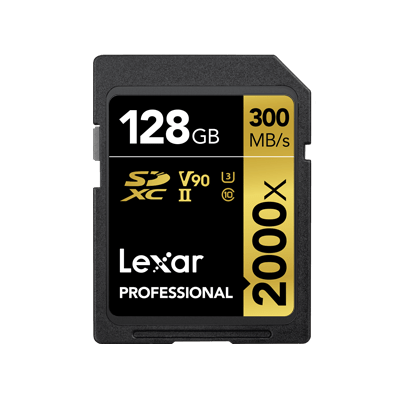
Lexar is an American manufacturer of digital products founded in 1996, with more than 20 years of development, its SD card, Compact Flash card, USB flash drive becomes the popular products in the computing world. Everyone loves the high access speed of digital products. However, data loss always happened around us, Lexar data recovery it’s quite a big concerned question because people may format or delete the Lexar memory card. So this article will offer you a free SD card recovery tool to solve Lexar card data loss problems.

Lexar Data Recovery – Free SD Card Recovery Tool

Two powerful SD card recovery tools for you.

1. Lexar Data Recovery – Image Rescue 5

It’s a data recovery tool that developed by Lexar itself and has the ability for you to rescue data on your Lexar memory cards or USB Flash drives, you can recover up to three files in DEMO trial mode unless you go to their website to purchase the serial number and then unlock full recovery.

2. Free SD card recovery tool – Bitwar Data Recovery

Bitwar Data Recovery is a free data recovery software with powerful functions that allows you to recover data from your Lexar memory card, SanDisk memory card, Kingston memory card or other branded memory cards. With an easy-to-use interface, you can recover no matter formatted or deleted image/photo, video, audio, document and archive files quickly and easily. Compare with Lexar image rescue 5, Bitwar Data Recovery it’s a 30-Day Free Trial data recovery tool for you to recover whatever you need and no matter how many files you have lost.

Is Bitwar Data Recovery the best alternative to Lexar data recovery?

Choosing a right and easy data recovery tool can save up much time on rescuing your loss of data by instead of losing it. In addition, before processing to recover loss of data, we would like to guide you step-by-step with hopes to enhance your confidence while operating Bitwar Data Recovery; No matter you are an experienced user or green hand.

Step 1. Download Bitwar Data Recovery and install, then launch the software. You can install the software on a Windows or Mac system.

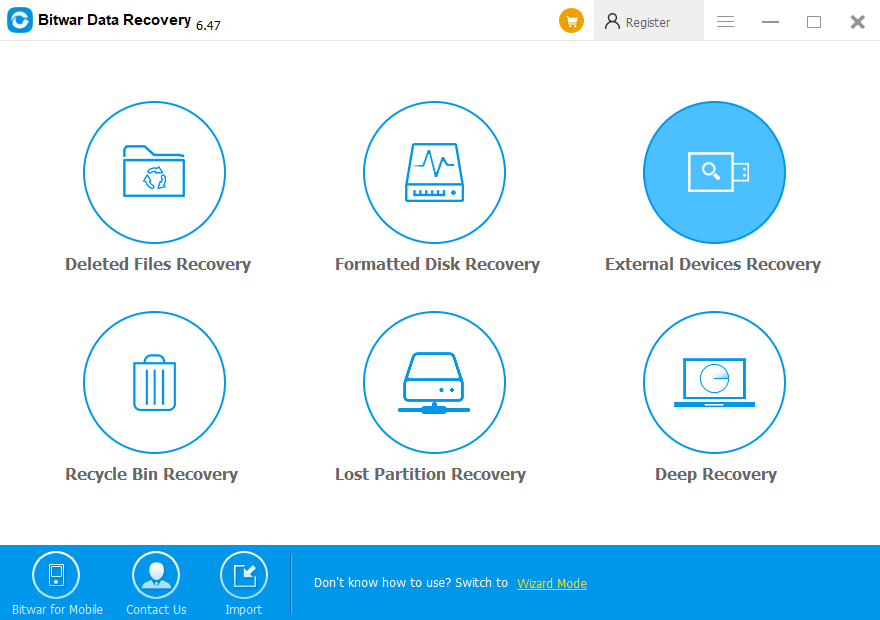
Step 2. You can select your Lexar memory card in Standard Mord and then click Next or Choose “External Devices Recovery” in Standard Mode and then hit Next.

Lexar Data Recovery – Free SD Card Recovery Tool

Step 3. Select the scan mode, normally we suggest you choose Quick Scan for accidental deletion, and Formatted Recovery for recover data after formatting the memory card. You can also understand the differences in the scan mode by reading the short description under each title.

Step 4. Choose the types of your lost files, normally we suggest to choose direct file types to short the scanning time, otherwise, you can select all of the file types only if you don’t know what exactly the types of files you have lost.

Step 5. After scanning, you can preview the files to check whether you need the files or not and then hit Recover.

4771031057?profile=RESIZE_710x

Why not have a try?

Please refer here for more about Lexar data recovery.

Best PDF Converter Tools

The PDF format is the most convenient and used document format for all of us. Most users love to use PDF files instead of words or Docx because the format can save the format layout design, font size, language, and file quality. This is because the PDF outputs are very flexible and stable. Therefore, if you need to edit or customize your files, you need a PDF editor software to do it!

Software

Use of PDF Format

With the features and the output of PDF format, it is best used for office paperwork documents, business contracts, presentation sheets, product plans, business plans, and others.  Moreover, most people can store more files on their Pendrive or computer with PDF format files compared to word or Docx. It can be compressed to smaller file sizes and unable for opponent users to edit the content written in the data.

PDF Editor Software

With the demand for PDF format in the computer world, a lot of PDF editor software is created for users to customize or edit their PDF files. There are a lot of pdf editor online or free pdf editor on the Internet that you can use. If you are looking to convert your PDF to Word or Image or vice versa is better for you to use PDF converter software.

Most business companies will purchase high-quality PDF editor or software to reach their work efficiency and document safety. If you are using an online PDF editor or converter software, your PDF files may be lost or copied by other users on the Internet.

So if you are looking for some of the best PDF software on the Internet, you need to know the software provided features, the price comparison, interface design, and efficiency. Look for the best PDF software that suits you so that you can work easier and faster. Just like choosing the right car in a garage!

Checklist

Things to Consider when Choosing the Best PDF Software

Survey Review

It is always the same as anywhere we go when we want to buy something or use something that we need in our daily life. We will always survey all the options we have in the market before we made any purchases. When we come to choosing software, we also need to do a  survey, or we can read the survey feedback/review on the internet.

We can read their feedbacks or comments on the particular software. Clients or users will post their reviews or complaints about the good and bad of the software. We can analyze their review and compare with different software review to see which software has the more good review compared to the bad review.

Internal Software Design

Of course, with attractive interior design can attract most of us to try or use the software compare to some dull and outdated design software. A well-designed, easy, and straightforward design can allow us to use the software with ease and make the software look professional too. So, you can compare the internal design and choose the layout or theme that you like according to your taste.

Variety of PDF Tools

Before you choose, you have to determine the need for a PDF editor or software. A lot of PDF editor provides a different type of PDF tools, for example, merge PDF, compress PDF, convert PDF to WORD, PDF to Image, and others.

While, a PDF converter software provides tools to help users to convert PDF files to Word, Excel, Image, PPT, or vice versa. You can convert your data by using an online converter or a secure licensed offline PDF converter software.

Right PDF Editor Software

One Last Thing…

If you can’t decide the best PDF editor software yet, you can try out Deli PDF Converter. It is one of the best PDF editor or converter you can find on the internet. The software provides merge, split, compress, and converting PDF tools. 

Download and have a try!

GT Recovery for Windows

Download full version of GT Recovery Activation Code Free with key, keygen, crack, serial number, registration code, license code, etc. isn’t safe for you, here’s a GT recovery activation code free alternative program for you to recover lost data.

When you accidentally delete data on the hard disk or format the disk without saving important files, have you ever spent lots of hours to find a free data recovery software? And you found GT Recovery can help you recover deleted, formatted or lost files including images, photos, audios, Document, etc. from PC, laptop, hard drive, digital device or storage media.

How to download GT Recovery Activation Code Free

Have you ever tried to find GT recovery activation code free such as crack, serial key, license code, activation code, etc. to restore your lost data? Please don’t do that! It’s really not the best choice as you will take many risks if you are trying to use cracked GT recovery software. First, you might find it is just a waste of time and efforts when you spend hours or even days finding an un-useful cracked version. You will find that it can’t recover your lost data at all. Secondary, your device or data may be damaged if you were trying to use a cracked or pirated GT recovery software that possibly bundled with unknown virus or malware, even backdoor. For all these reasons, we don’t recommend you to install GT recovery activation code free to recover your data.

The best alternative to GT recovery activation code free

Stop using GT recovery activation code right now, and as an alternative, we recommend you Bitwar Data Recovery Software, which is a full version free data recovery software and has no recovery File Size and recovery amount limit, more efficient and safer. You will find how helpful it is if you try it! In contrast, Bitwar Data Recovery can recover all the things GT Recovery can do, and even Bitwar supports preview before recovery when you would like to recover data from lost partition and raw devices. Therefore, we say that Bitwar Data Recovery Software is your best choice

How to recover lost files with Bitwar Data Recovery?

Download Bitwar Data Recovery and install the powerful software on your computer, and then launch it. Bitwar Data Recovery is available for both Mac and Windows users.

Notes: During the lost data recovery process, it is forbidden to save the program and write data to the source partition. Do not do disk defragmentation but to restore data as soon as possible.

Why not have a try?

Please refer here for more about GT data recovery.

Fix Xbox One Green Screen of Death

Have you ever faced the Xbox one green screen of death issue before or you are now having the Xbox one stuck on Loading green screen? Here’s the tutorial to lead you on how to fix this issue and then guide you with a file recovery on Xbox one.

Xbox One is a line of eighth-generation home video game consoles developed by Microsoft. Announced in May 2013, which is one of the most popular game consoles like Nintendo Switch, PlayStation Vita, Project Shield, etc. Likewise, Xbox One is using hard drive to store games as others, and we found that many users had such issue on the internet:

When I turn on my Xbox one, it sticks on loading green screen, but it does not continue. I waited for even 2 hours but still the same. How can I fix this issue, please help!

Don’t panic, if you cannot find the answers through Google, try to find the answers here!

Solution One. Offline Update the Xbox One system to fix the green screen of death

To update Xbox one offline system, you’ll need:

1. A Windows-based PC with an Internet connection and a USB port.
2. A USB flash drive with a minimum of 4 GB of space formatted as NTFS.

Tips: You’ll have to format the USB flash drive as NTFS partition before you try to perform the formatting, backup all of the necessary files onto the computer.

Then follow the below tutorial to save the ZIP file on the USB flash drive:

Step 1. Connect this NTFS USB flash drive with the computer.
Step 2. Download Offline System Update file OSU1 from http://www.xbox.com/xboxone/osu1
Step 3. Save the update .zip file to the computer.
Step 4. Unzip the file by right-clicking on the file and extract update.zip.
Step 5. Copy the $SystemUpdate file from the .zip file to USB flash drive.

Note: Please copy the files to the root directory of USB flash drive and make sure there are no other files on the drive. Unplug the USB flash drive from your computer once you finished the copy.

You can now try to enter into the Xbox One Troubleshooter interface by pressing and holding BIND and EJCT button for about 10-15 seconds and then press Xbox button, after hearing 2 power-on beeps, release the BIND and EJCT button, you can see the Xbox One Startup Troubleshooter interface now.

Now, connect the USB flash drive with Xbox One and then select Offline System Update to finish the update. Normally, the Xbox one will reboot and green screen issue won’t happen again, plug off the USB flash drive and enjoy yourself now.

Solution Two: Factory reset to fix Xbox one green screen issue

To reset the Xbox one to Factory settings, you’ll need:

1. A Windows-based PC with an Internet connection and a USB port.
2. A USB flash drive with a minimum of 4 GB of space formatted as NTFS.

Tips are the same as the Solution 1 to format the USB flash drive to NTFS partition.

Then follow the below steps to finish the factory reset with USB flash drive.

Step 1.
 Connect this NTFS USB flash drive with the computer.
Step 2. Download FactoryReset.zip from http://www.xbox.com/xboxone/restorefactorydefaults
Step 3. Save the zip file to the computer.
Step 4. Unzip the file by right-clicking on the file and extract FactoryReset.zip.
Step 5. Copy the $SystemUpdate file from the .zip file to USB flash drive.

Note: Make sure there are no other files on the flash drive and then plug off the USB flash drive.

What will I lose after Xbox One factory reset?

Generally, after a factory reset, you probably lost all of the games on the hard drive, however, if you want to get back all of the games you stored, try to use Bitwar Data Recovery — a powerful data recovery tool to give a shot.

Download Bitwar Data Recovery, install the software on the computer and then launch it.

pre.png

Why not have a try?

Please refer here for more about Xbox One data recovery.

WD Data Recovery is Easy!

This article is mainly about hard drive recovery – Western Digital/WD disk recovery and tells you how to recover data with Western Digital Data Recovery Freeware for HDD, External HDD.

What is the Western Digital Corporation?

Western Digital Corporation (abbreviated WDC or WD) is one of the largest computer hard disk drive manufacturers in the world. Its products include Internal Hard Drive Storage, External Hard Drive Storage, SSD, etc. Western Digital delivers high quality and high-performance hard drives in the industry. There is no doubt about the quality of these hard drives. But even the Western Digital hard drive users can lose their precious data stored on their HDD, External HDD. We know data recovery knowledge is quite necessary for the event of data loss issues since none of the hard drives producers provides data recovery.

Before data recovery, please note:

1. Please don’t try to create new partitions & save new data onto that hard drive.

2. Please don’t choose unreliable data recovery software from the internet since it may bring secondary damage to your data.

We recommend that users get a western digital data recovery Freeware – Bitwar Data Recovery for hard drive data recovery.

Bitwar-Data-Recovery.png

Why choose Bitwar Data Recovery?

Bitwar Data Recovery is 100% clean and easy-to-use software. With its abundant functions, it enables you to do deleted files recovery, formatted disk recovery, external devices recovery, recycle bin recovery, and lost partition recovery.

If you cannot find the files under from these Recovery modules, try “Deep Recovery“. The deep recovery will take longer time on searching every sector of the drive to find all existing files; original filename won’t be provided due to a lack of file metadata.

How to recover data with Western Digital Data Recovery Freeware for HDD, External HDD?

Install Western Digital Data Recovery Freeware for HDD, External HDD

First, you need to download and install Bitwar Data Recovery and then launch it on your computer after installation. You can choose Windows version or Mac version of Bitwar Data Recovery according to your system. Here we take Windows version as an example. After that, you can follow the below steps carefully to perform Western Digital Data Recovery.

Steps to perform western digital data recovery with Bitwar Data Recovery

Step 1. Select the partition of the HDD

Step 2: Select the Scan Mode

Step 3: Select the file types

Step 4: preview and recover data

pre.png

Let’s try!

Please refer here for more about WD data recovery.

The Directory is Invalid Error

This article will walk you through some of the best ways to resolve and fix “The directory is invalid ” issue and restore all the mportant data using the best data recovery software – Bitwar Data Recovery software.

Many Windows 10 users have reported, “The directory is invalid” issue, this issue occurs when the system is upgraded to Windows 10 and trying to plug in their USB flash drive, hard disk or memory or SD card. There will be no access to the external storage device, thus, preventing you from accessing your stored as well.

Directory Error Solved

There is no need to worry when you encounter the issue as this article will provide the best effective solutions to fix the issue and recover all your vital data using a data recovery tool for Windows.

Possible Causes

Some of the prime reasons that cause “The directory is invalid” issue is given below:

  1. Faulty or damaged ports.
  2. Disk errors.
  3. Incorrect disk drivers.

Best Solutions to Fix “The Directory is Invalid” Issue on Windows

Solution 1: Change Ports

The easiest check to follow when you face “The directory is invalid” issue is by changing the ports. Try to insert the storage device into some other port as the previous port that you used could be dead or non-functional. If the issue is not solved, follow the below solutions to overcome the problem.

Solution 2: Check Disk Error

Disk check is an in-built software that checks for disk errors via scan and tries to fix them.

Step 1. Go to This PC by pressing Wins + E on the keyboard.

Step 2. Select Properties by right click on the Local Disk.

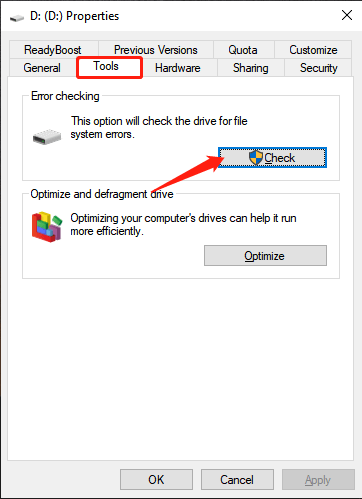
Step 3. Click on the Tools tab and select the Check button.

Step 4. Then, choose the Check option.

Disk Check

Step 5Follow the instructions given on the screen for windows to find and fix the errors detected.

Step 6Restart the computer system and check if the issue is resolved or not.

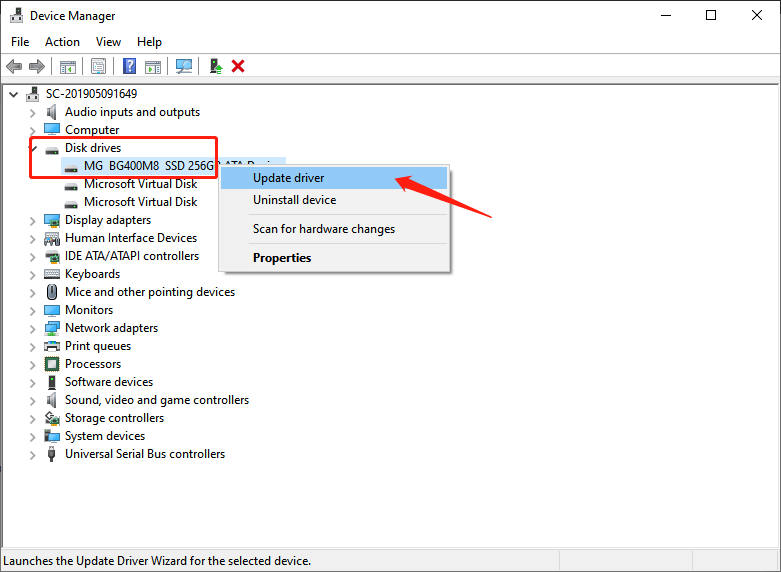
Solution 3: Update Disk Drives

The directory name is invalid” issue can be caused due to wrong disk driver or when they are not updated. In such a case, we can try to fix the problem by updating the disk drivers.

Step 1. Open the Run window by pressing Wins + R key at the same time.

Step 2. Type devmgmt.msc command in the Run window and hit Enter to execute and open Device Manager.

Step 3. From the Device Manager window, expand Disk Drives.

Step 4Right-click on the external drive, USB flash drive, or SD card and select Update Driver Software.

Update Disk Drive

Follow the steps above and update the device drivers. After updating, restart your computer and check if the issue is resolved or not.

Recover Data with Data Recovery Tool

Bitwar Data Recovery software is capable of recovering any software data such as audio, video, images, docs, and others from any storage device such as an external hard drive, USB flash drive, memory card and SD card in no time. The software has a user-friendly interface and simple to use.

Follow the guided steps below to restore data on Windows:

Step 1. Download Bitwar Data Recovery and install it on the computer.

Please refer here for more about data recovery.

Design a site like this with WordPress.com
Get started