“USB Flash Drive Not Recognized” Error

Look here as the article below will show the solutions to solve USB Flash Drive Not Recognized error with the help of the best data recovery tool – Bitwar Data Recovery Software!

Sometimes connecting a USB drive to PC might come across the error message as “USB flash drive not recognized.” It usually happens if the USB drive is corrupted or Windows fails to recognize it. Suppose that Windows fails to recognize the USB drive, there may be a chance data loss in the USB drive.
USB Flash Drive Not Recognized

What is the Cause?

USB flash drive not recognized” error usually occurs when we connect the USB drive or any storage device using USB data cable to the PC. It might be either due to the corrupted USB Device or Windows not able to recognize your device. The other reason might be that the USB drive is inserted incorrectly.

If such cases happen, then there are high chances that you might lose your vital data saved on USB Device as it might get corrupted. When this error occurs, we assume that the USB Drive is dead, which can be the worst scenario. It may be due to dead USB ports, partition issue with the USB Drive or by driver issues on Windows.

Practical Solutions to Fix “USB Flash Drive not Recognized” Error on Window

We have listed some of the best methods to repair and fix “Flash Drive not recognized error.” To overcome the error on Windows, you can try the listed solutions below:

Solution 1: Check USB Ports of PC
Solution 2: Update outdated drivers in PC
Solution 3: Format your USB Drive.

So most importantly, before applying these solutions, please make sure to recover all the essential data that is kept in the USB flash drive to prevent data loss by using a data recovery tool.

Recover Data on Flash Drive

When the USB Drive is corrupt, it shows 0 bytes of space in the USB Drive. So when the USB Drive is corrupted and is not working anymore on the PC, please restore all the essential data from the USB flash drive with Bitwar Data Recovery Software.

It supports Windows 7, 8, 10, and Mac operating systems. Besides, it is the most convenient and easy way to retrieve data from USB Drive or SD Card on Windows.

Follow the Recovery Steps below to Get Back Data in USB Flash Drive or SD Card:

Step 1.  Download and install Bitwar data recovery software according to your operating system.

Step 2Launch Bitwar Data Recovery software and Connect the USB Flash Drive or SD card to PC.

Step 3. Select the External Devices Recovery.

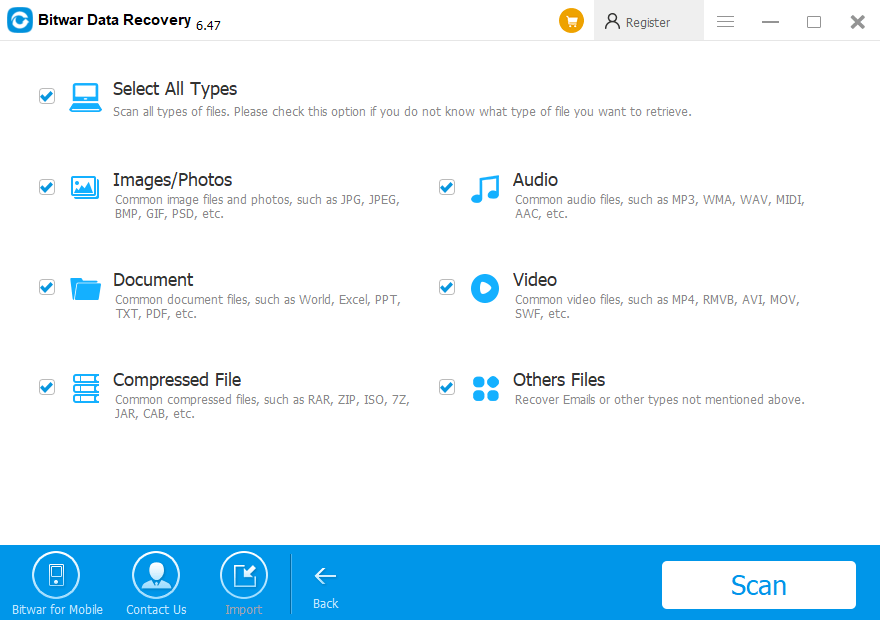
Step 4. Choose the File Type that you want to retrieve and click Next. (You can select all if you to wish to recover all kinds of data)

Step 5. Double-click to Preview the files and then hit Recover to start restoring the data.

KEEP IN MINDDO NOT recover the photos in the SAME USB Drive or SD card from where you lost. This may cause permanent data loss.

Solution 1: Check USB Port

If the USB Port is not working correctly, then there is a chance that the user might encounter the “USB Drive not recognized” error because the Windows system will not be able to recognize the USB device.

To make sure whether the USB Port is working or not, refer to the steps mentioned below:

Step 1. Start the Search menu by pressing Win + on the keyboard and type Control Panel.

Step 2. Select the Control panel and choose the Hardware and Sound.

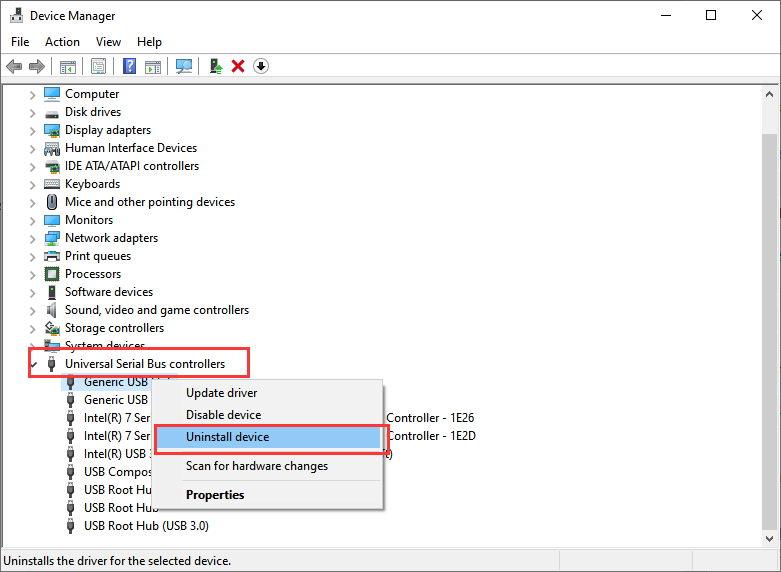
Step 3. In the Hardware and Sounds menu, select the Device Manager option under the Universal Serial Bus option.

Step 4. From the list, choose the USB device and click on the Uninstall option.
Device Manager

Step 5. After uninstalling, click on the Scan for Hardware Changes option.

Here, if the Windows is still not able to recognize the device, then it means that the USB Ports are not working or faulty issue.

Fix it Now!

Please refer here for more about USB data recovery.
Hard Disk Data Recovery Software Free Download

How to recover data from external hard disk? In this article, you will find a free download data recovery software — Bitwar Data Recovery to restore your lost data from external hard disk.

Many people use the external hard disk as a backup media that could save photos, video files, and other important data. With the popularity of external/removable hard disk drive, people are used to storing their personal or business data on the external hard disk. The external hard disk certainly brings much convenience in our daily life.

However, a survey from a data recovery company shows that due to hot plugging, plug, and play, accidental deletion, virus attack, etc. data loss in the external hard drive takes the largest portion. That is, external hard disk data recovery is much needed.
 
Bitwar data recovery is a free trial, safe, easy-to-use and reliable external hard disk data recovery software. It can recover files lost due to deletion, format, raw, virus attack, system crash, etc. on the external hard drive. It also supports to restore data from hardware RAID, local hard drive, USB drive, SD card, memory card, etc.

How to Recover Data from External Hard Disk

Connect your External Hard Disk to PC. Then free download and install Bitwar Data Recovery on your windows.

We recommend that you install the program on a different drive to avoid overwriting the data. 

Step 1. Choose the scan mode

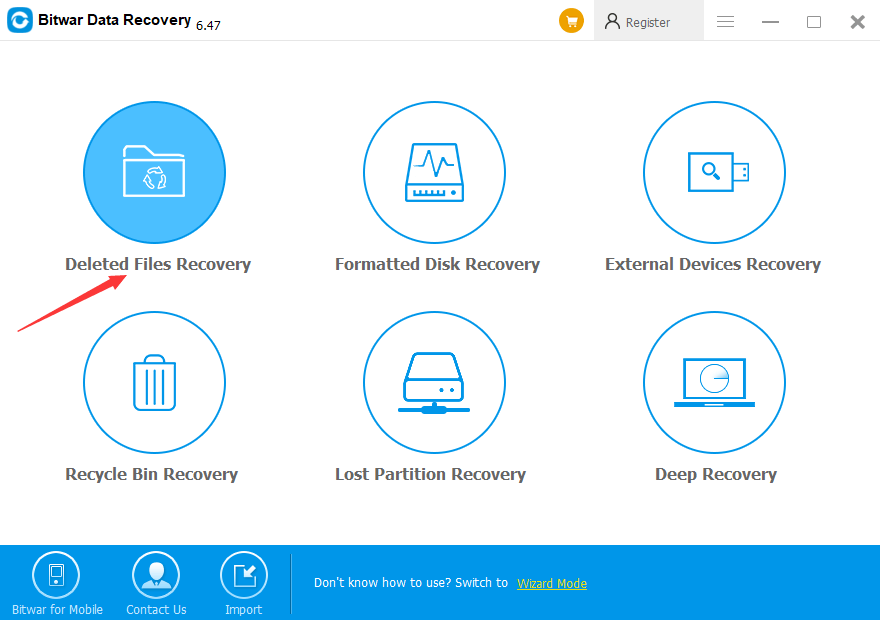
Launch the program, choose a proper mode on standard mode, you should select “Deleted Files Recovery” when you want to recover data from External Hard Disk.

1569484209446167.png?profile=RESIZE_710x

Step 2. Select the partitions or devices

Select the External Hard Disk you lost files and select file types. then click the “Next” button.

Step 3. Select the file types

You can choose a certain file type, such as Images/Photos, Video, Audio, etc. Or you can also choose “Select All Files” option. Then click the “Scan” button.

1569484528419030.png?profile=RESIZE_710x

Step 4. Preview and Recover the files

After the scan, you can filter what you need from the scanning results according to the file name, type, path and time. you can preview them before recovery. Then select them and click “Recover” to get them back.

Tips: you’d better save all the recovered files on the partition of the computer or different device. please don’t save any files to the External hard disk until the recovery ends.

1569484742630147.png?profile=RESIZE_710x

Let’s try it now!

Please refer here for more about External Hard Disk Recovery.

Insert Image into PDF with PDF Converter Software

PDF Files is a very convenient format which all users love to use when sending or sharing their document to others. But it comes to the time when we need to crop out an image or insert an image into the PDF file for editing. Therefore, you may need to edit or add an image by using some professional PDF editor software such as the most well-known PDF software which is the Acrobat Pro Dc. Luckily there is also free PDF editor software you can use to insert an image into the PDF.

Follow us below, and we will show you the simple tutorial of how to insert Image or Photo into PDF file!

Adobe Acrobat Dc

The most used PDF editing software in the world is the Acrobat Pro DC. You can buy the software from the official website, which different version has a different license price. There are Acrobat Pro Dc, Acrobat Pro 10, Adobe Acrobat 9, and more. In the end, the way to insert an image into PDF using Adobe Acrobat is the same for most of the versions.

Acrobat-PDF-1.png

Image by Clker-Free-Vector-Images from Pixabay

Step 1.  Launch your Adobe Acrobat software on your PC.
Step 2. Open the PDF file that you want to add an image.
Step 3.  Go to Tools, choose the Advanced Editing Option and Touchup Object Tool.
Step 4. Then, Right-click and select Place Image.
Step 5. An image window dialogue will appear. Lastly, choose the image file that you want to add and click Open.

If you have Adobe Acrobat software on your system, follow the simple steps above to insert the image into your PDF file. Suppose that you don’t, it is not wise for you to buy or purchase the software to enter or add image into PDF files because the license of the software is quite expensive.

How to Insert Image into PDF with Deli PDF Converter Software

Deli PDF Converter Software is one of the best free PDF editor software on the Internet. It supports both Window and Mac system! It provides multiple types of PDF tools for the user to use such as merging PDF, encrypting PDF, converting formats, splitting PDF and more. You may refer to ‘WHY Choose Deli PDF Converter Over Online PDF Editor!‘ to learn all the useful features and the PDF tools which are provided in the software.

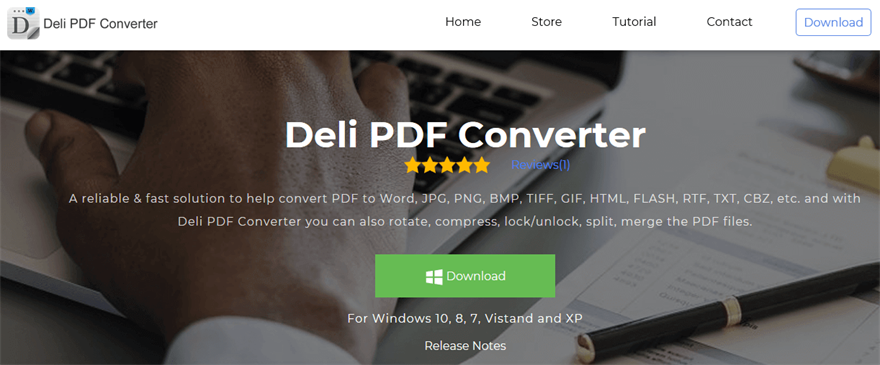
So before we start inserting image or photo into PDF file, you can download the software for free from the official website: https://www.pdfcword.com/.

QQ%E6%88%AA%E5%9B%BE20191014145436.png

Step 1. Launch the Software after the installation is complete.

Main-Interface.png

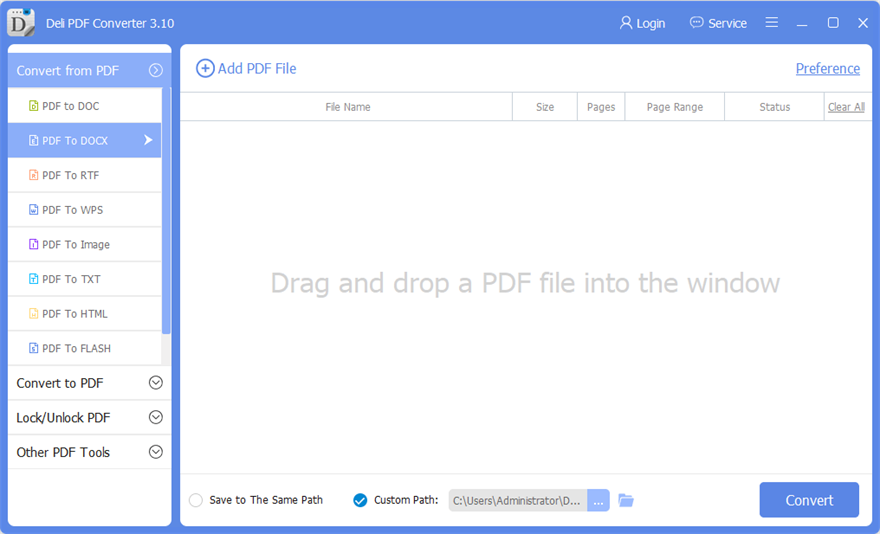
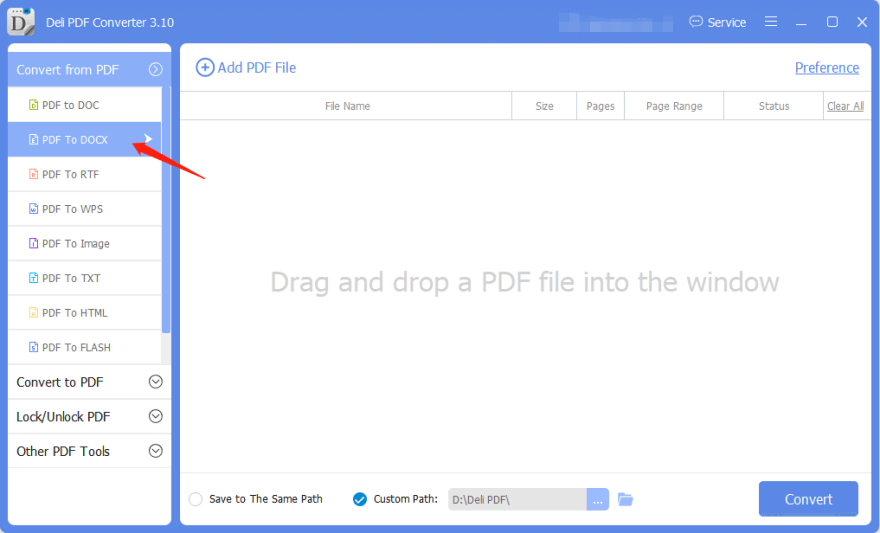
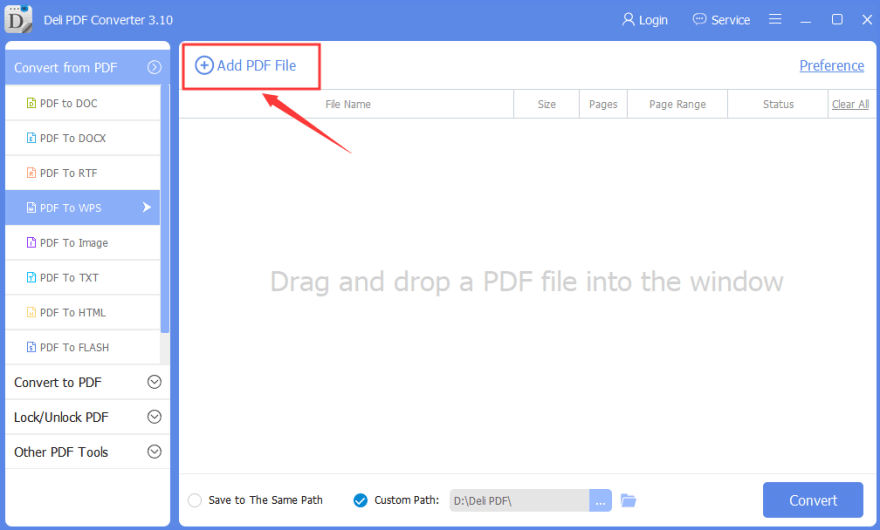
Step 2. We are going to convert the PDF file into Word file so choose PDF to DOCX on the left side of the software.

Select-PDF-to-DOCX.png

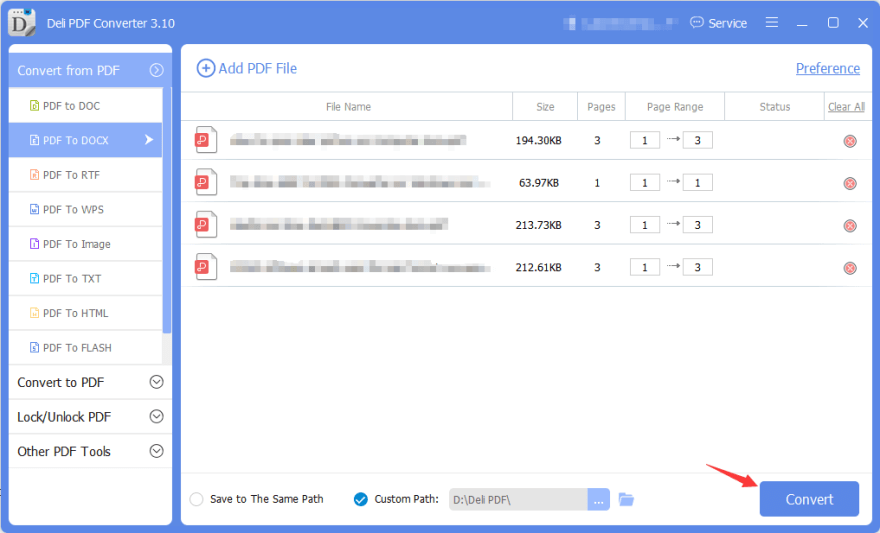
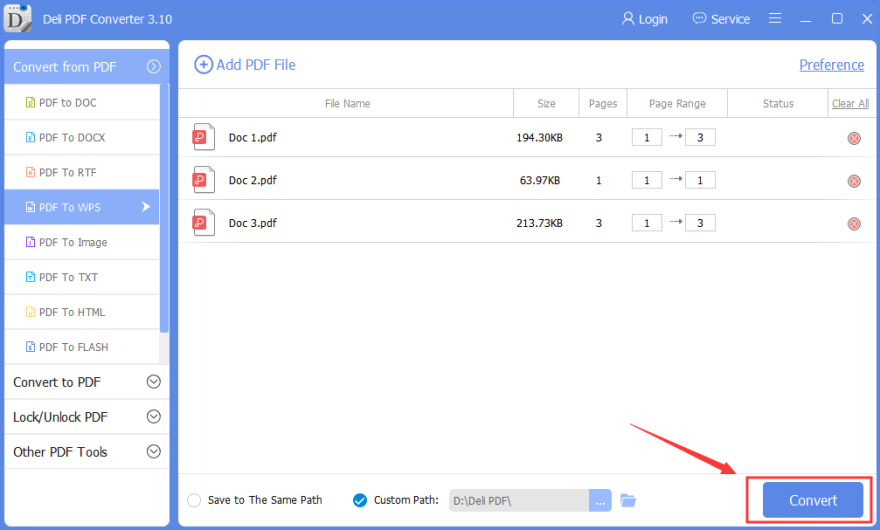
Step 3. Upload the PDF file into the software and click Convert to convert PDF to Word. The conversion process will not take long!

Select-Convert.png

Step 4. Open the converted file and edit it with Microsoft Word on your system. When you are finished inserting the image, you can Save As the Word file back to PDF again. If you not sure how to perform the Save action, you can convert the Word to PDF using the software, continue with step 5 below and onward!

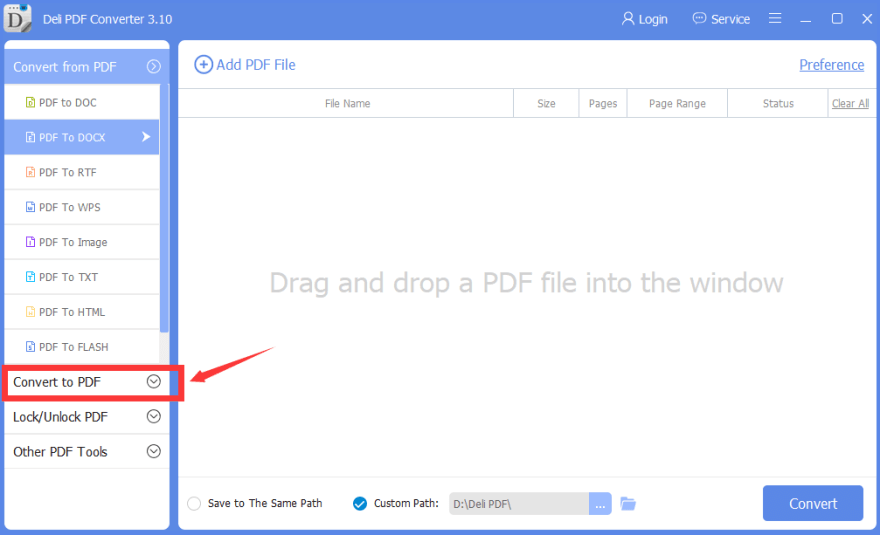
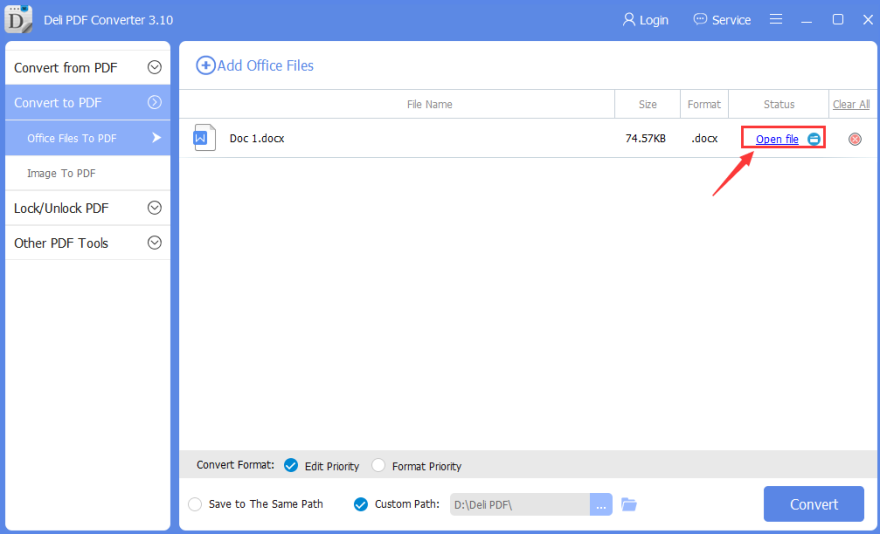
Step 5. Open Deli PDF Converter Software and choose Convert to PDF on the left side of the main interface.

Convert-to-PDF.png

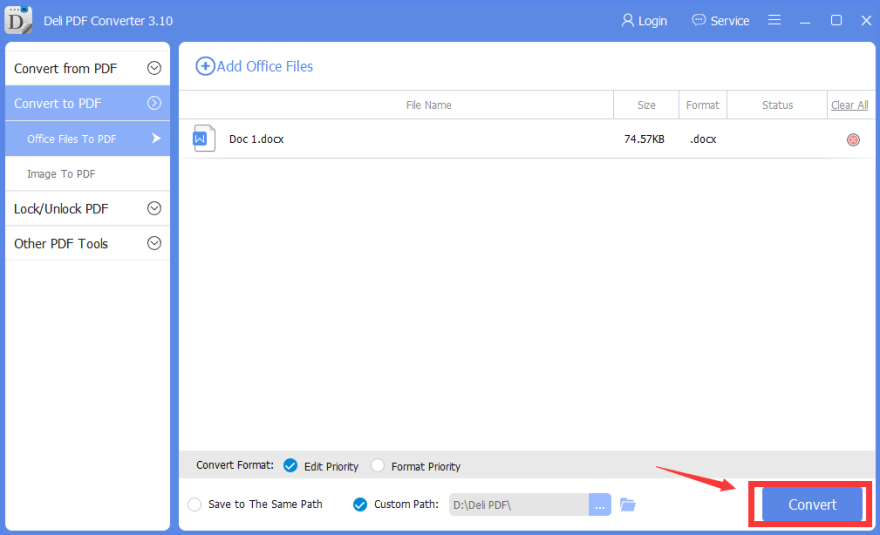
Step 6. Upload the Word file that you saved into the software and click Convert to start converting the Word file to PDF file.

Start-Convert-File.png

Step 7. Open and preview the converted PDF file after the conversion is completed by clicking Open File in the software.

Preview-PDF.png

Now You Know the Trick!

Please refer here for more about PDF Converter.

The APFS Volume Locked by Mac

I have trouble accessing data with an encrypted APFS volume on mac 10.13 High Sierra. It refuses to open all passwords, and neither could I find it in Disk Utility. The error was: Error unlocking APFS Volume: Couldn’t mount disk (-69842). Is there any way to fix this issue? This article offers you the best data recovery software to get back your important files.

After upgrading to macOS Mojave 10.14’s High Sierra 10.13, our Mac internal hard drive will not only be formatted to be APFS but also will be automatically encrypted. Sometimes, some errors happen to our APFS drive and make it can’t be unlocked even with the right password. At that time, it can’t be mounted, unmounted, or even ejected, and also cause the Disk Utility to freeze whenever connected. When plugged, it asks for the “‘Error unlocking APFS Volume: The given APFS Volume is not locked (-69589)” one time. If it is correct, it asks for a second time, but the disk does not mount after that message box disappear.

Unlocking APFS volume error can be caused by a file system error, damaged or corrupted drive, etc. Regardless of the causes, the critical data stores on the disk become inaccessible. The problem is, how can I get them back?

Can I recover data if I failed to unlock the APFS volume and mount it?

Yes. You can recover lost data from encrypted APFS volume even if you failed to unlock and mount it. What you need is professional APFS data recovery software, just like Bitwar Data Recovery for Mac.

It is not an easy thing to recover lost data from encrypted APFS volume, and many Mac data recovery software doesn’t support that. Fortunately, Bitwar Data Recovery for Mac supports. 

Bitwar Data Recovery is one of the best APFS data recovery software that can recover lost data from APFS volume on macOS before fixing the error. It can also restore all kinds of lost data from formatted, damaged, corrupted, unmountable, inaccessible, unreadable APFS partitions.

Steps to recover data from APFS volume/disk

Download Bitwar Data Recovery for Mac. Then install it on your Mac OS X. The software is compatible with OS X 10.11 and later.
 

Tips: For macOS 10.13 (High Sierra) system and later versions requirements, Mac users cannot access to system disk from apps. If you want to recover data from the system disk, please disable the system feature “System Integrity Protection (SIP).” You can gey more details on How to Disable System Integrity Protection (SIP) in macOS High Sierra (macOS 10.13)

Step 1: Launch the program and select the APFS Volume/disk that can’t unlock and then click “Next.”

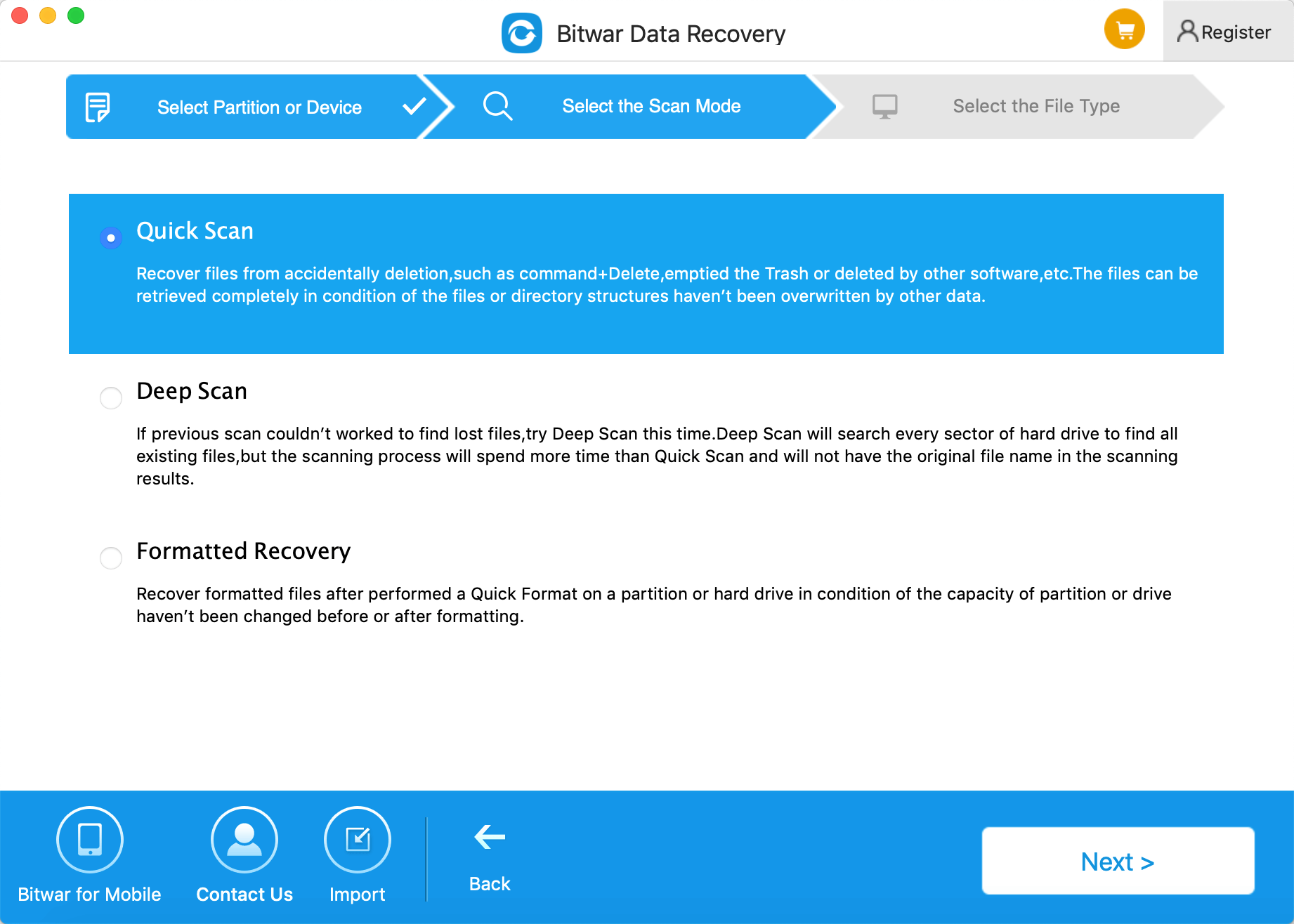
Step 2: Select the “Quick Scan” mode and click “Next.” If “Quick Scan” couldn’t scan out the lost data you want, try “Deep Scan” one more time. Deep Scan will search every sector of the hard drive to find all existing files, but it will cost more time than a quick scan and will not keep the original file name in the scanning results.

Select Scan Mode


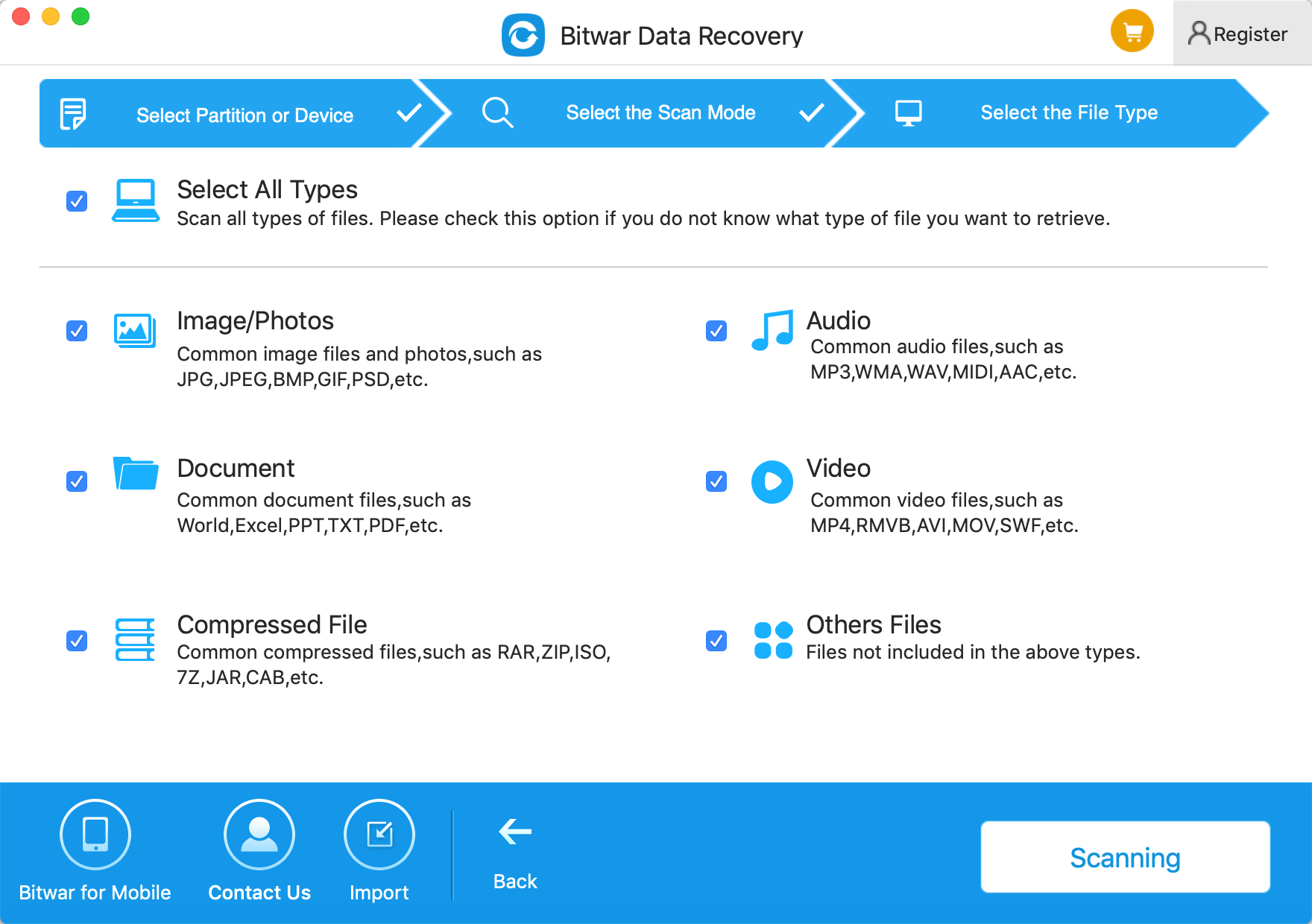
Step 3: Choose the file types which you want from the APFS disk and click “Next.”

Select File Type

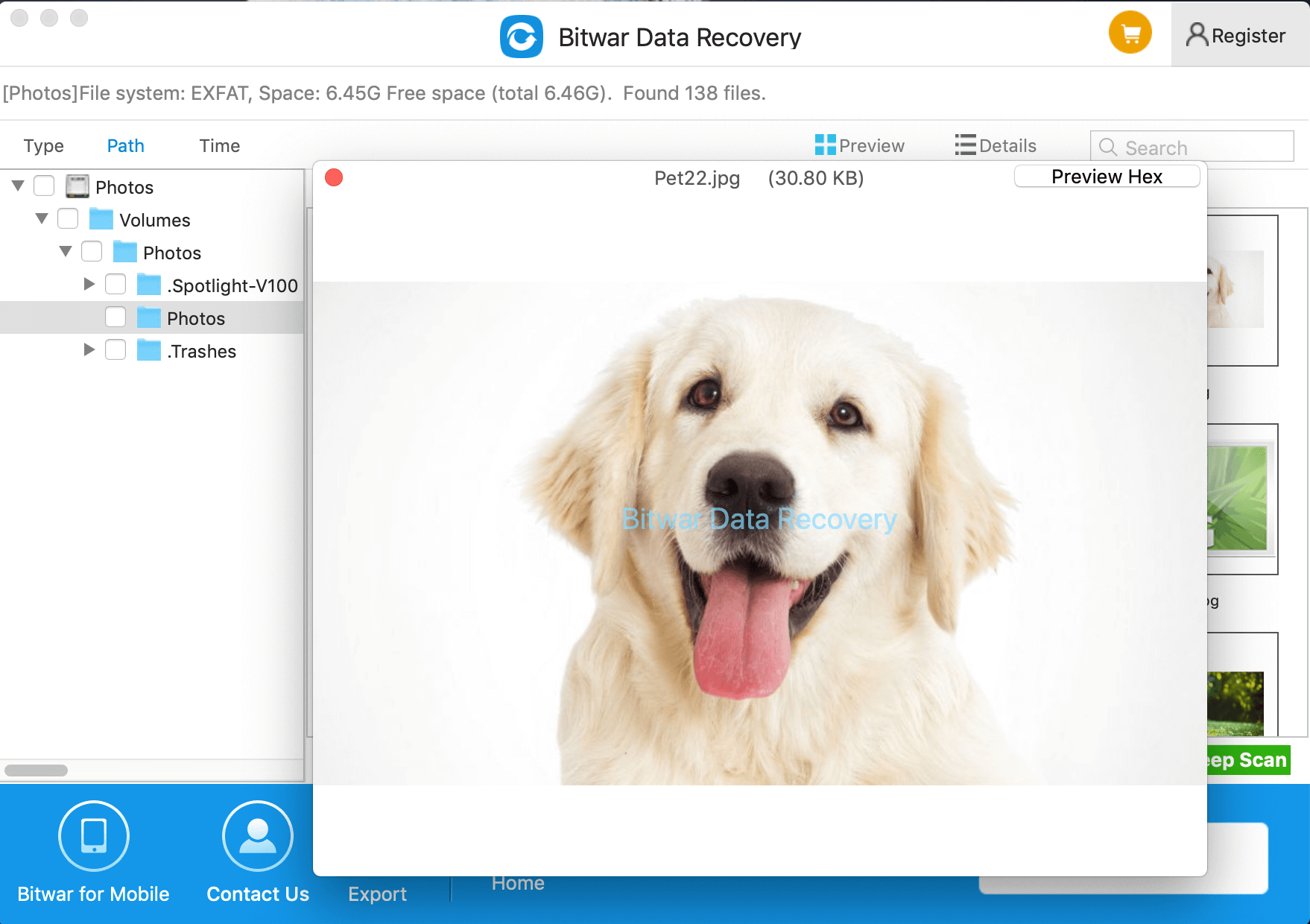
Step 4: After scanning, filter out the lost data by file name and Type. You can preview them to make a selection. After determined, select the files you want and press the recover button to have them saved to another partition of Mac.

Result

Let’s try!

Please refer here for more about Mac data recovery.
Edit your Old PDF Files for FREE!

If you get to receive or download PDF files from the Internet or other users in the future, follow this tutorial to edit or reuse the PDF files. Everything is easy and digital nowadays, especially PDF file format, which is one of the most common and used file formats in the computer world.

We will store old document files on our system for storage or backup for future use. There are files such as PDF, Word, Excel, PPT, and other formats. We can always edit and reuse all files except PDF files. There are more complicated than the other forms because we can’t edit it directly, and we can open it as a view file only.

One of the best solution to reuse and edit PDF files are converting them to Word format using a PDF editorPDF editor app, or PDF converter. Follow us below, and we will show you how to reuse your PDF files!

Thinking.jpg

Image by Karolina Grabowska from Pixabay

PDF Converter Software

First of all, please download the Deli PDF Converter Software and install it on your computer. It is one of the Best and Free PDF converter software for windows, and it supports Windows 10, 8, 7, Vista, and XP.

QQ%E6%88%AA%E5%9B%BE20191014145436.png

Step 2. Launch the software, and at the left corner of the software, choose PDF to Word. Then Add your PDF files into the software.

Add-WPS-File.png

Step 3. After adding the file, click Convert to start the conversion.

Convert-PDF-to-WPS.png

Follow the easy steps above, and you will successfully convert your PDF files to Word. You can open and preview the converted Word files in the file directory folder. If you are satisfied with the content result of the conversion, you can start editing the files and saved it into a new Word document.

Have a try!

Please refer here for more about PDF Converter.

System File Checker tool

Do you know what is SFC Command? I believe that many of you may be confused with the SFC Command, so in this article, we introduce the SFC Command and offers the ways to use it.

What is the SFC command?

SFC is short for System File Checker, and it is a Command Prompt command that can be used to verify and replace important Windows system files. Many troubleshooting steps advise the use of the SFC command. Technically, the SFC is the inbuilt command file that scans the entire file system and replaces the incorrect file version with the correct one.

System File Checker is a handy tool to use when you suspect issues with protected Windows files, like many DLL files. The SFC command is available from within the Command Prompt in most Windows operating systems including Windows 10, Windows 8, Windows 7, Windows Vista, Windows XP, and Windows 2000.

The basic form of SFC

Its basic form, “SFC options [=full file path]” is the syntax required to execute System File Checker options.

sfc [/scannow] [/verifyonly] [/scanfile=file] [/verifyfile=file] [/offbootdir=boot] [/offwindir=win] [/?]

While there are plenty of different things you can do with the command, SFC /scannow is the most common way that the SFC command is used.

Sfc /scannow will inspect all of the critical Windows files on your computer, including Windows DLL files. If System File Checker finds an issue with any of these protected files, it will replace it.

Note: The SFC command can only be run from the Command Prompt when opened as an administrator. The availability of SFC command switches may differ somewhat from the operating system to the operating system.

Run the System File Checker tool (SFC.exe)

If some Windows functions aren’t working or Windows crashes, use the System File Checker to scan Windows and restore your files.  To initiate the Windows file scan process using SFC, initially user has to look for Windows version being used. For Windows 10 or 8.1, the user has to click the Start button followed by the opening of the command prompt. For other Windows versions, the user has to search for command prompt in the Start button.

1. Open an elevated command prompt.
2. Type the following command, and then press Enter.
DISM.exe / Online / Cleanup-image / Restorehealth

Note: It may take several minutes for the command operation to be completed. When you run this command, DISM uses Windows Update to provide the files that are required to fix corruptions. However, if your Windows Update client is already broken, use a running Windows installation as the repair source, or use a Windows side-by-side folder from a network share or a removable media, such as the Windows DVD, as the source of the files. To do this, run the following command instead:

DISM.exe /Online /Cleanup-Image /RestoreHealth /Source:C:\RepairSource\Windows /LimitAccess

Note: Replace the C:\RepairSource\Windows placeholder with the location of your repair source.

3. At the command prompt, type the following command, and then press ENTER:

SFC /scannow

The SFC /scannow command will scan all protected system files, and replace corrupted files with a cached copy that is located in a compressed folder at C:\Windows\System32\dllcache.

Note: Do not close this Command Prompt window until the verification is 100% complete.

Let’s try!

Please refer here for more about SFC Command.

Recover Formatted SD Card

Have you ever formatted the SD card because of impulsiveness, and found that all precious files were gone? How to unformat the SD card and recover lost files from formatted SD card? Now follow this article to get back the lost files.

About SD Card Formatting

Before we study how to unformat SD card, let’s learn about formatting SD card first:

1. It is effortless to format an SD card either on PC or other digital devices. You can format it in Windows Explorer by right-clicking the drive and selecting Format option. Besides, there is usually a Format option on a digital device, which allows users to format SD card if necessary.

2. The formatting process deletes everything stored on the SD card. After formatting, you can save new data on the drive. Many users format memory card intentionally to free up space.

How to Format SD Card?

If you format SD card in Windows, you have two options: quick format and full format. The “Quick Format” option is selected by default.
 
A quick format of SD card writes boot sector and empty filesystem to a partition. Thus the memory card will be full of free space for new data. If you format an SD card in this way, files on the card are not completely erased until they get overwritten. That means you can unformat SD card and recover formatted data from SD card. But, a full format does extra action which wipes data permanently so that removed files can never be recovered.
 
The difference between the quick format and the full format is whether the volume can scan the bad sectors by using the “chkdsk ” command or not. But no matter which format option is used, the data will be lost.

Is it Possible to Unformat SD Card?

We know that a quick format doesn’t destroy data. And in most cases, the formatting done to SD card is the quick format. So we often say that formatting refers to quick formatting. To format a memory card does not really erase the data on it. The data is not immediately destroyed, and they still stay on the SD card, waiting to be overwritten by newly stored data. If the data area is not overwritten by the new content, you still have the opportunity to unformat the memory card.
 
So stop using the card immediately! That is absolutely the first step you should take. If you continue using the card to save newly taken pics, chances are the “free space” your original files took will be newly occupied. When that happens, you’ve lost them. Second, try any of the following ways to unformat SD card on Windows.
 
We recommend a data recovery freeware — Bitwar Data Recovery. It is an easy-to-use and risk-free data recovery utility that helps you to unformat SD card. It enables you to unformat almost all files from a formatted SD card, including photos, videos, audio files, and more. 

Steps to Unformat SD Card with Bitwar Data Recovery

First, insert the formatted SD card to your laptop or connect it via a card reader to the computer, so that it can be recognized by Windows. Then download and install Bitwar Data Recovery on the computer. Now you can follow steps below to unformat data.

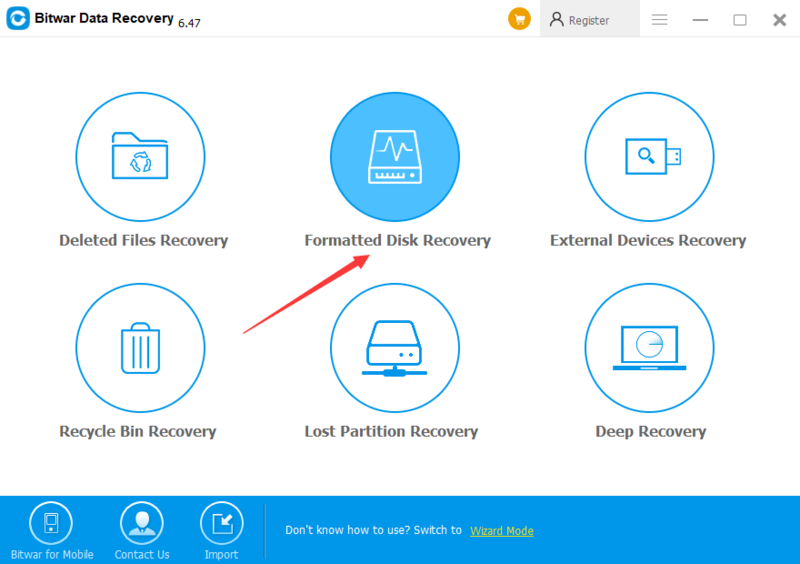
Step 1: Launch Bitwar Data Recovery, and select “Formatted Disk Recovery” option.

Bitwar provides 6 recovery modes. Among them “External Devices Recovery” can be used to recover lost data or deleted files from memory card/USB flash drive. And “Formatted Disk Recovery” can be used to recover data from formatted disk. Including hard drive, SD card, USB drive, digital camera, etc.

Why not have a try?

Please refer here for more about formatted SD card data recovery.
External Device Deleted Files Recovery

This article will take you through a couple of useful methods to recover deleted files due to “Windows Scan and Fix“, along with an additional solution that will work flawlessly to perform the Scan and Fix with Bitwar Data Recovery Software.

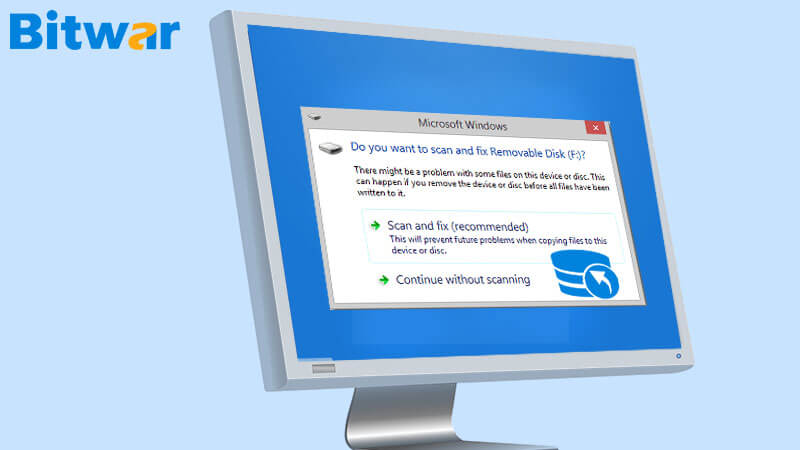
Windows is an incredible operating system that comes with a lot of functionalities, such as a friendly user interface, which includes an ability to fix specific types of files or disk errors automatically. At the same time, some users may come across a message that says, “Scan and Fix.

Windows Scan and Fix

This message from the windows prompt shows up when there is some problem with the external storage device such as the hard disk. After reading the message, most of the Windows users will select the “Scan and Fix” option as recommended by the Windows to get rid of the errors and issues with the storage device that you are using.

However, this option may lead to data loss in the external storage device. In fact there is no need to worry if this happens, as this article provides a variety of guided steps to retrieve deleted files from Windows Scan and Fix.

Overcome Windows Scan and Fix Delete File Issue

The best and easy solution to overcome this issue is to cancel the process of Windows Scan and Fix. After canceling the process, you may take steps to recover the lost data from the disk and then apply one of the solutions to fix the problem with the drive.

Follow the cases given below when the message “Scan and Fix” pop out:

Case 1: When you see the message to Scan and Fix the problem, choose the second option, which says, “Continue without scanning” to prevent data loss.

Case 2: In case the message displays to repair the disk, Cancel it.

After canceling the scan, go back and check is there any data is gone or not. Suppose that you have lost some important files, try to restore it by using the help of the professional data recovery tool such as Bitwar Data Recovery Software.

Deleted File Recovery Tool

Bitwar Data Recovery Software can get back any type of data such as audio, video, and images from any storage devices like hard drive, USB flash drive, and SD card. This recovery tool is designed base on the user’s feedback and suggestion to provide an ultimate recovery experience.

Additionally, it comes with a user-friendly interface that helps to retrieve deleted files or data in just a couple of easy steps and supports both Windows and Mac operating systems.

Follow the Steps Below to Retrieve Deleted Files from Windows Scan and Fix:

Step 1. Download the Latest Recovery Software according to the operating system.

Step 2Connect the external device to the computer.

Step 3Launch the recovery software and select the option USB/Memory Card Recovery.

Step 4Select the device and click on Next.

Step 5. Choose the File types and click on the Next button.

Step 6Preview all the selected data and click on Recover to begin the recovery process.

Useful Methods Worth a Try!

Useful Safe Scan Error Check for External Device

Perform a scan on an external device with the help of Windows Disk Management and Command Prompt.

Method 1: Activate Check from Disk Management

Step 1. Press Win + X and choose Disk Management. Then, and Search for the erroneous external drive.

Step 2Right-click on the disk that requires repairing and select the Properties option from the context menu.

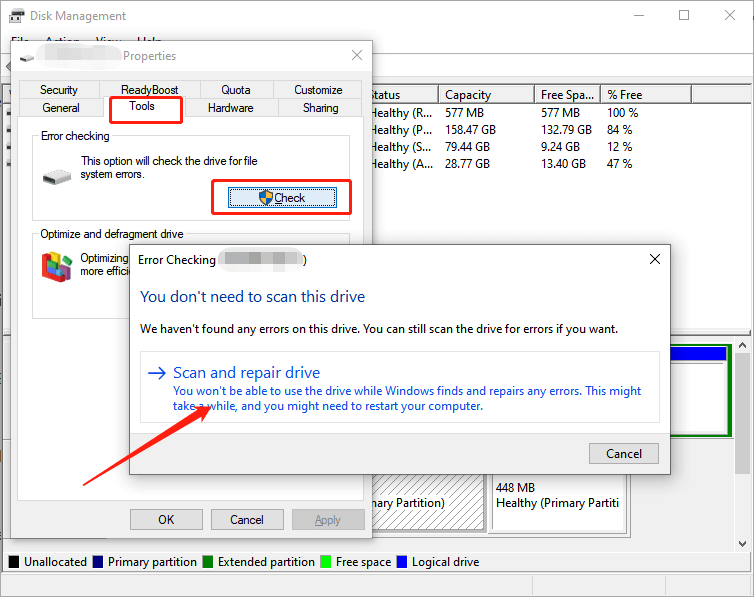
Step 3. Navigate to the Tools tab and select the Check button located under Error Checking.

Step 4. Choose the Scan and Repair Drive option that occurs in Error Checking Window.

Disk-Management.png

Step 5Wait for the repair process to complete, which is just be awhile.

Step 6. Finally, click on Close.

Please have a try!

Please refer here for more about data recovery.
Windows XP File Recovery

Data Recovery Windows XP

18 Mai 20200 commentaire

Want to recover lost or deleted data from your Windows XP system? Free download Windows XP Data Recovery Software to recover a deleted file, photo, video, etc. It’s one of the best full version data recovery freeware.

Windows XP is one of the most popular operating systems which has excellent performance, security, and reliability. Because of the large number of users, various kinds of problems on Windows XP operating system lead to unexpected data loss. How to recover lost data from the hard drive of Windows XP? Don’t worry, this article will offer you a Windows XP data recovery software which is a fast, reliable and powerful freeware.

Best Windows XP data recovery software

Bitwar Data Recovery supports to restore lost data due to deletion, formatting, virus attacking, system crash or other unknown reasons under Windows XP/7/8/10, etc. This Windows XP data recovery software also supports memory card recovery, flash drive recovery, pen drive recovery, external hard drive recovery, etc. Only 3 simple steps will help you restore all lost data from the hard drive.

Steps to Restore data from Window XP

First, Please stop using the partition where has lost data to avoid data overwrite.
 
Then, free download Bitwar Data Recovery from Bitwar official website: https://www.bitwar.net/ and then install on a different partition. Follow the steps to recover data after installation.

Step 1: Launch Bitwar Data Recovery

Launch the Bitwar Data Recovery program and select the partition where lost data and click next.

Step 2: Choose a scan mode

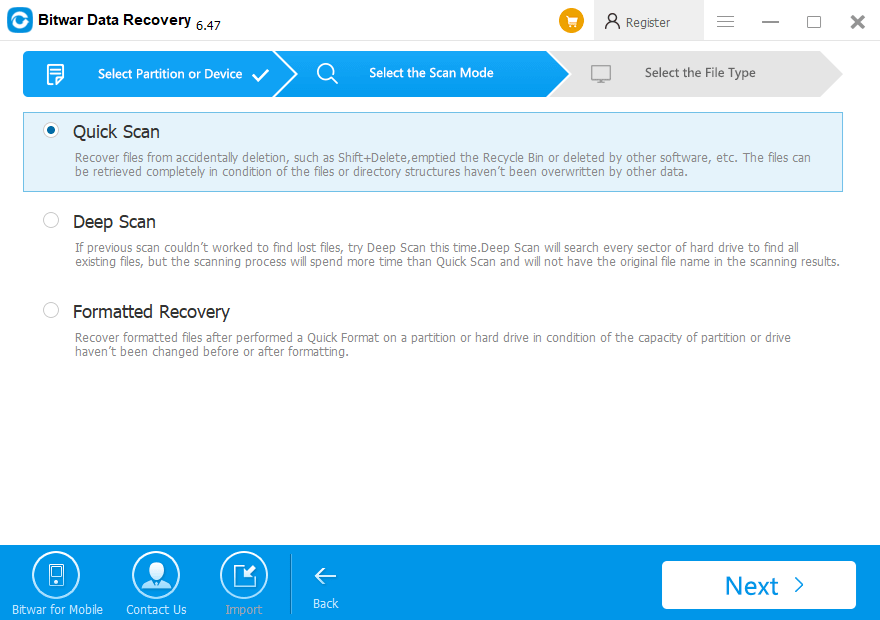
Select the scan mode based on the reason for the data loss and click Next.

  • Quick Scan: Select Quick Scan if you deleted data by shift +delete on the partition you selected or emptied from recycle bin. If files are not overridden by other data, files can be fully recovered.
  • Formatted Recovery: If the partition were formatted and the size of this partition will not be changed after the formatting, try Formatted Recovery.
  • Deep Scan: If files are not found under Quick Scan, try Deep Scan. The deep scan can find all the files with a detailed scanning algorithm, but will not display the file names and may take longer time.
scan  mode.png

Step 3: Select the file types

Select the file type you want or choose “Select All Types” and click on the Next button to start scanning. Bitwar data recovery software can recover all types of files, including photos, videos, audios, documents and so on.

Step 4: Retrieve Data from Hard Drive

After the scan, you can select all found files from the scan results and preview them separately. Bitwar Data Recovery supports previewing as many as 300 different file types. When you find the lost data, you should select them and click the Recover button. Then a window will pop up to ask you to select a path and location to save recovered data.
 
Don’t directly store the needed data in the original partition where data loss or the deleted data will be overwritten, causing data damage or data loss permanently. You can retrieve the lost file under the new path of the new partition.
 
Moreover, we can export all scanning results to a specified place after scanning in Bitwar Data Recovery, which makes it possible to load previous results without rescanning. BUT, please do not export results to the location where data loss appears, because it may overwrite lost data.

Let’s try!

Please refer here for more about Windows XP data recovery.
Windows Cannot Run Disk Checking on This Volume Because It Is Write Protected

In this article you will get to know how to fix Windows cannot Run Disk Checking on this Volume because it is Write Protected and how to back up your data with Bitwar Data Recovery before you have finished formatting the disk.

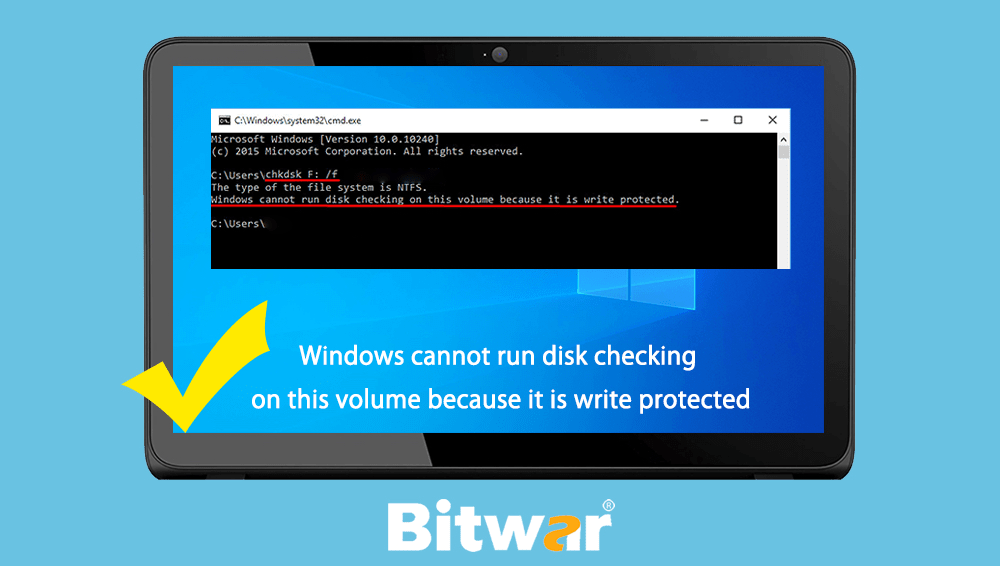
“Windows cannot run disk checking on this volume because it is write protected” is quite a common error among the Windows users. It generally appears if the drive or the partition is damaged or they are designated as “Read Only”.

Windows cannot run disk checking on this volume because it is write protected

Almost the majority of Windows users have faced such circumstances and the way out is “CHKDSK”. It is a Windows command-line utility, using it you will be able to look for the damaged sectors of your partitions and it also verifies the integrity of the system files on the drive. So, launching this utility may prompt an error which basically states that the drive is corrupted or write protected.

If the drive is really write protected then you won’t be able to change or edit anything. You won’t even be able to remove the said files. Basically, write protected means that the drive is designated as “Read Only”.

What Is the Cause of The Error?

Generally, most of the Windows users encounter this error every now and then. It is basically caused by;

  1. The write protection on your drive. If your drive is designated as “Read Only”, this error will naturally pop-up.
  2. Damaged drive. If the drive is damaged or corrupted, then it can cause the error to pop-up.

Here’s a few solutions to fix “Windows cannot run disk checking on this volume because it is write protected” issue.

Methods for Fixing the Error

  • Fix with CHKDSK in the Command Prompt

This is a very easy procedure and it has proved to be useful. Moreover, it is Microsoft Support that offers this approach, it’s certainly worth a try.

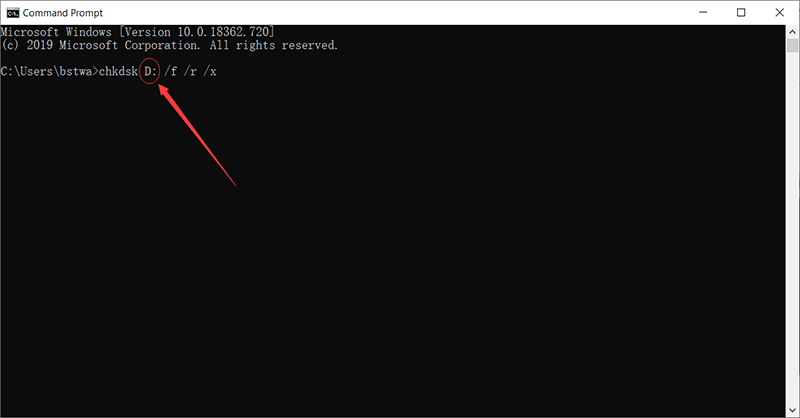
Step 1: Press Win + Q to search and launch the Elevated Command Prompt.

Step 2: After it has been opened up, you need to type in the following:

“chkdsk D: /f /r /x”

Fix with CHKDSK in the Command Prompt

Step 3: Here, “D” represents the faulty or damaged drive. So, you need to change it according to your drive.

/f parameter looks for your drive for any errors and it tries to fix them.

/r parameter scans your drive for bad sectors and fixes them.

/x parameter dismounts your drive. So, if your drive is in use, it won’t be any longer until the search is finished.

  • Use DiskPart

The DiskPart is also a utility command that you can use to make partitions on your drive. You can also use it to change the attributes of the drive which is what we are going to do here.

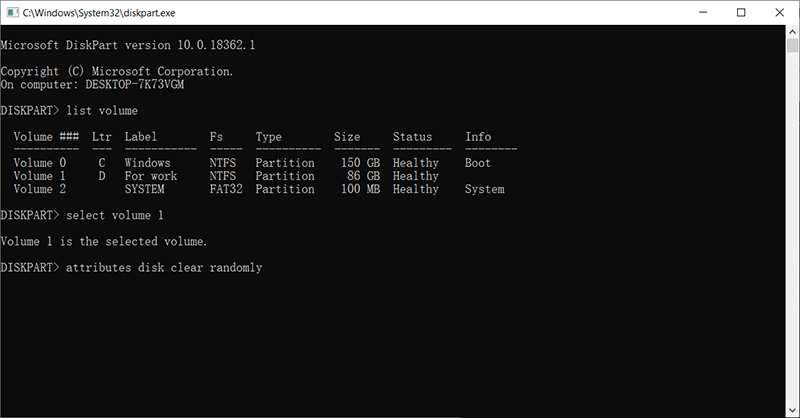
Step 1: Press Win + Q and type DiskPart to open it

Step 2: Run it. After the said utility opens up, you need to type the following

“List volume”

Step 3: After that, the window will list all the volumes of your hard drive. So, type

“select volume #”

Step 4: You will need to replace “#” with the drive alphabet.

Step 5: Finally, you need to type in the following words:

“attributes disk clear randomly”

Use DiskPart

After all these are done, you have to wait for the procedure to get finished.

Recover the Formatted Disk Data

You can simply fix the issue by formatting the drive in question. But it also means removal of all the files on that drive. As the partition is designated damaged or read only, you won’t even be able to copy or backup those files.

There are actually no natural way of doing it. Thus the urgent need for fixing the problem has resulted in a plethora of recovery tools.

There are a lot of programs with similar properties that are available on the Internet, which will make your quest for a good data recovery program a lot harder. But don’t worry we have taken the liberty and found out the best professional software for you.

The software is called Bitwar Data Recovery. It is a very effective and professional program with state-of-the-art technology that can even recover the formatted disk data.

Here’s how it operates:

Step 1: Download and install Bitwar Data Recovery according to your OS. Then launch it.

Let’s Try Now!

Please refer here for more about data recovery.
Design a site like this with WordPress.com
Get started