Tips to Prepare a Good Resume!

I think everyone has looked on the Internet for plenty of tutorials and guides to prepare a good resume for their work application. The reason for every worker to write a good resume is to get an opportunity for a job interview. Therefore, a good resume is essential for all the people in our working life. Before that, do you know what is a resume or things to include in a resume?

Don’t worry, the article below will show you some guidelines and skills to prepare a good resume!

What is a Resume?

First, you have to know what is a resume and the purpose of preparing a resume for job application. It is a document that includes all your necessary personal information, working experience, education level, achievement, and other extra details. Every job application in the world usually needs a work resume from the applicant to understand your background and work field experience.

A-resume.jpg

Photo by Lukas from Pexels

How Important is a Good Resume?

A resume is as important as your job interview. This is because a resume can symbolize a character trait of the applicant when the employer is reading your resume. For example, a nice and neat wording or layout resume can showcase your character trait of neat and tidy. Therefore, you should be always ready to prepare all the essential information you need to add in when you are writing your resume!

Tips to Prepare a Good Resume!

Tips-and-Tricks-2.jpg

Choosing the Right Resume Template!

Before you start preparing your resume, you have to choose the right design template or resume format for your job! With the right template, you can make yourself feel professional and experience in writing documents. Besides, you have to understand the industry or company before choosing the template because different industries or enterprises have a different type of resume format or templates.

A Piece of advice! You can prepare multiple types of resume templates for backup, so next time, for different industries, you will have all the materials needed for the job application.

Full and Summarized Content

When you are writing your resume, you have to make sure all the necessary information is clear and true. Besides, you must include all your working experiences or achievement in your resume. Don’t miss out on anything, lay it all out so the company can understand your potential and your experience.

Furthermore, summarize your content and use shorter sentences for your resume. Not many human resources or bosses want to read a resume with tons of words. They are only interested in keywords or experiences that are listed in your resume. So spend more time arranging your content than writing tons of words without the keyword.

Neat and Tidy Content with Word Choices

To write a good resume, you need to come with a good resume layout and text wording! Try to make sure your content is neat, and every spelling of the word is correct. Make your content or description clear and straightforward with good word choices.

Some keywords or content may catch the reader’s attention. With good and tidy content, your reader can read your resume with ease and may leave a good impression too!

Formating your Document before Sending

Most companies or employers require you to email them your resume or their official website. If you are using a job application app or page, then you are required to upload your resume for employers to search and look. So before you format or save your resume, you can write your resume on Microsoft Word.
Then, save it as PDF format, or if your resume is a different Microsoft format, you can convert them to PDF by using our PDF Software for FREE. PDF format files can protect your content and template. Moreover, you can encrypt a password to your PDF resume, so only the employer can access or read your resume.

It is Your time!

Please refer here for more about PDF Converter.
Free Download Data Recovery Software

The best & easy way to fight against any data loss is backup. Sometimes backup itself not enough to recover lost or deleted data because there is no backup of data or backup has not updated data. We understand data loss can happen with anyone at any time. When it comes to data safety, you can never be 100% sure that your data is protected and safe from any kind of loss or situation. There is always something unexpected that can happen. Considering all the scenarios in mind, I recommend you a powerful full version data recovery software i.e. Bitwar data recovery. You can downloadthis free trial data recovery software here.

Bitwar Data Recovery is a fast, reliable, powerful, and free trial Data Recovery software. This free data recovery software to recover lost or deleted data from different storage devices such as internal & external hard drives, pen drives, memory cards, etc.

When you got to know that you have lost your important data or unable to access your most used drive/partition where you saved all your priceless data then stop using that drive/partition immediately, and use Bitwar Data Recovery to recover your data as soon as quickly.
 
Step 1
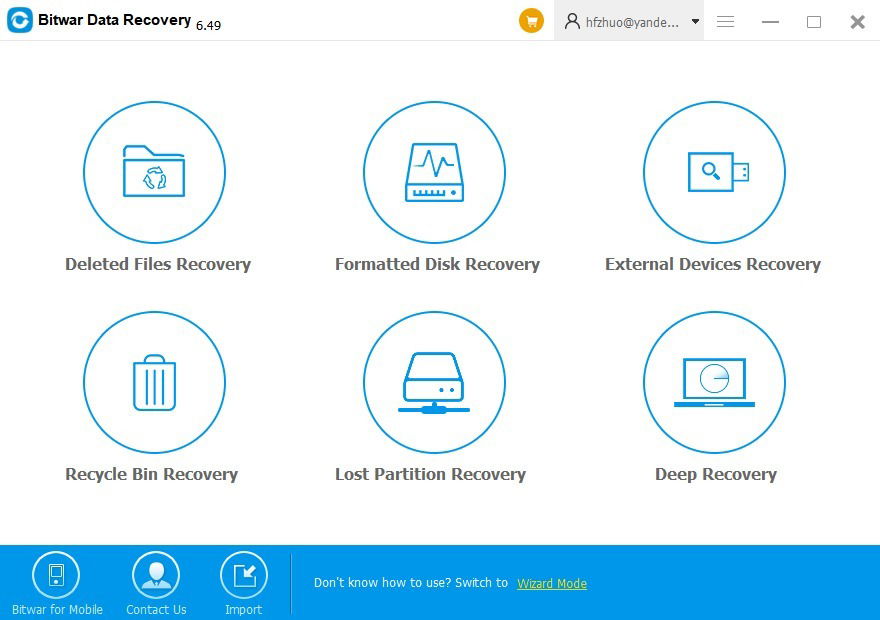
:launch Bitwar Data Recovery, Select recovery mode according to the actual situation.

        ●   Delete File Recovery: Disk data accidentally deleted files can be recovered from here.
        ●   Formatted Hard Drive Recovery: Mistakenly formatted disk, USB drive, removable hard drives and memory cards can be restored from here.
        ●   USB/Memory Card Recovery: Accidentally deleted files on the USB drive, removable hard drives, memory cards and camera card can be restored from here.
        ●   Recycle Bin Recovery: Recycle Bin emptied by mistake or Deleted files from Recycle Bin can be restored from here.
        ●   Lost Partition Recovery: Accidentally re-partition or Ghost installation system causes the partition lost, you can find lost partitions and files here.
        ●   Deep Recovery: Matching existing file structure in partition can find more files, but with no file name provided, scanning will take longer.

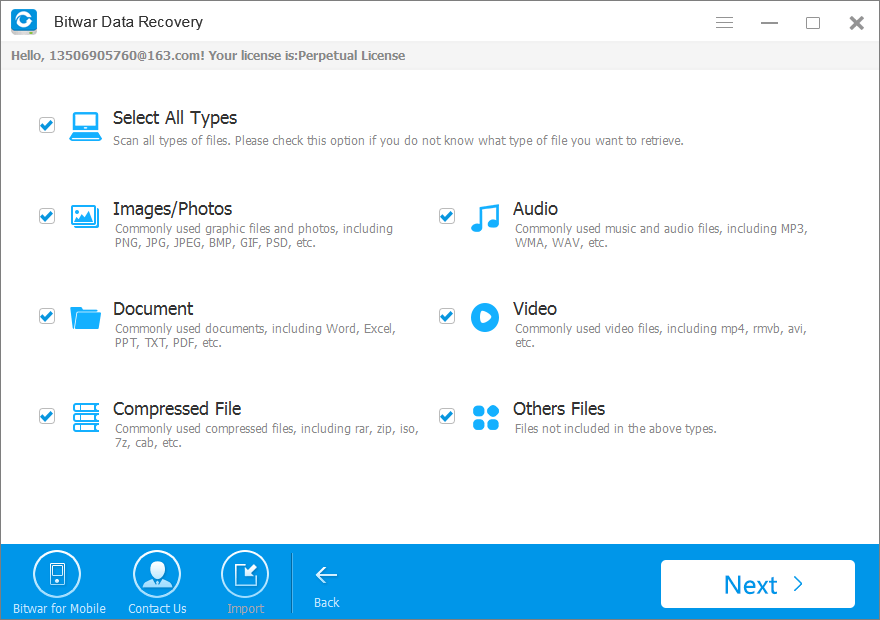
Step 2:Select The Partition/Drive you lost files and then select the file types to which the data you want to recover belongs, click on the “Next” button.

The Bitwar Data Recovery supports all file types: Pictures, Videos, Audio, Emails, Documents and Others Files.

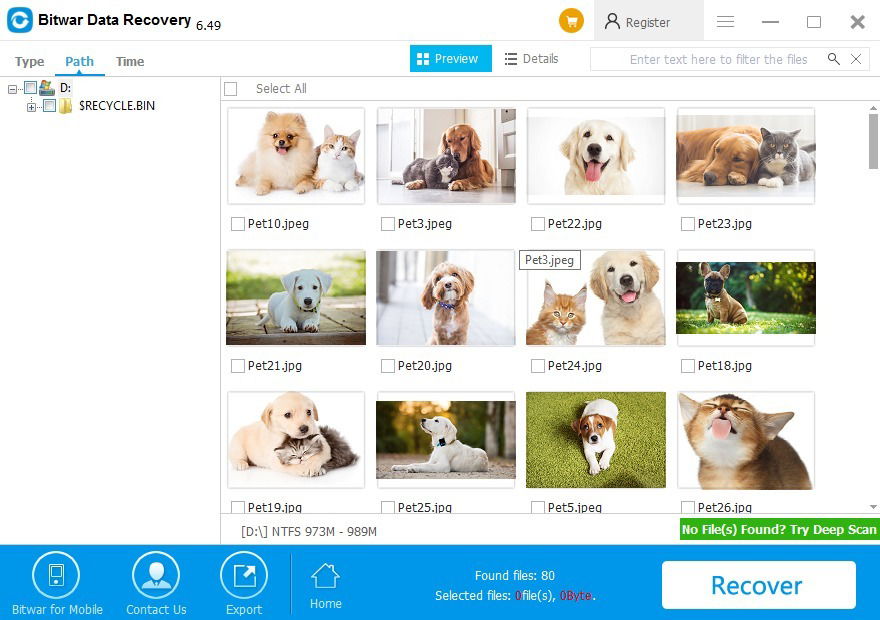
Step 3Bitwar Data Recovery will start to scan quickly. you will see all missing files that match the selection will be listed. After a scan, choose the data you want and you can make a selective recovery with Preview. Choose the data you want and click “Recover” to get them back. 

Free Recovery!

Please refer here for more about data recovery.

USB Device Malfunctioned and not Recognized

Today we will offer 7 fastest solutions to USB Device Malfunctioned and not Recognized error in Windows when you are trying to connect the USB device.

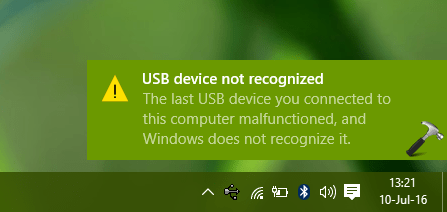
When you are trying to connect the USB device with the computer and willing to find some important documents you stored on the USB device, suddenly the Windows informs an error message: USB device not recognized. It means the last USB device malfunctioned and Windows does not recognize it.

7 Fastest Solutions to Fix the Last USB Device Malfunctioned Error


We found that many users had such errors on Windows 7/8/10 when they tried to connect the USB device with the computer.  USB does not show up on or not recognized means you cannot access the USB device at this moment.

Although this problem is quite the head-scratcher, it doesn’t mean we cannot fix it. The following are 7 fastest solutions that any Windows user can give a shot and try to get rid of the USB device malfunctioned and not recognized problems.

7 Fastest Solutions to Fix USB Device Malfunctioned and not Recognized Error

Solution 1. Remove and then plug the power supply to fix the USB device malfunctioned error.

Unplug the USB device from the Computer >> Turn off the computer >> Remove the power supply of the computer >> Plug the power supply back to the computer after 20-30 seconds >> Restart the computer >> Plug on the USB device again

Solution 2. Unplug the USB device and reconnect with a computer

Unplug the USB device from the computer >> clean the USB port of the device clamp the position of the USB port and flash chip inside the USB housing >> Reconnect the USB device with a computer

Solution 3. Configure the USB Root Hub 

Press WIN+X and then choose Device Manager >> Find the Universal Serial Bus controllers >> Right-click on USB Root Hub >> Properties >> Power Management >> Check to Allow this computer to turn off this device to save power >> Click Ok >> Plug the USB device again with the computer.

Solution 4. Disable and then enable the Generic USB hub

Press WIN+X and then choose Device Manager >> Find the Universal Serial Bus controllers >> Right-click on Generic USB hub >> Disable >> After that then click Enable >> Click Ok >> Plug the USB device again with the computer.

Solution 5. Update the USB device driver to fix the last USB device malfunctioned error

Press WIN+X and then choose Device Manager >> Find the Universal Serial Bus controllers >> Right-click on the USB device’s driver >> Update Driver Software >> After update >> Click Ok >> Plug the USB device again with the computer.

Solution 6. Uninstall the universal serial Bus controller then reinstall

Press WIN+X and then choose Device Manager >> Find the Universal Serial Bus controllers >> Right-click on the USB device’s driver >> Uninstall >> Reboot the computer>> Plug the USB device again with the computer >> The system will reinstall the driver for you and then fix the last USB device malfunctioned error

Solution 7. Disable USB selective suspend

Press WIN+X and then choose Power Option >> Change Plan setting >> Change advanced power setting >> USB settings >> USB selective suspend setting >> Disable On battery and Plugged in >> Save the settings >> Plug the USB device again with the computer

How to recover data from the USB device that has USB device malfunctioned and not Recognized error

We’ve shown you the 7 fastest solutions to fix USB device malfunctioned error, each one has been proved that is the effective method to fix the error. However, if the solutions didn’t work to help you, you’d need the third-party free data recovery software to retrieve data for you on the USB device.

Here we recommend the Bitwar Data Recovery Software. It’s the best free data recovery tool that supports recovering all types of files stored on the USB device, hard drive, external hard drive, etc.

You can free get Bitwar Data Recovery and then install it on the computer, launch the software when it’s ready. Then follow the below steps to recover data on the USB device.

4771031057?profile=RESIZE_710x

Let’s try it now!

Please refer here for more about USB data recovery.

Data Recovery Software Free Download

Do you think get Easeus Data Recovery pro crack with the latest key generator, serial key or license code is an excellent choice? Are you sure you want to take the risk of using data recovery software for pc free download full version?

There are many users complained about so-called data recovery software crack that only brings the computer virus attacks or Trojan infections, even cause the crucial data being overwritten, or wasting of precious time of finding the crack software.

If you know the data recovery principle, will you still try in this way to retrieve lost data you have?

The truth is when data was deleted from your hard disk, the main content of the data still exist in the drive, the operating system removes only the “Address” of the data, and that’s why you couldn’t see the data from the computer screen. Just if you would like to send new data to be stored in the disk, then the old data went permanently.

Hence, are you still insisting on using the Easeus Data Recovery Pro Crack or some other data recovery software crack might harm your data?

Why not try a free data recovery software that is a 100% virus-free and full functions version.

Stop downloading free Easeus Data Recovery pro crack with the latest key generator, serial key or license code for 12.8

None of us likes the feeling after accidentally deleted or formatted the precious documents, photos, video, and audio from the hard drive or SD card.

It’s even more hopeless that we don’t have an emergency backup plan. Most of you may search in Google and hope that find out data recovery tools that can help retrieve lost files, but they are not free or with function limits.

Easeus Data Recovery Wizard Professional is such a tool for data recovery that is same as other Windows & Mac data recovery software, but will Easeus Data Recovery pro crack going to save your time?

Things go contrary to your wishes.

Most of the users haven’t released that the so-called Easeus Data Recovery activation code or license key isn’t correct but only have to follow the instructions to share the pirate websites to social profiles over and over again. The result returns to nothing but less hope.

I want to suggest you stop doing this, as we have known the data recovery principle, then, the sooner you start recovering your data, the higher recovery rate you will get.

100% virus-free and safer alternative solution to Easeus Data Recovery Pro Crack

You may not overthink of the case we mentioned above and still ask for the Easeus Data Recovery pro crack, serial key or license code. However, you should know something before believing on the pirate websites: virus or Trojan infection, malware or adware embedded with the crack version, privacy data leak, system crash or file corruptions, etc.

Although, there are many anti-virus software can detect the unsecured software even before its installing. But with the upgrading of the virus, are you 100% sure all the data recovery software crack will be detected by anti-virus software, what if one of the crack software evades the detection?

Well, why not try to use a free data recovery software and stop using Easeus Data Recovery pro crack or purchasing the high price of copyrighted license code from Easeus?

The best free data recovery software that we would like to recommend to you is Bitwar Data Recovery, you can recover your precious documents, images/photos, video, audio and archive files without worrying about the virus, Trojan, backdoors, spyware or malware at all!

Bitwar Data Recovery
 is a 100% clean software that has read-only recovery technology, and with the latest recovery algorithm, it recovers your precious data safely and effectively.

How to Recover Lost Data with Free Bitwar Data Recovery?

Just follow three steps to recover lost data entirely and quickly.

Step One, select the partition or device where have your lost data and click Next.

Step Two, choose the scan mode, select the file type(s) and then hit Scan.

Step Three, preview the selected file(s) you need after the scan process finished and then click Recover.

pre_2020-06-25-13-12-13.png

Easy recovery!

Please refer here for more about Data Recovery Crack.

Convert Compatible File Format

Portable Document Format (PDF) is a digital document format that we regularly use in our computer. It is a more portable and safer document compared to other formats. We can edit and view PDF files with free PDF editor software in the office. Besides, you can merge or split PDF files with the additional pdf tools in the software like Deli PDF Software.

Compare to other document formats, PDF is a more reliable and accepted format in any office. Why is it more accessible or secure? We will share with you why PDF editor software is a must for most offices or companies in this digital era.

PDF-Editor-Software.jpg

Image by Free-Photos from Pixabay

Be Faster and Efficient

Without a doubt, in every organization or team, we always talk about efficiency and results. Every document or paperwork has its layout and design, which may take up a lot of your time by editing and scanning. Most of the time, organizing or editing words will consume your time and delay your working progress.

So all office users will convert all their finished paperwork to PDF through a PDF editor software for finalizing before sending it to other users. You can batch edit or convert your PDF files without editing files one at a time.

Compatible File Format

PDF files are very convenient and consistent compared to other formats. In the PDF world, you can open and view your PDF files without any specified version of PDF reader or Microsoft Offices. You can even open it with an internet browser on your computer. The layouts and content of the files will be kept the same.

You can send to other users, and they can automatically download and print it out from their computer. It doesn’t need the user to convert the PDF to word or other formats again to print or view the file.

Safe-and-Secure.jpg

Image by Gerd Altmann from Pixabay

Safe and Secure!

Companies or offices always have to deal with many types of essential documents, such as income statements, financial reports, personal information, contacts, etc. Therefore, for a more comfortable solution for safety, you can lock your text by just encrypting a PDF password to your document using Deli PDF software. Without any permission or known password, other users aren’t able to open the encrypted PDF document.

User-Friendly

Every office users never have extra time for any complicated software or tools. We always hope for an easy and direct component. Deli PDF Software is well designed with a beautiful interface and easy-use features for all users. You can convert your PDF files to Word, RTF, Text, Image, and more with just three simple steps. The software doesn’t require any professional editing skills, a simple one-click; that’s all you need to edit, convert, and configure your PDF files.

PDF Software For You

If you haven’t found any suitable PDF editor software yet for your office, try Deli PDF Converter! It is a powerful and professional PDF software you can find on the internet. Try it out for FREE!

Please refer here for more about PDF Converter.
Recover Data with Free Unformat SD Card

It is straightforward to format an SD card either on PC or on other digital devices. You can format any partition by right-clicking the partition drive letter and then choose the Format option. Besides, there is usually a Format option on the digital device, which allows users to format memory card if necessary. The formatting process turns the SD card to a new status, as it deletes everything stored on the memory card. After formatting, you can save new data on the drive. Many users format the memory card to free up space. But how to free format SD card? This article introduces free software to recover memory card.

Is It Possible to Recover Data with Free Unformat SD Card?

Sometimes, you impulsively formatted the memory card in order to clear the mess. However, you may find some precious family photos and videos are gone without backup. How to recover lost files from formatted memory card? Is it possible to recover photos or videos with a free unformat SD card?

The answer is YES. As long as the SD card hasn’t been overwritten by any new data, you can recover them via simple steps with Bitwar Data Recovery Software.

Bitwar Data Recovery is an easy-to-use and risk-free data recovery utility that enables you to unformat almost all files from a formatted memory card, including photos, videos, audio files, and more.

Steps to Free Unformat SD Card with Bitwar Data Recovery

First, insert the formatted SD card to your PC or connect it via a card reader. Then download and install Bitwar Data Recovery on the computer. Now you can follow steps below to unformat data.

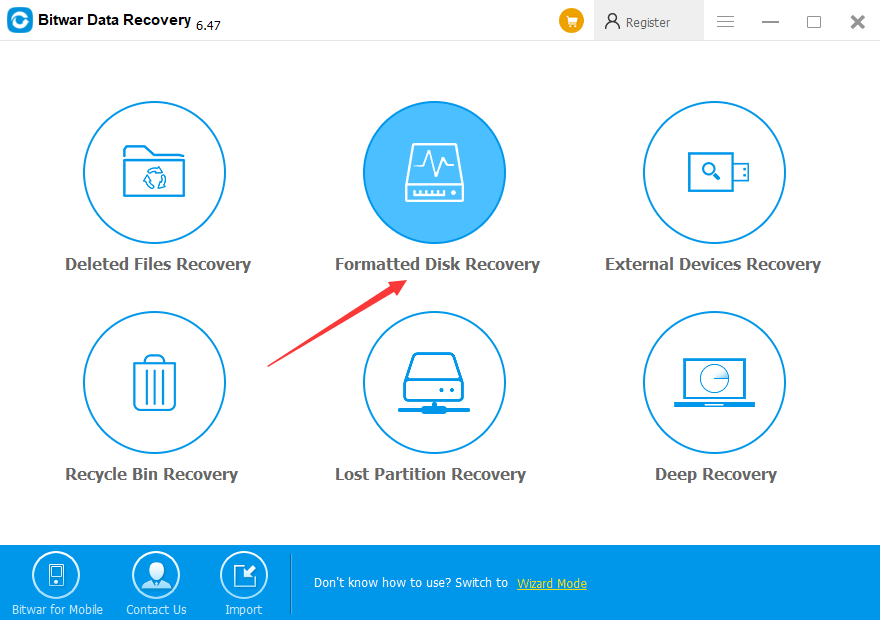
Step 1: Launch Bitwar Data Recovery, and select “Formatted Disk Recovery” option.

There are 6 recovery modes to be chosen from. “External Devices Recovery” can be used to recover lost data or deleted files from External Devices, such as SD Card, memory card, USB flash drive, etc. “Formatted Disk Recovery” can be used to recover data from formatted HDD, External HDD, SD Card, memory card, USB flash drive, digital camera, etc.

2dbf5581546cf77e55eb80b807770442_e33c4380fb9937acab970a4ed480bd1d.png?width=880

Step 2: Select the formatted SD card and click “Next.”

If you choose wrong partition/devices, the software cannot find out correct data for you.

We know that Bitwar Data Recovery supports all file types. However, I suggest you select all file types because you have formatted the whole SD card. On the other hand, if you only need to get back some types like photos or videos, or document files, please select them before clicking “Scan.”

Step 3: Preview and recover files, and then Unformat SD Card.

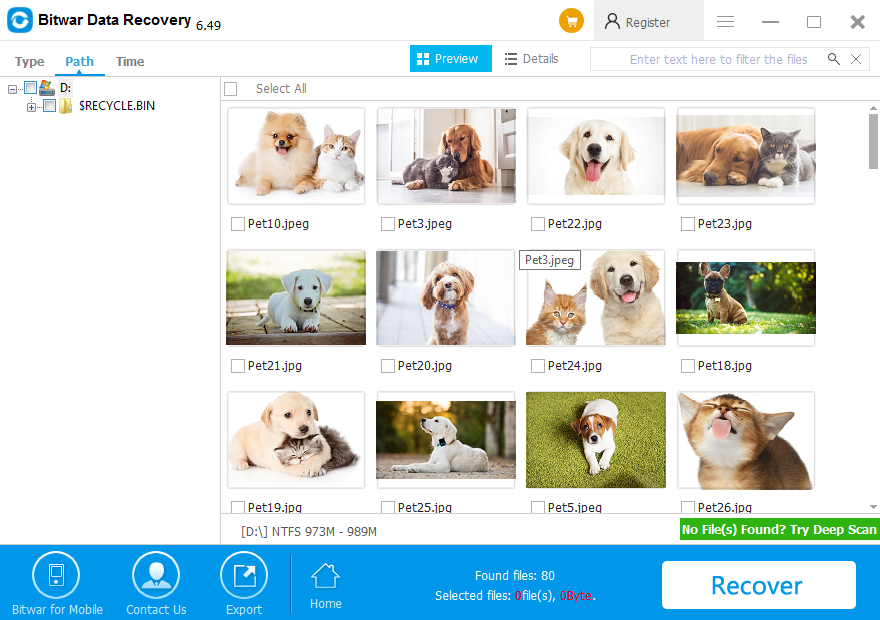
After the scan is over, you can locate files you want by Type, Path or Time and you can preview the thumbnail of the data by clicking them.

To get files recovered, you should select files and click “Recover” button. Then a window will pop up to ask you to choose a path and location to save data. Don’t directly store needed data in the original partition (formatted SD Card) where the data was lost. Otherwise, the deleted data will be overwritten, resulting in permanent data damage or data loss.

b1999ae710b6dbd5a631fea2fdd58aae_d1d90f3e1adbf75f467e2b05f77dcfc4.png?width=880

Try it out!

Please refer here for more about SD Card data recovery.

Memory Card Recovery is Easy!

This article offers a safe and free online SD card recovery tool to get back the lost files you need.

1. Why We Need Memory Card Recovery Online?

Memory card becomes the most useful storage media among people due to its slim design, large capacity and fast access time. Therefore, we can see the memory card (E.g. SD card) is always equipped into a cell phone, digital camera, digital camcorder, etc.

Memory Card Recovery Online – Free online SD card recovery - SD card

If you have found the data loss on SD card, you may try your best to find a data recovery service, such as memory card recovery online for free, the starting point to seek free online SD card recovery service is because of people think it’s fast and there’s no need to install the software.

Unfortunately, there have no memory card recovery online services for SD card due to the browsers have no authority to read the device from your computer without software. Alternatively, you should download free SD card recovery software online to restore lost data.

 2. The Best Alternative to Memory Card Recovery Online.

Although we couldn’t find the memory card recovery online service to save our lost data, a free SD card recovery software is another best option for us.

How to confirm the software is the best SD card recovery software?

1) Does the software recognize all types of the memory card?
2) Does the software support to recover all file types from memory card?
3) Is it 100% clean software that contains no virus, Trojan, backdoor, spyware, malware, etc.
4) Is the software compatible with all windows, Mac, iOS, and Android?
5) Does the software offer an easy recovery interface? Which means does everyone can use the software without tech skills?
6) Is it a free trial memory card recovery software?
7) Can the software recover lost data fast and completely?
8) Can the software recover lost data with original file folder structure?

With the above standards, you can find the best SD card recovery software for sure. Here’s the best alternative to Memory Card Recovery Online for your reference:

Bitwar Data Recovery, a powerful SD card recovery software, which supports all windows operating systems ,the latest Mac OS, iOS and Android OS, easy 3 steps to recover any file type of the images/photos, video, audio, compressed file, docs from all memory cards or hard drives, digital cameras, digital camcorders, etc.

3980239137?profile=RESIZE_710x

With Bitwar Data Recovery, you can recover lost data easily and quickly from SD card with original file folder structure, nevertheless, the software can check the data with the powerful preview function.

It’s a 100% clean software that granted by Softpedia, you may have the interest to read more: https://www.bitwar.net/howto/windows/128.html.

You can download Bitwar Data Recovery for SD card recovery instead of memory card recovery online.

3. Steps of SD Card Recovery.

Step One

Launch Bitwar Data Recovery and select the SD card, click “Next” or you can also change to standard mode and select “External Drives Recovery”.

5991685076?profile=RESIZE_710x

Let’s try it now!

Please refer here for more about SD Card recovery.

Free Online PDF Editor Offered Here!

We all know that online PDF editor on the internet is free and faster. They can convert or edit your PDF files fast and without any technical skills too. While some users will look for an expensive high-quality professional PDF editor to perform faster work and better performances.

What if there is a professional PDF software in which the price is less than 10USD a year? What if your PDF Files are important and confidential? Is it really that Deli PDF Converter is more worthy over other online PDF editors?

Continue with the article below and you can find out more why users choose Deli PDF Converter over Online PDF Editor.

Why-Deli-PDF.jpg

1. Easy Account Set-up

Deli PDF Converter provides multiples of ways for users to create an account for FREE. You can log in to the software by using Facebook, Twitter, Google+, or your Email address. By logging in to your account, you can enjoy the privilege of the software for an unlimited expiry date. If you tend to forget your login details, don’t worry you can retrieve your account or license back easily with our backstage support team.

2. Variety of Format Conversion

The software supports multiple types of formats for conversion. You can convert your PDF to DOC, DOCX, RTF, WPS, Image, TXT, HTML, FLASH, and CBZ. Besides, you also can do it vice versa by converting Microsoft Office files or images to PDF format. Batch converting is also available in the software. It allows you to save more time and be more efficient with your files conversion.

As the software keeps on improving and evolving, more and more formats will be supported in the software as Deli PDF Converter is always updating and upgrading to be better and better.

3. Additional PDF Tools

PDF-tools.jpg

Image by free stock photos from www.picjumbo.com from Pixabay

Most PDF Converter software doesn’t have PDF tools because of limited performance or technical features. While some PDF editor software doesn’t support format converting. With a perfect mixture, Deli PDF Converter provides most of the basic PDF tools such as encrypting/ decrypting PDF filessplitting PDFmerging PDF and compressing PDF.

Therefore, PDF Converter is more compatible and welcomed by users because of the mixture of supporting format converting and PDF tools.

4. Premium and Excellent Supporting Team

Whenever Deli PDF users encounter any problems or issues when using the software, they can always contact our 24-hours customer support for help. We have a very professional and high-technical team to solve any difficulties or problems regarding your PDF files or software issues. We have a remote assistance system that can connect directly to you, to help you solve your problem faster and efficient!

5. Quality and Affordable License Package

Price.jpg

Image by Goumbik from Pixabay

If you are a company with hundreds of workers, Deli PDF Converter provides you with a very affordable package, we have a free package up to 5 pages each conversion or editing, an annual package which costs 9USD with unlimited file size and pages during conversion, and a lifetime package with only 29USD with unlimited file sizes and pages too.

The price of the software is very reasonable and affordable for all users to buy and use. With all the PDF tools and features provided in the software, it is a very worthy and reasonable price for users and business companies!

Now you can have a try!

Please refer here for more about Deli PDF Converter.

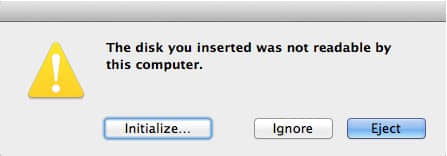
“The Disk You Inserted was Not Readable by This Computer” on Mac

The disk you inserted was not readable by this computer” error message generally occurs when you access an external hard drive on Mac. But don’t worry. This page offers 6 easy and efficient methods to fix the error. Download Bitwar Data Recovery for Mac to help if necessary.

When you get the message “The disk you inserted was not readable by this computer”, you will be unable to access the data in th2 drive. Actually, “the disk you inserted was not readable by this computer” is one of the most common errors that Mac users have met. Many reasons can cause such the error, including virus infection, file corruption, internal file system errors, faulty connections, Mac malfunctions, upgrading Mac OS, as well as drive corruption. But don’t panic, just follow the instructions below to fix the problem.

6 Solutions to Fix "The Disk You Inserted was Not Readable by This Computer"

Solutions to fix “The Disk You Inserted Was Not Readable by This Computer” on Mac

Solution 1. Check the Mac computer

Just connect a different storage device to Mac, if you can see it in Finder, the problem may refer to the external device. So try re-connecting the external device to Mac. Just remove it safely from Mac and then re-plug it. Then, attempt to access it to see if the error persists. If this error still pops up, you could move on to try other ways.

Solution 2. Check the file system format

Check the detailed information of the external device. If it is the file system that Mac isn’t compatible with, you can understand why it is unreadable on High Sierra. In this situation, to fix “disk is unreadable” error, you can change its file system.
 
After the above some basic checks, if error “the disk you inserted was not readable by this computer” still occurs, you should recover the data from the error disk first. Because the solutions next will delete or overwrite the data on the disk,

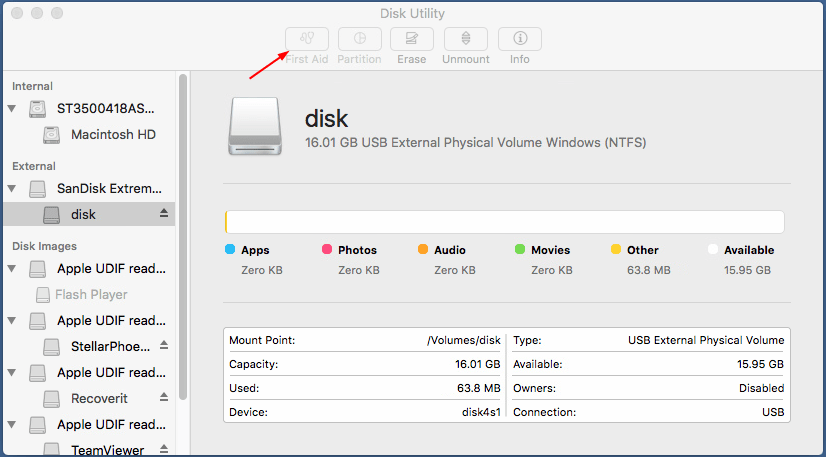
Solution 3. Repair unreadable external device in Disk utility

You can use the Disk Utility built-in Mac to do a disk repair. Disk Utility allows you to format, manage and repair the disk. It’s helpful for you to fix many drive issues including the “The disk you inserted was not readable by this computer” error.
 
Disk Utility’s “First Aid” is a Mac built-in tool to verify and repair certain disk problems.
 
Step 1: Launch Disk Utility.
Step 2: Select the unreadable drive on the left side.
Step 3: Select the “First Aid” tab.

6 Solutions to Fix "The Disk You Inserted was Not Readable by This Computer"


Step 4: Click Repair Disk at the bottom of the screen.

Step 5: After repairing finishes, check to see if Mac reads your external drive.

If Disk Utility reports that the disk appears to be OK or has been repaired, you’re done.

Solution 4. Change the drive format

The problem could occur if the drive’s format is NTFS. NTFS is not officially supported by Mac. If your drive is NTFS-formatted, you’re able to read the drive but not able to write to the drive. And you may get “The disk you inserted was not readable by this computer” error when you insert the drive to your Mac. To fix the problem, you can try to change the drive format to exFAT supported by OS X and Windows.
 
IMPORTANT: Changing the format of the drive will erase all data on the drive. Before you begin to change the format, back up the files and recover all the data you want from the drive.

Solution 5: Initialize the unreadable external device

If the error still exists, you have no choice but choose the Initialize button. But keep in mind that you will lose all your data on this disk. If you care about files on the disk, you should perform data recovery at first.

Solution 6: Format the disk and restore data

File corruption can cause “The disk you inserted was not readable by this computer” error. And file corruption can be caused by a virus infection, a force restart, turning the computer off without doing a proper shutdown, etc. To fix file corruption error, you can recover the data, then perform a format.

Recover data from the unreadable external drive

You need to recover important data from unreadable external drive if you’re not sure what third-party data recovery program you can trust, you can do it with Bitwar Data Recovery for Mac. It is a reliable & easy-to-use data recovery software that can recover data from unreadable external hard drive, hard drive, USB flash drive, SD card, memory card, digital camera on Mac OS. To recover the corrupted files, you just need a few clicks:

Install the Bitwar Data Recovery for Mac

Free download Bitwar Data Recovery for Mac, then install it on your Mac OS. This software is compatible with OS X 10.11 and later.

3518588581?profile=RESIZE_710x

 
Tips: For the latest macOS 10.13 (High Sierra) system requirements, Mac users are not allowed access to system disk from apps. If you want to recover data from the system disk, please disable the system feature “System Integrity Protection (SIP)”, and see the guide on How to Disable System Integrity Protection (SIP) in macOS High Sierra (macOS 10.13)

Let’s try it now!

Please refer here for more about Mac data recovery.

“Chkdsk Cannot Continue In Read-Only Mode” Error on Windows

This article will walk you through some of the best ways to resolve the “CHKDSK cannot continue in read-only mode” issue and recover all the vital data using the powerful data recovery software – Bitwar Data Recovery Software!

There are several errors which computer users may encounter while performing day to day operations on their PC. These errors not only hamper the work tasks but also consuming their time and effort. In this article, we will discuss one of the common mistakes, “CHKDSK cannot continue in read-only mode” and discuss the effective possible solutions to solve the error.

Fix Command Prompt

CHKDSK on Windows works to help users to fix the issues that are related to file system, disk partitions, and storage in the PC system. However, at times, during the scanning of operating systems or any external storage media, CHKDSK may end up giving some errors and issues, one of these errors is “CHKDSK cannot continue in read-only mode.”

Main Reasons for Error

Most users and technician shares that most of the possible reasons that cause the “CHKDSK cannot continue in read-only mode” error to happen can be as stated below:

  1. Viruses and malware in the disk.
  2. The disk is composed of a read-only file system.
  3. Corrupted or missing system files.
  4. When the disk cannot be written or edited, or the target hard drive is read-only.
  5. When any other process or program is using the target drive.
  6. A corrupted hard drive.

Before we directly jump to the practical solutions to fix “CHKDSK cannot continue in read-only mode” error, it is essential to recover all the vital data to prevent any data loss by using the high quality and trusted data recovery software.

Recovery Tool

Bitwar data recovery software is our choice to restore any kind of software data like images, audio, video, and pdf, etc. from any type of storage device such as hard disk, flash drive, and memory card, etc.

Follow the tutorials below to retrieve data using Bitwar Data Recovery Software when “CHKDSK cannot continue in read-only mode” error is encountered:

Step 1. Download Biwar Data Recovery Software according to the software system.

Step 2. Launch the recovery software and click on the Select Partition or Device. Then, click Next.

Step 3. Choose the Quick Scan mode to restore files from the drive. If you are unable to find the data by using the Quick Scan, then try to use the Deep Scan mode.

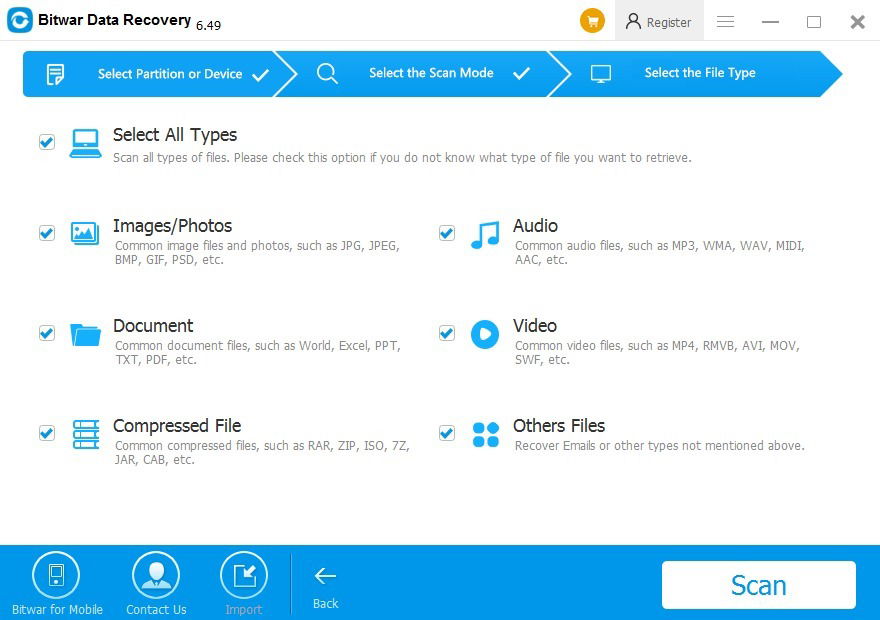
Step 4. Select all the File type and click on the Next button.

File-Type.png

Step 5. Lastly, Preview the file you want to recover and click on the Recover button to start the recovery process.

Important Note: Please save the recovered data on a new file location instead of the old location to prevent DATA OVERWRITTEN.

How to Fix “CHKDSK cannot Continue in Read-only Mode” Error on Windows

Solution 1: Schedule CHKDSK on Reboot Mode

Step 1. Launch the Search menu by pressing the Wins + key and type in Command Prompt.

Step 2. Choose the Command Prompt (Admin) option from the search menu window.

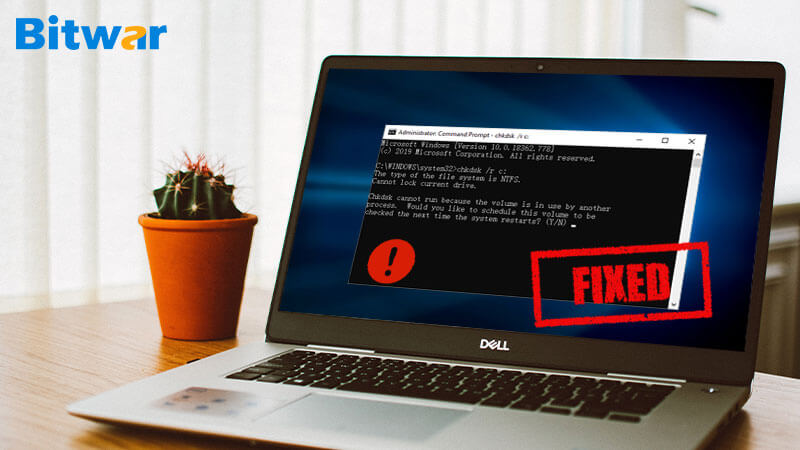
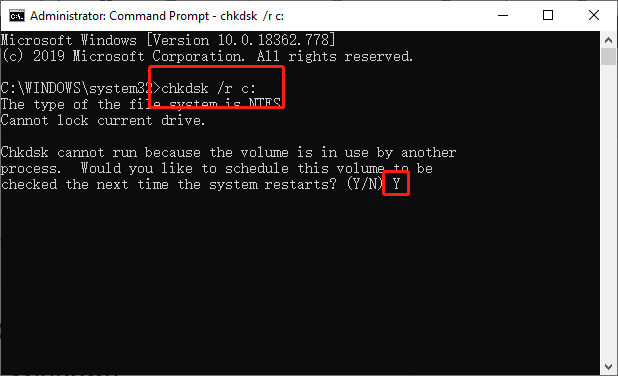
Step 3. In the command prompt, input the command chkdsk /r c: and press on the Enter button to execute. Here, replace c with the drive letter on the PC.

Step 4. After this, click on Y when you are being asked, “Would you like to schedule this volume to be checked the next time the system restarts?”.

Command-Prompt-Reboot.png

Step 5. After restarting the system, CHKDSK will get launched automatically to check and repair any disk errors.

This solution should solve the CHKDSK error, in case it is not solving the issue, try with the fixes below to fix it.

Fix it Now!

Please refer here for more about Chkdsk Cannot Continue In Read-Only Mode Error.

Design a site like this with WordPress.com
Get started