PDF Format eBook

Right now as we are living in the age of electronic and digital, more and more electronic products are invented such as eTickets, eBanking, eWallet, eCard, eCigarette, and so on. All these fabulous electronic inventions are created because of the Internet. Therefore, when it comes to reading, eBook is created.

It has been revolutionized from the paper book and now it is in the form of an electronic book. From the wording, we can assume we know what is an eBook already, but there is more than just an electronic book. So we will show more about ‘What exactly is an eBook‘ in the article below!
What is eBook

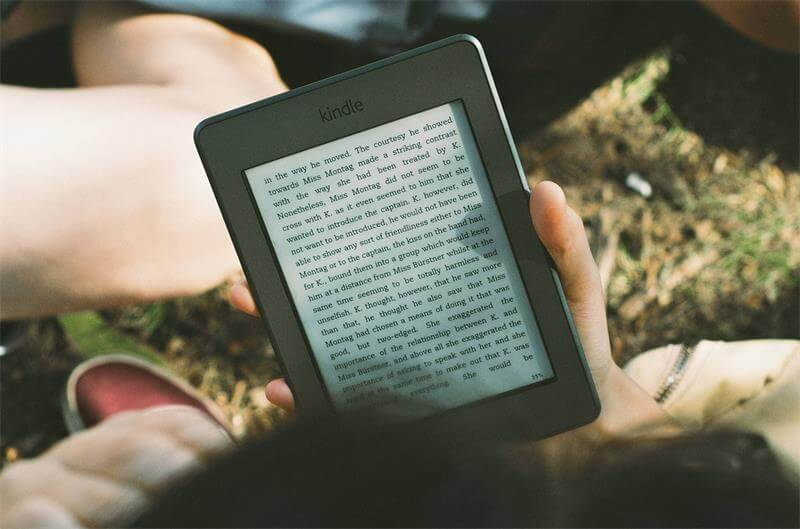
Image by Free-Photos from Pixabay

What is an eBook?

To put it easy and straight forward, it is a book transformed into a digital form where it is displayed on an electronic screen. You can view and open the ebook on your computer and smartphone devices. The most crucial part is that eBook uneditable because the reflowable electronic book is in a digital format where you can view it on your computer or smartphone devices.

Some Characteristics of eBook

Some features that you can define the digital format you are reading is an eBook on your devices. Therefore, we will show some unusual characteristics of the eBook!

eBooks Are Not Editable

One specific component of an eBook is the text content of the book is not editable. One of the main reasons why it is converted into eBook format is ensuring it is uneditable. This is to protect the copyright of the particular book where thousands of people can access it without the author’s permission. Therefore, to qualify a digital reading book as an eBook, one must not be editable.

eBooks Content is Reflowable (except it isn’t)

The other important characteristic is an original eBook should be reflowable. Reflowable means that the text of the ebook is always fit to your screen no matter what device you are using or the size of the screen. The document will remain in the same format and fit perfectly with your screen.

But there is one exception for this trait is PDF format ebook. Even though users can’t edit PDF, but they are found to be not reflowable. Therefore, not many qualify PDf as an eBook according to the characteristic of it. Still, because of many businesses taking advantage of the compatibility of PDF, in the end, PDF has become the Unofficial eBooks in the industry.

Document File

What are the eBook Formats?

When you are trying to search for eBook formats on the Internet, you may come across with a few results. However, there are only a few formats that are widely distributed because of ease and compatibility. These formats are EBUP, PDF, and AZW.

EPUB Format (.epub)

EPUB stands for electronic publication. It is the most used and supported format on the Internet. There are reflowable which makes eReaders read with better performance and more relax. EPUB also is supported by a lot of devices including PCs, smartphones, Tablets, Moving Screens, and others.

AZW Files (.azw)

Amazon develops a format called AZW files. These files are more functional where it can store more complex content such as highlights, notes, bookmarks, scratches, etc. Unfortunately, AZW files are limited to Kindles or accessed through the Amazon online bookstore.

PDF Format (.pdf)

As for PDF, it is known as a portable document format, which as we explained earlier, is not a true eBook, but it is still the most preferred format by most users.  Even though it is the most preferred format, but for some small categories can have a different opinion.

This is because the format is not reflowable which makes users with the smaller screen are having difficulties in reading. But generally, PDF format is still one of the best-used eBook formats, especially publishers and markets.

benefit

Benefits of eBook

Many can ask, what are the benefits of eBook production? We list some of the essential benefits that eBook brought to us:

1) Save Space and Money

Without a doubt, by using an eBook, you can save up a lot of storage and desk for yourself. Fewer books with more storage space! Besides, with everything is electronic, there will be a reduction in the manufacturing and shipping industry. This makes eBooks to cost cheaper than the original paperback books.

2) Save the World Environment

As we stated with the reduction of manufacturing, we will save up more tress from paper production. This is approximately millions of trees every year!

3) Portable and Convenient

With everything is on the Internet, we don’t have to carry around a big book by our side whenever we need to read a book. We can open up on our devices by reading through any application on which supports eBooks. As for PDF format eBook, you can always edit and view by any free PDF editor software on the Internet.

4) Save Time

Say goodbye to book store since eBooks are online on the Internet for everyone! We can download the eBook immediately after purchase on our devices. This can save up a lot of time by going to the bookstore or even order a book from other cities and wait for the shipping time to deliver the book.

In a Nutshell

Internet in this era has undoubtedly revolutionized everything even in readings as eBooks will continue to develop to ease readers and markets. How far the eBooks can be transformed is still be unknown for us. But with the benefits and technology we had right now, let’s maximize the use of eBooks in our daily life!

You May Like…

Please refer here for more about PDF Converter.
Recover Data from Lost Hard Disk Drive Partition

Hard disk partition gets lost? How to get the data back? This article offers you the best partition recovery software to restore your data from lost partition under Windows 10/8/7 etc.

There are several partitions on the hard disk drive, as well as an external hard drive. Partitions are necessary when operating the computer and saving data on them.

However, data on partitions may be lost or unrecognized when we operate the computer for error deletion. What should you do when faced with such problems? Is it possible to restore the lost partition and data? Bitwar Data Recovery will help you.

What causes Hard Drive Partition Loss?

1. Improper or Accidental Partition deletion

2. Partition table loss or corrupted

3. Virus Attack or Trojan Infection

4. Bad Sectors on Hard Drive

5. Illogical System Shutdown

6. OS or File system corruption

7. Run CHKDSK after the Disk Defragmentation

8. Partition Resizing Procedure Accidentally Stopped

When the hard disk drive partition is lost, do not create new partitions on the unallocated space and overwrite new data to this partition. Otherwise, the hard disk will be overwritten and will be harder to recover.

How to restore data from lost partition?

Step 1: Download Bitwar Data Recovery Software.

Free download Bitwar Data Recovery on the official website: https://www.bitwar.net/. Both Windows Version and Mac Version are provided.

Bitwar Data Recovery

Step 2: Perform Bitwar Data Recovery Software.

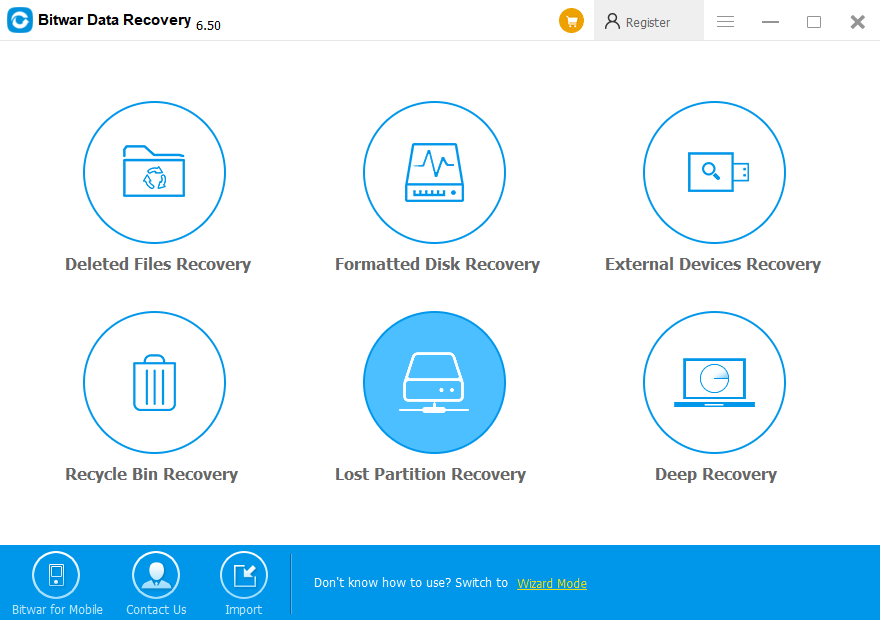
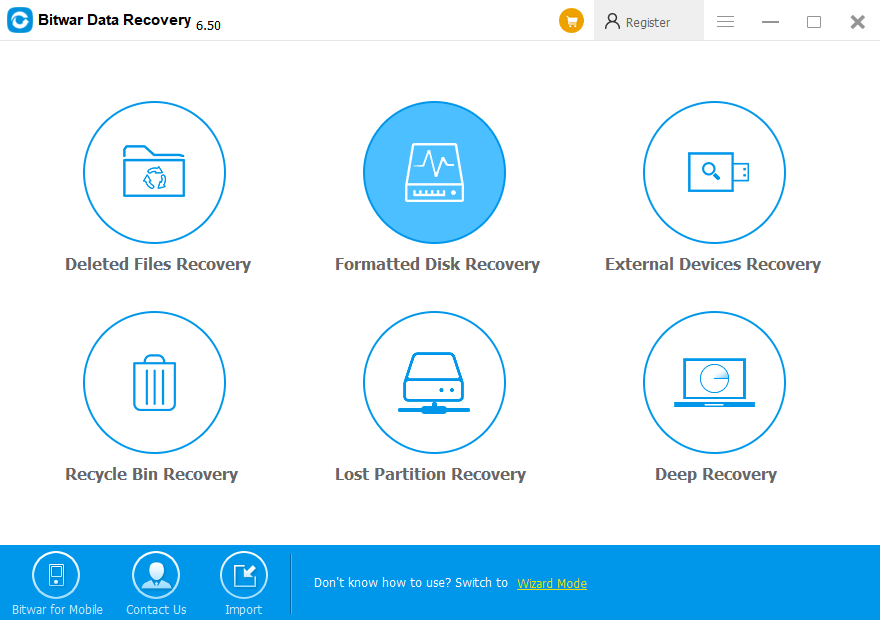
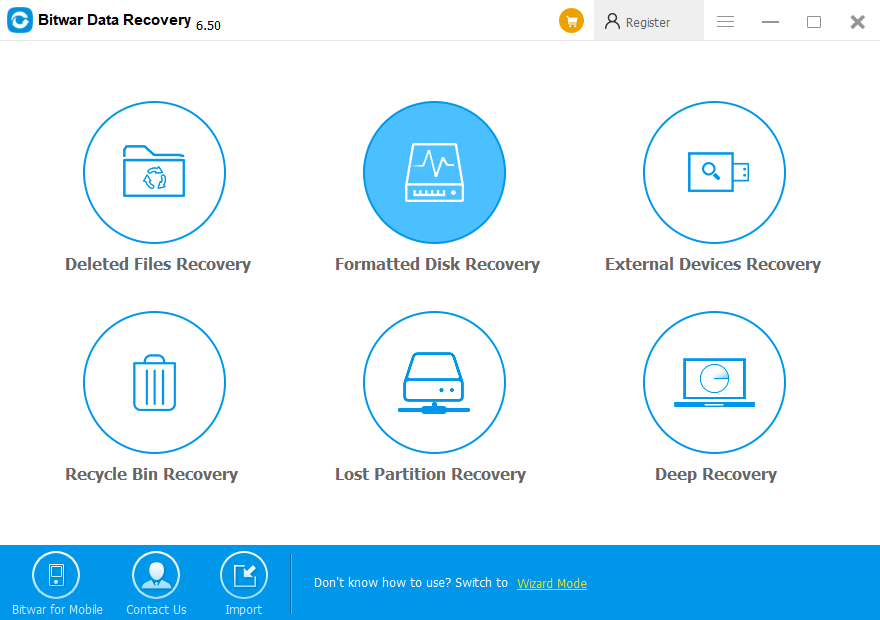
Click “Lost Partition Recovery” on Standard Mode. Bitwar Data Recovery offers six common recovery mode for users.

Lost Partition Recovery

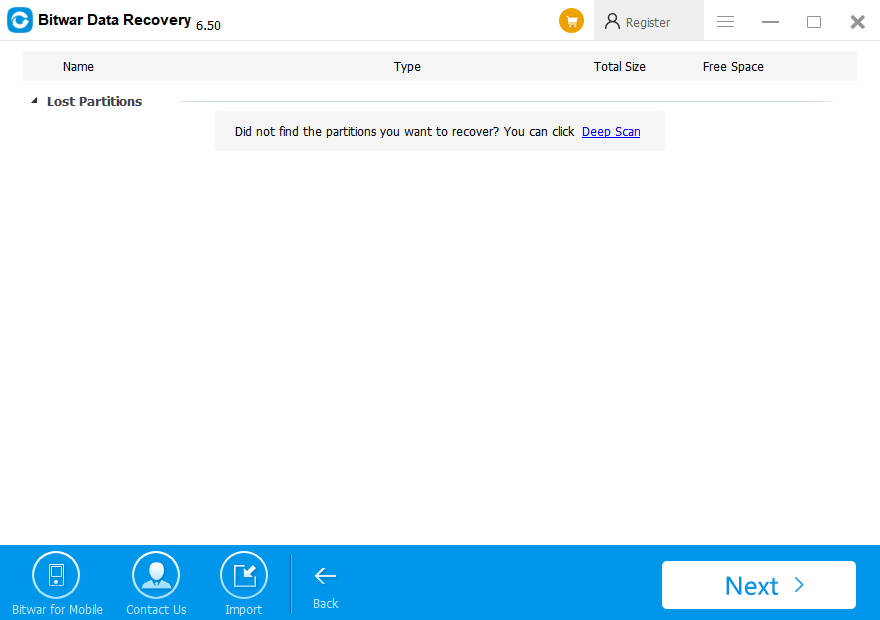
Choose Deep Scan on the next screen, and then choose the partition. 

choose the partition

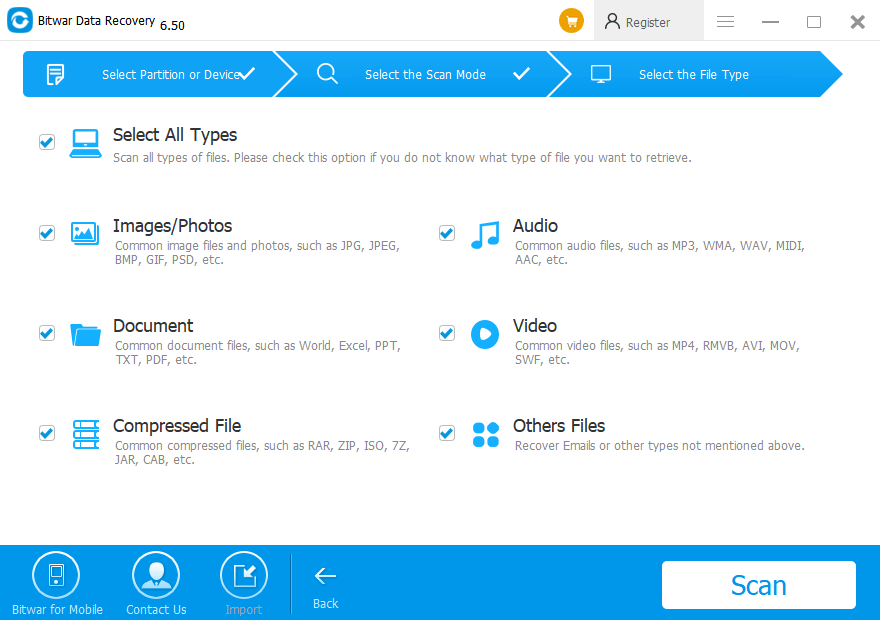
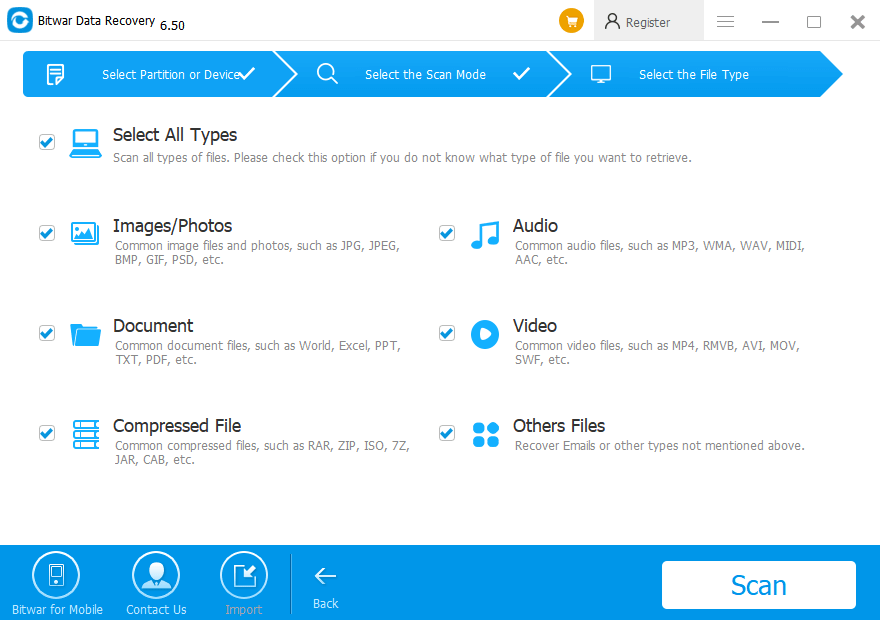
Step 3: Select the file types to need to scan.

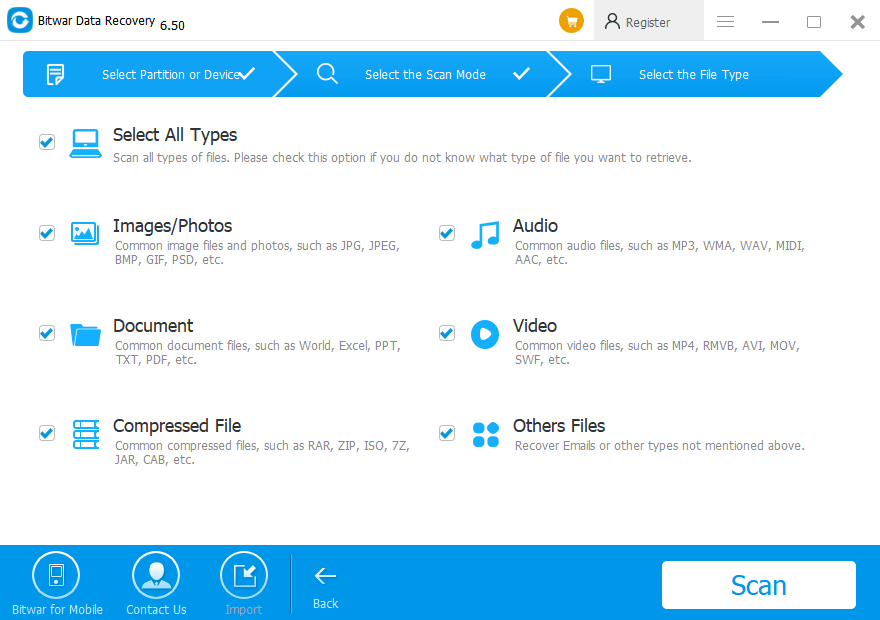
Select the file types you want to recover and click “Scan.” Then Bitwar Data Recovery will begin scanning the hard disk.

Select the file types to need to scan.

Step 4: Preview and recover the files.

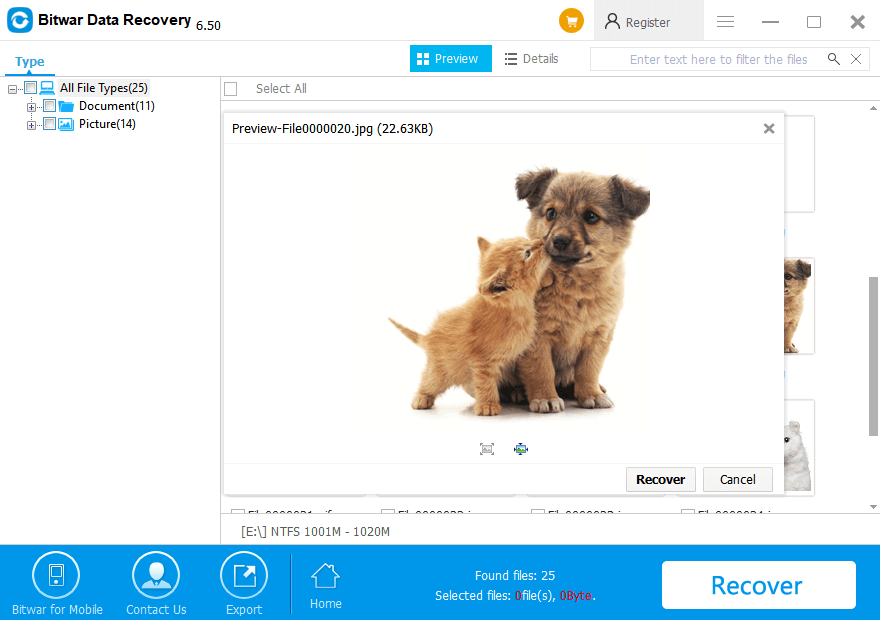
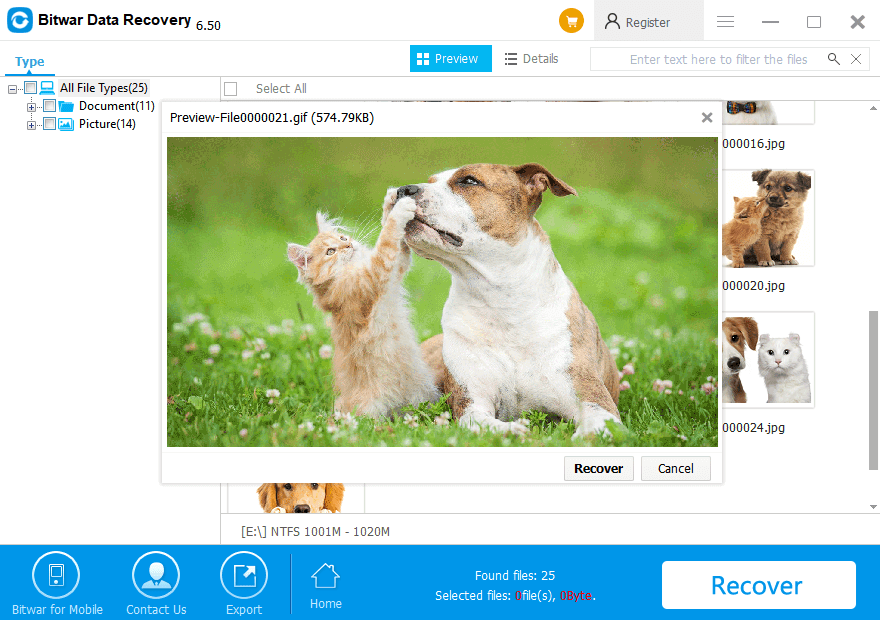
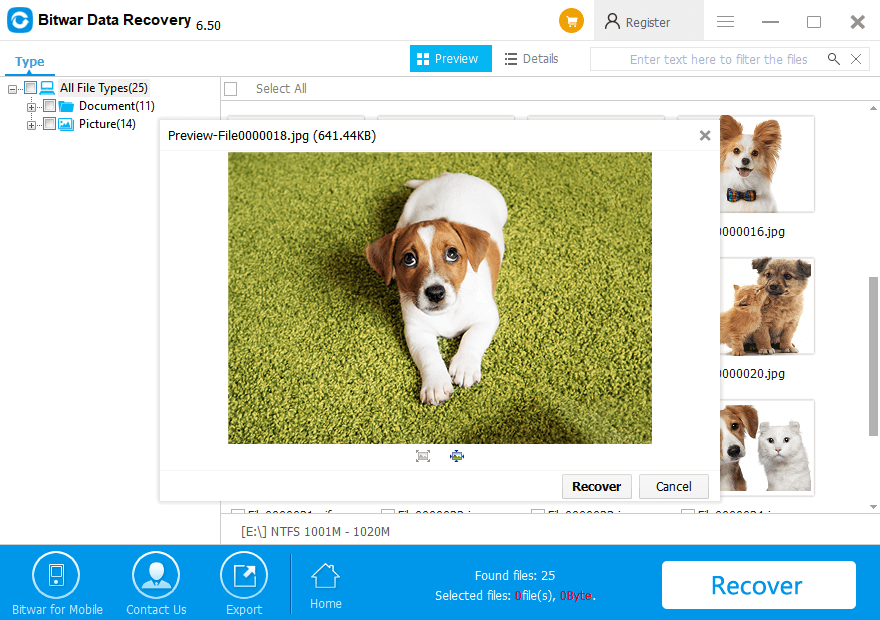
After Bitwar Data Recovery scans the lost partition, files will be listed with the file name, file type, path, and so on.

Then you can double-click the file to Preview. Data that can be previewed have the right conditions to recover.

Preview and recover the files.


Select those you want to retrieve, then click “Recover“.

Note: Save the files to a different partition or an external storage device which will avoid data overwriting.

Let’s Try!

Please refer here for more about partition data recovery.

Rescue Data After Quick Format

This article explains how to restore data after a quick format by using Bitwar Data Recovery.

Have you ever accidentally quick formatted the hard drive? How to recover lost files after quick format? This article offers you the best data recovery software – Bitwar Data Recovery to get your data back after a quick format.
 
Quick format is an easy and fast way to erase or delete data from any storage device. It removes files from the partitions without scanning the Bad Sectors.

But is it possible to recover the data after a quick format? Yes, indeed!

Difference between Quick Format and Regular Format

Quick Format and Regular Format are two ways to format the hard disk.

● The Quick Format does not scan the disk for bad sectors by using the checkdsk command

● A Quick format takes half of the time as a Full format.

● Sometimes, users prefer Quick format to Regular Format for its easiness, simplicity, and high-speed operability.

 Why Can We Recover Data after Quick Format?

● Quick Format only removes the data entries

● Quick Format does not overwrite new data.

● Quick Format only rebuilds the File System.

● The data is still available at the Memory location.

How to rescue data after quick format?

Note: After a quick format, stop using the drive immediately and DO NOT overwrite any new data to the disk. 

Step 1: Free download Bitwar Data Recovery software

Download it on the official website: http://www.bitwar.net/.

And then click “Install” to start the process. It takes a few seconds to complete.
 
Tips: Remember not to save other files or install Bitwar Data recovery in your formatted partition.

Step 2: Perform Bitwar data recovery program

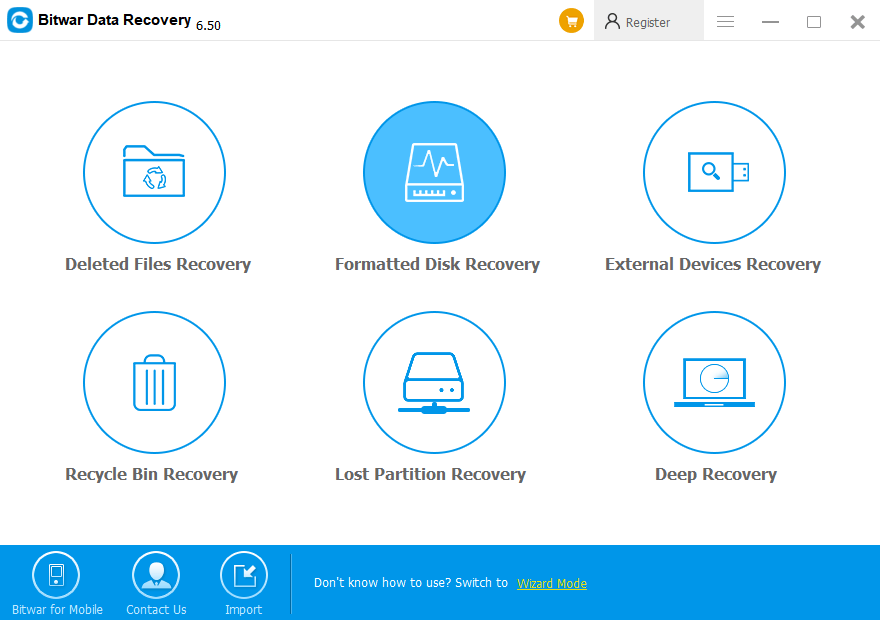
Launch it and select “Formatted Disk Recovery” when you want to recover the formatted data. 

Recovery mode-formatted disk.png

Step 3: Select Disk Partitions and Devices

It will show all the partitions on your computer. You need to select the one that you have quick formatted and click “Next” on it.

Step 4: Select the file type

You can choose a specific file type to recover, or you can also select “Select All Types” if you want to restore all types. Then click “Scan” to start the scanning.

File types-all.png

Step 5: Preview and Recover

After scanning, it will list the available file with the file type, path, time in the left tree list.

Bitwar Data recovery allows you to Preview the files in the window by clicking them.

Pre-pic8.png

Then, choose those you want to restore, click “Recover” to get them back.

Note: Please do not save files in their original location during the recovery.

Free Recovery!

Please refer here for more about formatted data recovery.

Formatted USB Disk Data Recovery

Sometimes we may accidentally format USB flash disk which causes data loss. So how to recover lost data from formatted USB disk? This article offers you the best way to retrieve your data.

Reasons for Data Loss on USB Drive

● Accidental deletion

● Accidental formatting

● Improper removal of mass storage devices

● The file system converts to RAW

● An electrostatic discharge or power surge

Solutions to Recover Data from Formatted USB Drive

Tip: 

● Stop using the USB drive after formatting.

● Restore the file from the device as soon as possible.

● Once the data is overwritten, you may lose the chance to restore the formatted files

Solution 1: Retrieve Formatted Files from Pen Drive Backup

Sometimes you may have a backup of your USB available. If you have a backup, you can get back the data with the backup file directly. 

If you do not have a backup, turn to Solution 2 and Solution 3.

Tip: To avoid entire data loss, back up your USB drive regularly. 

Solution 2: Recover Data by Using CMD

CMD is a built-in management application in Windows, which is used by some users to issue various commands.

Step 1: Connect your USB drive with your computer

Step 2: Check your USB’ drive letter.

Step 3: Click the search icon in the taskbar, enter “cmd“, right-click “Command Prompt” and choose “Run as administrator“.

Step 4: Type “chkdsk F: /f” in Command Prompt. (Replace F: with your USB’ drive letter.)

Step 5: Type “Y” and then enter the drive letter of your USB drive.

Step 6: Type “F: \ >attrib –h –r –s /s /d *.*” (F refers to the drive letter or your USB)

However, unexpected errors may occur while using CMD. The command prompt will automatically retrieve all formatted files.

Solution 3: Recover Data from Formatted USB Disk with Bitwar Data Recovery 

Bitwar Data Recovery is a fast, convenient, and safe data recovery software with its user-friendly wizard, lighting scanning speed as well as its high-quality recovery.

Step 1: Connect the USB drive to your computer.

Step 2: Download Bitwar Data Recovery

Free download Bitwar Data Recovery from this website: https://www.bitwar.net/

Step 3: Choose the recovery mode

Launch Bitwar Data Recovery, and select “Formatted Disk Recovery” data recovery mode.

Step 4: Select Disk Partitions and Devices

Select the USB drive on the External Devices, then click “Next”.

Step 5: Choose file type

Select the file type you want and click “Scan“.

Step 6: Preview and Recover

Bitwar Data Recovery supports to Preview before recovery. You can click the file to preview it. The data can be previewed have a good condition to preview. While those cannot be previewed may fail to be recovered.

Why not have a try?

Please refer here for more about formatted USB data recovery.

Recover Lost Data From Disk Data

Hard disk data loss occurs in daily life, how to restore? This article offers you the best Hard Disk recovery software for 2020 to retrieve all lost files from HDD.

What’re the Symptoms of HDD Data Loss?

  •       Files or folders are accidentally deleted
  •       Files or folders become inaccessible
  •       Some partitions are formatted
  •       “NTLDR is missing, press any key to restart” occurs
  •       The partition table is damaged or corrupted.

When the above problems or other data loss situations happen, free recovery software – Bitwar Data Recovery software may be the right helper for you.

Tip: To ensure that your hard disk drive is not physically damaged, and the data on it has not overwritten.

How to Perform HDD Recovery with Bitwar Data Recovery Software?

Step 1: Download Bitwar Data Recovery Software on the website: https://www.bitwar.net/

Step 2: Launch Bitwar Data Recovery.

On Standard Mode, select “Formatted Disk Recovery” to recover, then click “NEXT”.

1599701422521028.png

Bitwar Data Recovery supports six kinds of scan mode on Standard Mode. On Wizard Mode, you can choose Quick Scan to restore files from accidental deletion, such as Shift+Delete, emptied Recycle Bin, etc. Quick Scan can retrieve files with their original file names and structures. Deep Scan and Formatted Recovery are also available. 

Step 3: Select Disk Partitions and Devices 

Step 4: Select the file types

You can choose file type like Images/Photos, Audio, Document, Video, etc. Or you can also Select All Types. Then click “Scan”.

1599701436222883.png

Step 5: Preview the files and Recover 

When the scanning process finished, files are listed. You can click them to Preview.

Those can be previewed enjoy good conditions to restore, while those cannot be previewed may not be available to recover.

1599701451363848.png

After determining files to retrieve, click “Recover” to get them back.

Download And Have A Try!

Please refer here for more about HDD data recovery.

Recover Lost WeChat Files from iPhone

Have you ever encountered data loss on WeChat, and you do not know how to recover them? Well, this page offers the best WeChat Data Recovery Software to recover accidentally deleted messages, photos, contacts on WeChat.

WeChat is a messaging and social media app, as well as a lifestyle for over one billion users across the world. People love chatting and making calls with friends, reading news and using local services in official accounts and Mini Programs, moreover, it’s very easy to shop goods using WeChat Pay.

However, it’s commonly known that once we delete the chat, photos or other files, we can not find them anymore. But with the supports of a third-party data recovery program, we can easily get back the deleted data on WeChat.

Here we recommend you to use Bitwar iPhone Data Recovery Software.

Why Choose Bitwar iPhone Data Recovery Software

Bitwar iPhone Data Recovery is the best data recovery software that supports almost all iPhone devices, from iPhone 4 and up to iPhone 7/8/, iPhone X, iPhone XS, iPhone 11 Pro Max, etc. In addition, it can restore over 300 different file types, including messages, call logs, contacts, bookmarks, reminders, notes, calendars, photos, videos, voice memos, notes attachments, message attachments, etc.

While using Bitwar iPhone Data Recovery is not that hard as you imagine, follow with the below steps and you can recover the deleted WeChat Data on your own.

How to recover deleted data on WeChat

Step 1. Download and install the best iPhone Data Recovery Software

You can download the Bitwar Data Recovery software by clicking the below button or visit the official website:

https://www.bitwar.net/ios-data-recovery-software/

Tip: Bitwar iPhone Data Recovery can directly detect whether iTunes is installed on the computer, and download the installation components directly without installation. If there is an installation or a computer that has backed up Apple data using iTunes, it can directly select the feature to scan from the backup.

Step 2. Connect your iPhone to the PC

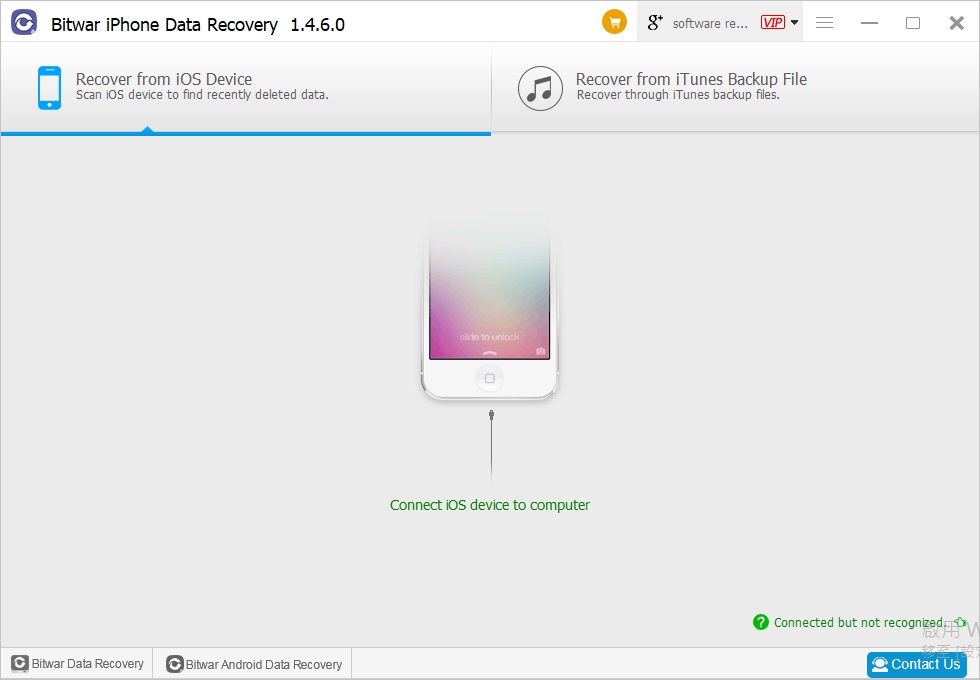
Select the default recovery mode Recover from iOS Device and wait for the program to identify the connected iPhone.

Step 3. Select the file types

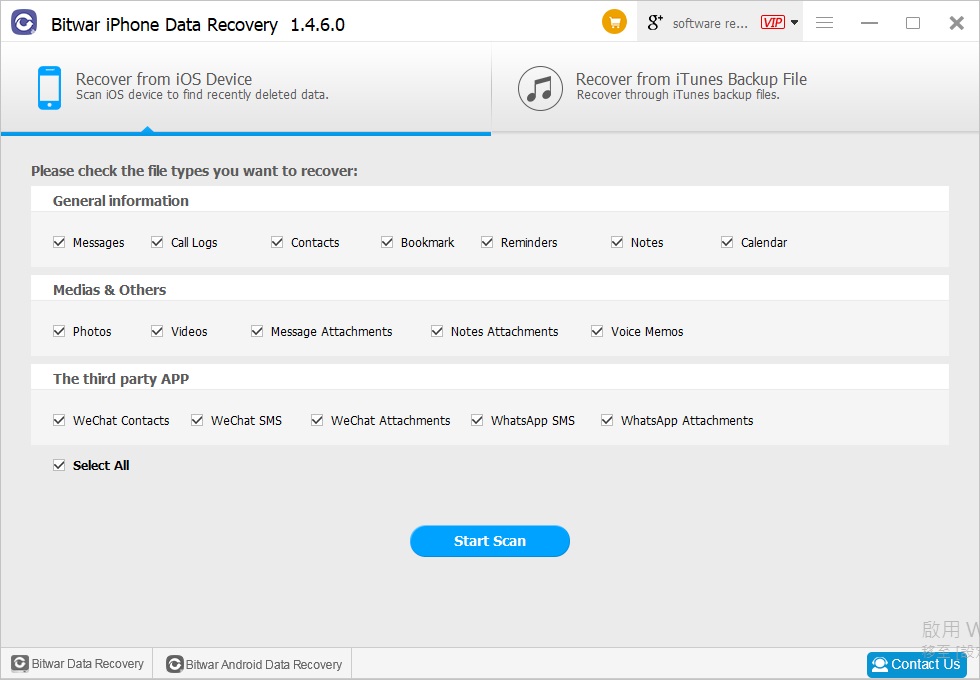
Select the type of file you want to recover and click Start Scan; the software will quickly scan the WeChat to find all the existing data. You should keep your iPhone connection during the scan operation.

Step 4: Preview and recover data

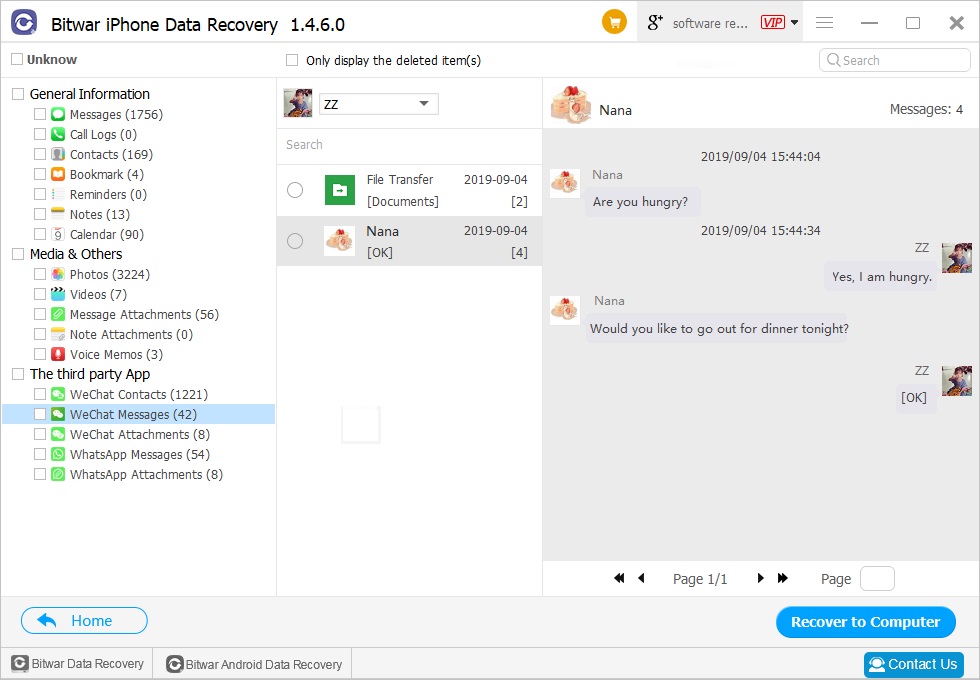
After scanning, the data will be displayed in the left area. You can click them and preview the data to make a selective recovery. Then click the Recover button to save them on your computer.

Notes: Once data loss is found on WeChat, it is recommended not to use iPhone again and start using Bitwar iPhone data recovery as soon as possible to prevent deleted data from being overwritten by new data on WeChat.

Easy Recovery Solution!

Please refer here for more about iPhone data recovery.

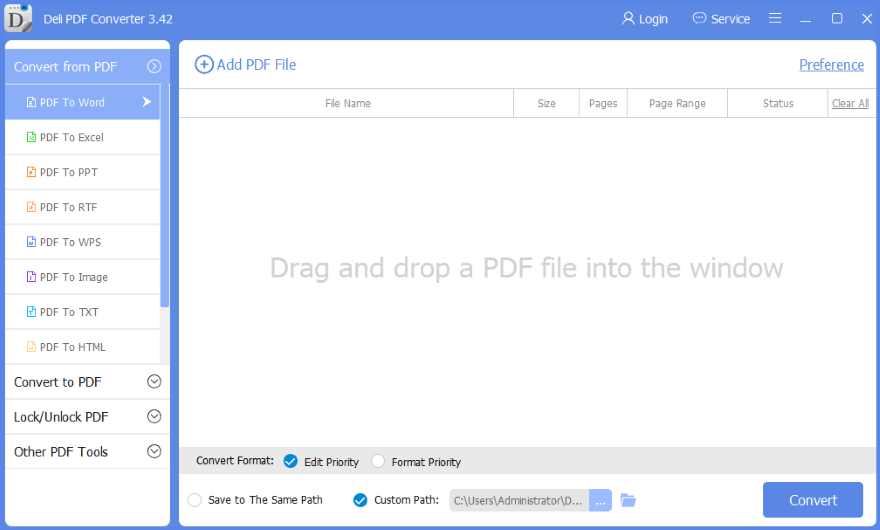
Steps to Convert PDF to Excel

Bitwar PDF Converter has added a new PDF conversion tool which is converting PDF to Excel. There are also many other useful PDF tools for users to explore, but the article below will show users how to convert PDF file to Excel!

All users, please remember to download the best and latest software from the official website to enjoy all the PDF tools.

Homepage.png

Steps to Convert PDF to Excel

Step 1Install and Launch the PDF software.

Main-Interface-2.png

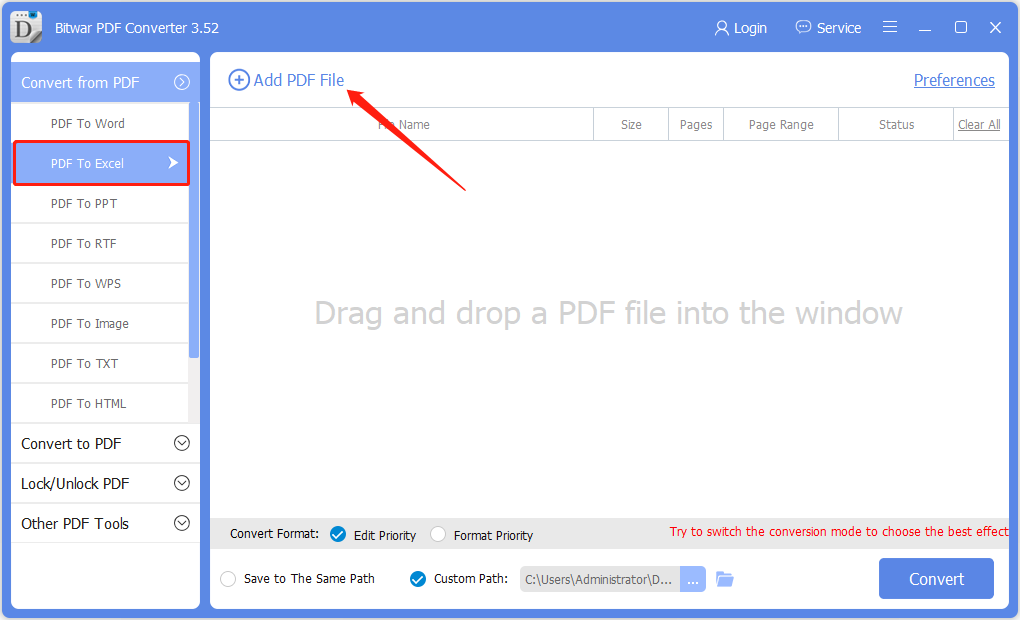
Step 2. Choose PDF to Excel on the left side of the main interface and click Add PDF File to add PDF files.

PDF-to-Excel-add.png

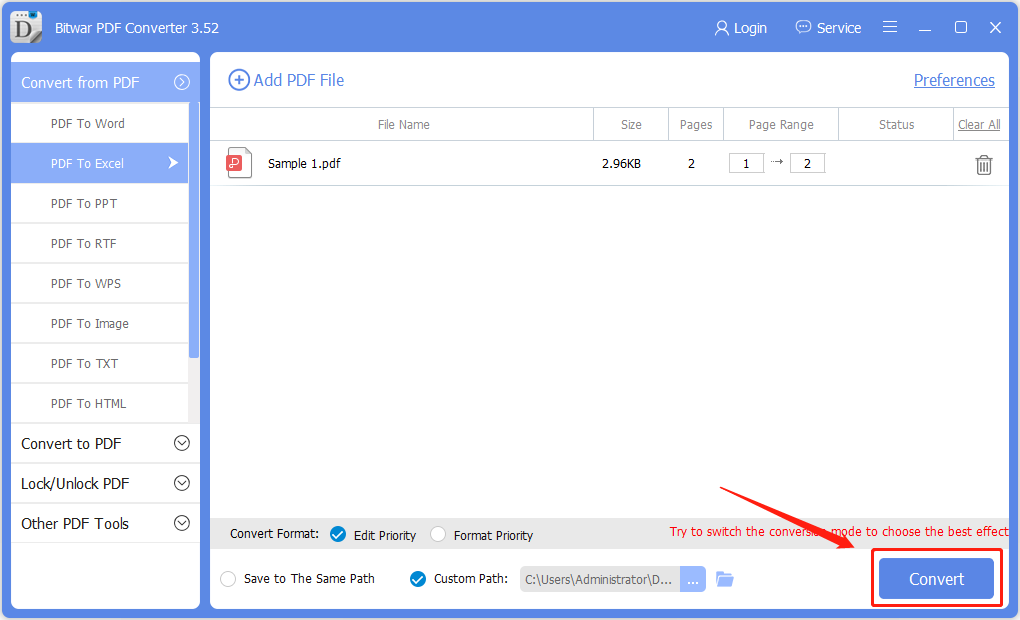
Step 3. After adding the PDF file, click Convert to start the conversion.

Convert-PDF-to-Excel-1.png

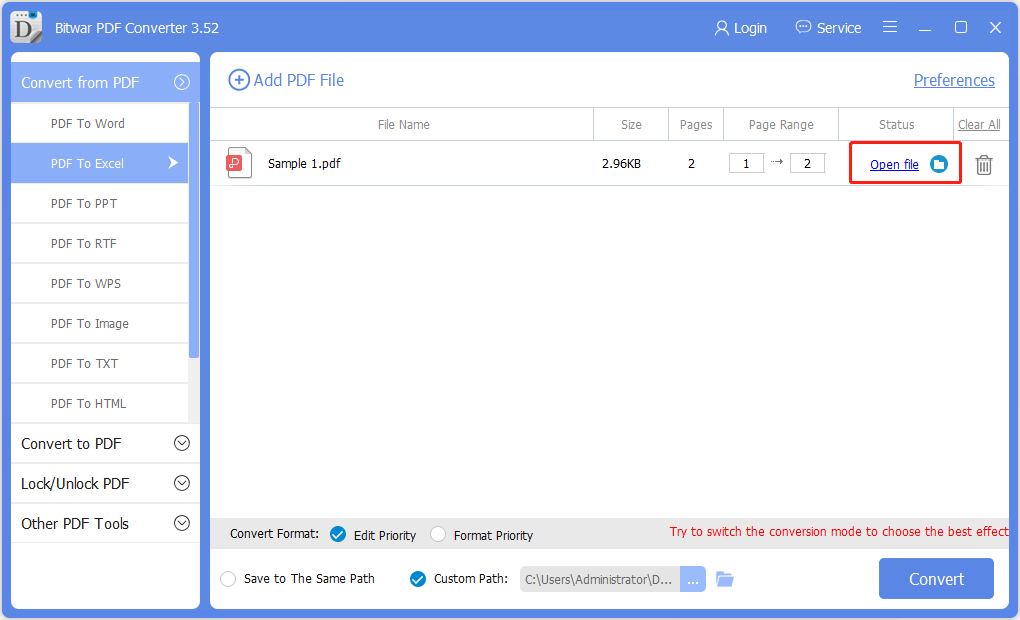
Step 4. Please wait patiently for the conversion to complete, when it is complete click Open File to preview the new Excel file.

Open-File-3.png

Do it Now!

Please refer here for more about PDF to Excel Converter.

How to Unlock Files in Bulk on Mac?

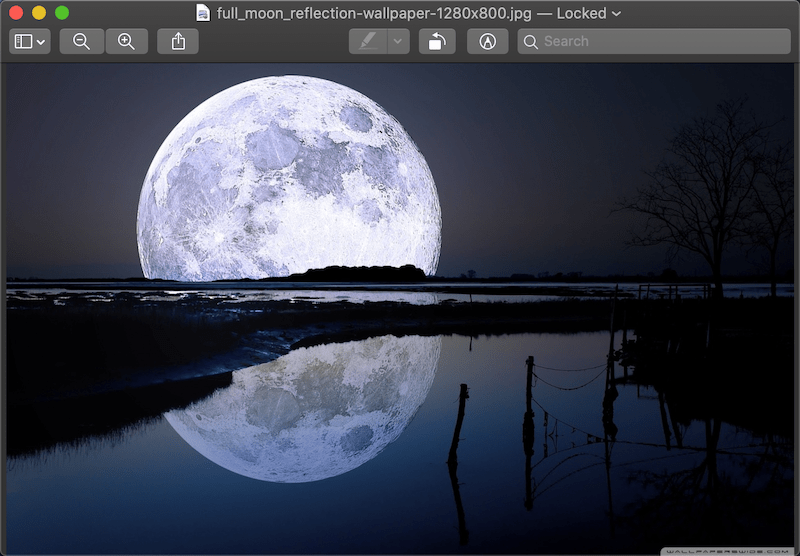
Some of the users might encounter the issue of getting the files locked after data recovery using Bitwar Data Recovery for Mac, the issue is the data recovery software needs root permission to access the hard drive, then the file permission may be changed to root, then after data recovery, you will be able to see the files present as Locked, as we have known that Mac doesn’t offer bulk edit feature for us, then how can we change the file permission in bulk if we have thousands of files?

Unlock Files in Bulk on Mac

Take it easy, we have worked out the solution to fix this issue and the solution is very straightforward and everyone can do it on their own. 

How to unlock files in bulk on Mac computer

Step 1: Create a folder and transfer all of the images (locked) to this folder.
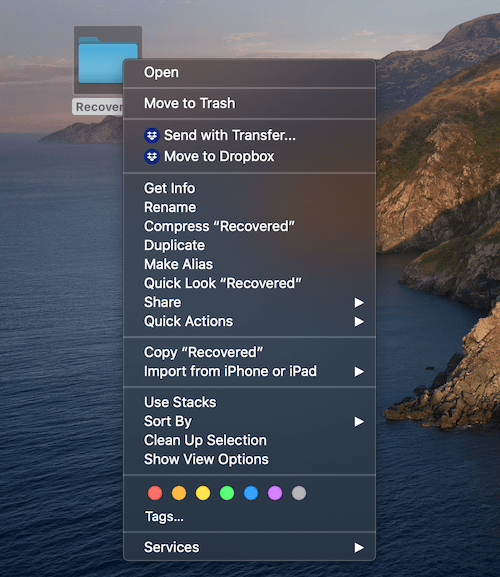
Step 2: Right-click on the folder and choose Get info.

Unlock Files in Bulk on Mac

Step 3: Scroll down and find the section named: Sharing & Permissions.

Unlock Files in Bulk on Mac

Step 4: Click on the lock button to unlock, enter your admin password.

Step 5: Click on the Wheel icon and Choose Apply to enclosed items.

Now, you should be able to see all of the files have been unlocked.

Tips: Please note that uncheck Locked on the get info window does not help, you need to follow the above-mentioned steps to unlock the needed files. 

You Get It!

Please refer here for more about Mac data recovery.

Recover Files From CDs

Although CDs and DVDs are gradually being replaced by more portable, reliable, capable storage devices such as SD cards and flash drives, their existence was once abundant for many years. Being less competitive now doesn’t keep CDs and DVDs from serving as a plausible choice for game installation packages, movies, and music files.

Like other storage devices, CDs and DVDs were born vulnerable. Sometimes they can get scratched easily or seize up suddenly. Consequently, computers fail to detect them and we believe the data on them is gone. But the good news is that scratched discs could be repairable and the data on them could be accessible and recoverable. Have you ever wondered why that’s possible and how to recover files from CDs and DVDs? Let’s take a brief look!

Recover-Files-from-DVD.jpg

Note: We’ll talk about CDs throughout this article. But the way CDs work holds true for other similar storage devices, for instance, CD-RWs, DVD-RWs, and Blue-ray Discs.

1. What Is a CD?

image.png

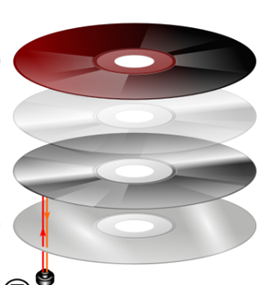
A compact disc is a thin, shiny, circular disc that has three principle layers and a label on them. Generally, the relatively thick bottom of a disc is made of a brittle plastic called polycarbonate. Beneath the label rests a protective layer of plastic and lacquer. Sandwiched between the two layers there is a thin lay of aluminum. This lay of aluminum is an important part of a disc. Being reflective, it allows laser lights to read the information on the polycarbonate layer and makes one side of a disc shiny. 

And the other side, the dull side, usually has some label or artwork on them illustrating what contents on a disc. Then go back to the question, why it’s possible to repair a scratched CD and read it? Since scratches on the shiny side cause laser beams from a CD reader to scatter and make the reading inevitably hard, if we can remove the scratches from the disc, the laser beams thus will go directly toward the lay of aluminum and be reflected to read the data. Therefore, up to this point, we need to find some apposite materials to remove scratches.

2. What We Can Do to Remove Scratches on a CD?

First of all, make sure that you have cleaned the CD. It will be better if you can put some alcohol or a gentle detergent on it and carefully rub the disc with a soft lint-free cloth in a radial way until there are no more dirt and footprints except scratches.

Method 1: Repair Scratched CDs with Toothpaste

Step1: get one of your fingers wet or find a wooden toothpick for latter rubbing.

Step2: deposit a few drops of a tube of toothpaste on the shiny side (scratched side) of the disc.

Step3: softly wipe the drops from the center point toward the edges of the disc. DO NOT rub round and round.

Step4: wash the disc with some tepid water and let it dry. DO NOT expose it in the sun.

Step5: mount the disc to see if the computer can detect it.

1586759414159486.jpg

Method 2: Repair Scratched CDs with Wax

Step1: Apply a thin lay of softened wax such as shoe polish, lip balm, and furniture wax on the shiny and scratched side of the damaged disc.

Step2: rub it slowly and radially with a piece of lint-free cloth.

Step3: leave it drying

Step4: connect the disc to your computer to see if it can be accessed.

1586759414110649.jpg

Method 3: repair scratched CDs with a Banana

It’s stunning but it’s true.

Step1: get a banana and peel it. keep a part of it and finish off the rest. DO NOT toss the peel away.

Step2: use a radial motion with the inside of the banana peel and softly press the banana on the shiny side.

Step3: wash the disc with some warm water and let it dry.

Step4: Test the disc.

1586759414122864.jpg

3. How to Recover Files From a Scratched CD?

If all the methods written above have been tried out and the disc remains undetected. I recommend using Bitwar Data Recovery Software to fix the problem. With a plethora of data recovery applications on the internet, there are only a few tools that can recover files from some damaged optical storage devices including CDs/DVDs/CD-RWs/DVD-RWs/Blue-Ray discs, etc. It can be downloaded and installed within seconds and is easy to use.

Step 1: Download and Install Bitwar Data Recovery

You can download the best CD/DVD data recovery tool – Bitwar Data Recovery from its official website: https://www.bitwar.net, after downloading, install it right away and then launch it.

Video Recovery - Pause and Stop

Why not have a try?

Please refer here for more about Scratched CD data recovery.

Recover Deleted Photos on Android

The mobile phone is becoming popular nowadays, and we always use the phone camera to take some photos during a trip or an activity. But sometimes we may delete the images accidentally, can we have the chance to recover accidentally deleted photos on Android? The answer is yes, Bitwar Android Data Recovery comes handy for Windows and Android applications, which can help you to get back these accidentally deleted photos. 

1. How to recover accidentally deleted photos by Bitwar Android Data Recovery for Windows?

Step One,

Download Bitwar Android Data Recovery from our website: https://www.bitwar.net/android-data-recovery-software/

Download Bitwar Android Data Recovery for windows

Step Two,

Before recovery, we have to root our Android Phone first to get the administrator authority. If you have already rooted the phone, pass this Step. Read this article to get more: How to Root Your phone

Step Three,

Turn on USB debugging mode on your Android phone, read this article to know how: How to enable USB debugging

Step Four,

If you have rooted your Android phone successfully, launch Bitwar Android Data Recovery, and connect your phone to the computer with your original USB cable. Please aware that some inferior cable will cause a bad connection. 

Step Five,

Select Photos on the interface and hit Deep Scan.

Bitwar Android Data Recovery -photo recovery

Step Six,

You can see the photos are appearing in the scanning result windows. You can preview the photo to check the photo is entirely for recovery or not.

2.Bitwar Android Data Recovery -photo recovery

2, how to recover accidentally deleted photos on Android phone by Bitwar Android Data Recovery(App)?

Step One,

Download Bitwar Android Data Recovery(App) from Google Play:https://play.google.com/store/apps/details?id=com.xmbst.recovergoogle&hl=en_GB

Step Two,

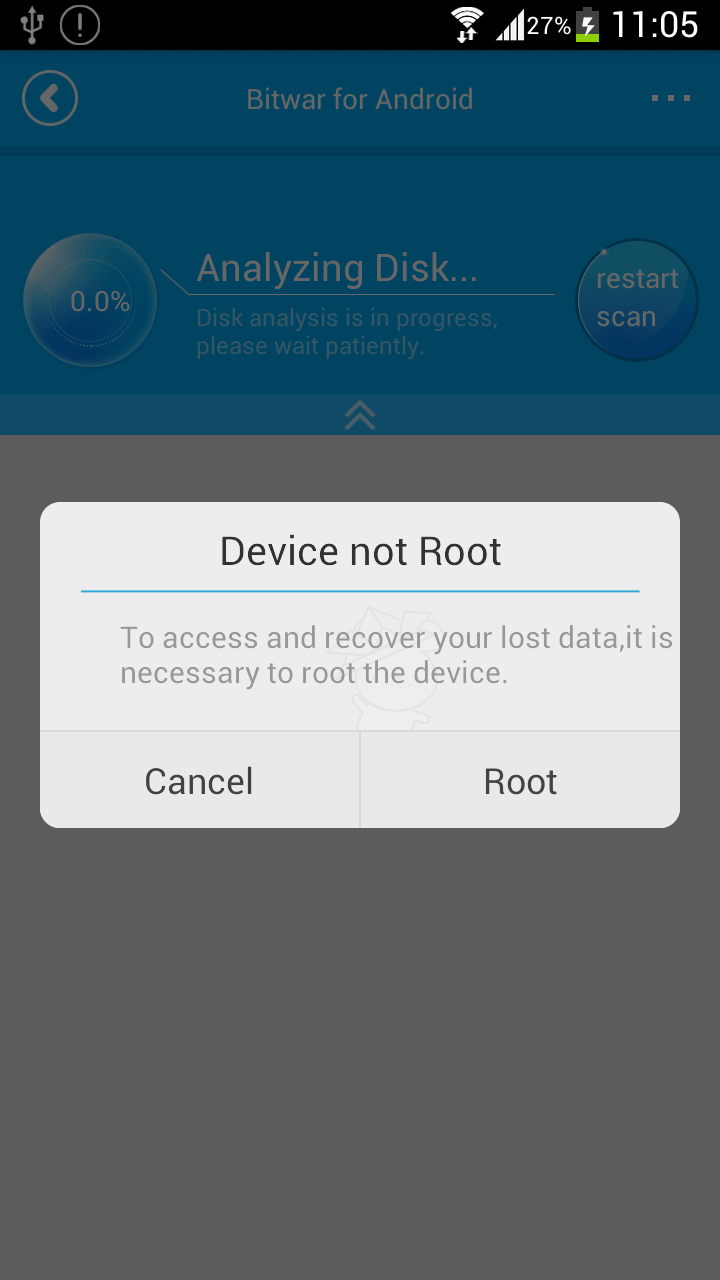
Launch Bitwar Android Data Recovery(App), if your phone does not contain the root, it will inform you to root first. We can click root to download the root application.

5.Bitwar Android Data Recovery APP how to root android phone

Step Three,

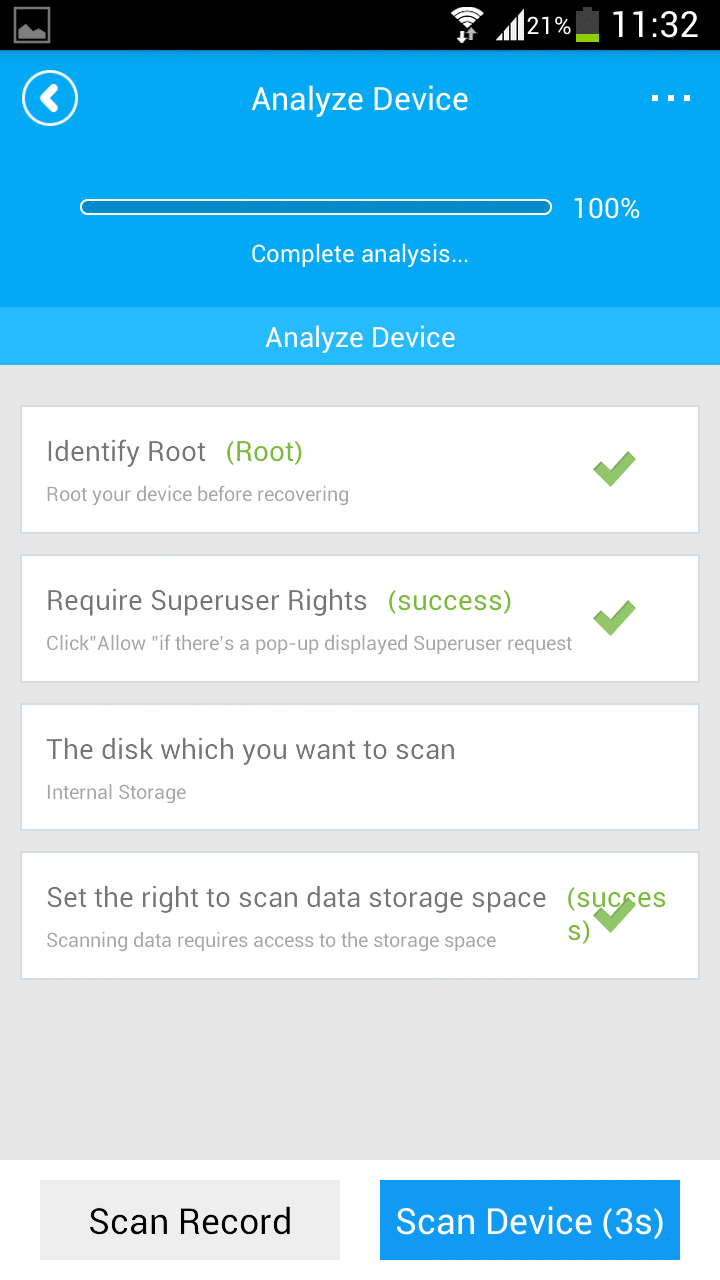
After rooted, there’s an Analyze DeviceWindows pops up before you go next with photo, video, audio recovery, etc.

6.Bitwar Android Data Recovery APP Analyze deive with root or not

Let’s try it now!

Please refer here for more about Android data recovery.

Design a site like this with WordPress.com
Get started