Recover Deleted Files from Mac

Losing the necessary data is devastating for us. Unfortunately, nearly everyone has accidentally deleted files before on Mac OS X due to operational errors. If you delete permanently by using “Option + Command + Delete” hotkeys or empty the Trash Bin, the file will disappear in front of us. The Mac OS has no undeleted feature. This article shows you how to recover deleted files from Mac.
 
If you have just deleted a document, the chances are excellent that you’ll get it back even if you’re very casual about everything. First of all, you should stop using the partition on your Mac as soon as possible. If your computer is downloading, editing or copying anything onto the partition, stop that process. Then Download and install Mac Data Recovery software on another partition. Emphasize again, please do not take any unnecessary actions either on the partition which you want to recover. The sooner you find data recovery solutions, the more deleted files you can get back.

Fortunately, Bitwar Data Recovery for Mac can recover deleted files from Mac OS X. Whether you deleted these files, emptied trash bin, lost them due to the virus, or due to formatting, you can still have them back by using this software. You can recover audios, videos, pictures, compressed files, and documents. Moreover, this program lets you preview files that have been scanned.
 
It supports data recovery from Trash Bin, Hard Drive, and all external devices, such as Memory Card, USB Drives, Pen Drives, Thumb Drives, Digital Camera, Camcorder, etc.

Install the Bitwar Data Recovery for Mac?

You can download Bitwar Data Recovery for Mac and install it on your Mac OS. The software is compatible with OS X 10.11 and later.
 
Tips: For the latest macOS 10.13 (High Sierra) system requirements, Mac users are not allowed access to system disk from apps. If you want to recover data from the system disk, please disable the system feature “System Integrity Protection (SIP),” see the guide on How to Disable System Integrity Protection (SIP) in macOS High Sierra (macOS 10.13)? (https://www.bitwar.net/howto/windows/79.html)

Step1: Select the Partition or Device

Launch Bitwar Data Recovery and select the location where your data were lost and then click “Next.” If you want to recover deleted files from external devices, please connect it to your computer and select it on these steps.
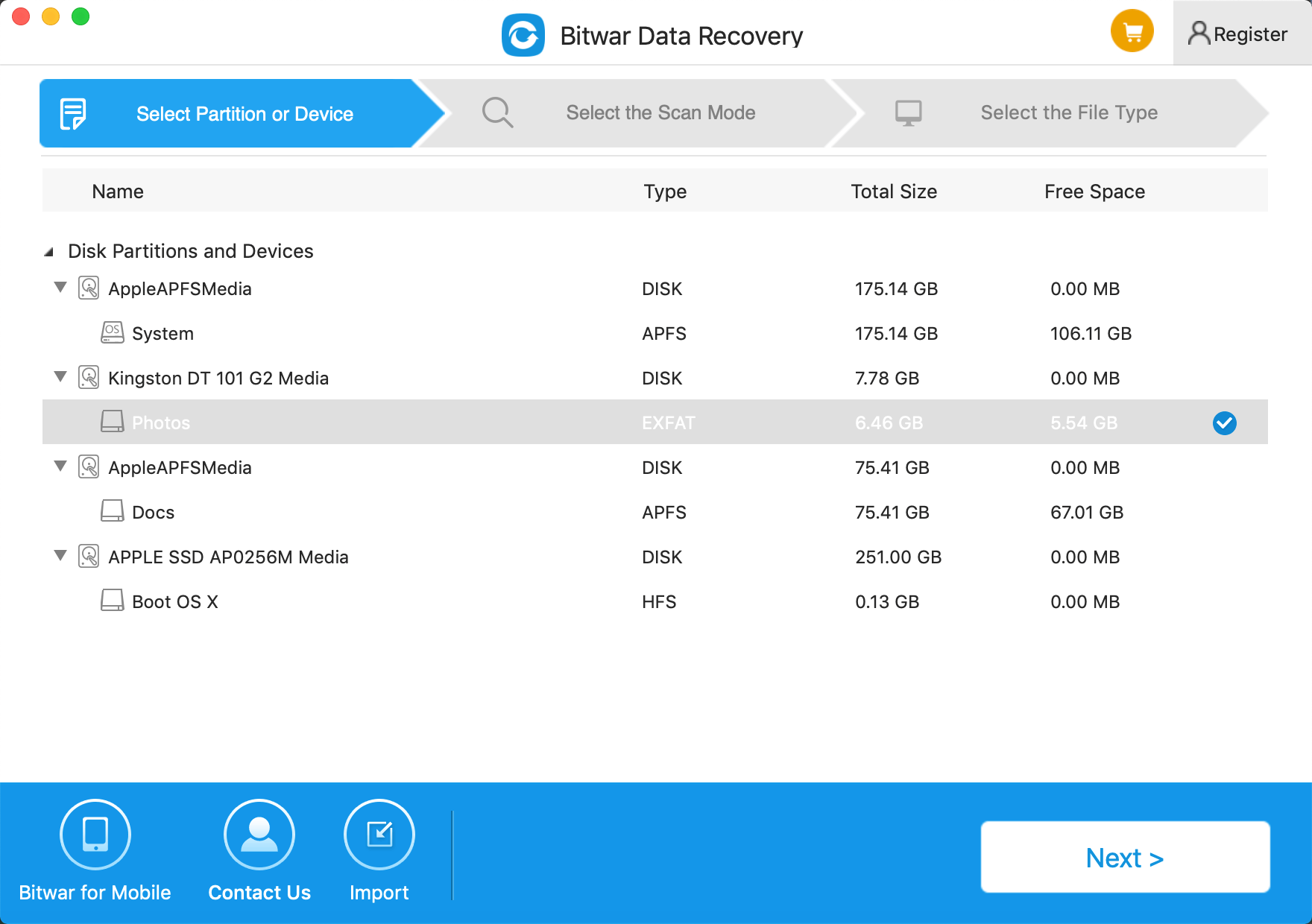
Select Device

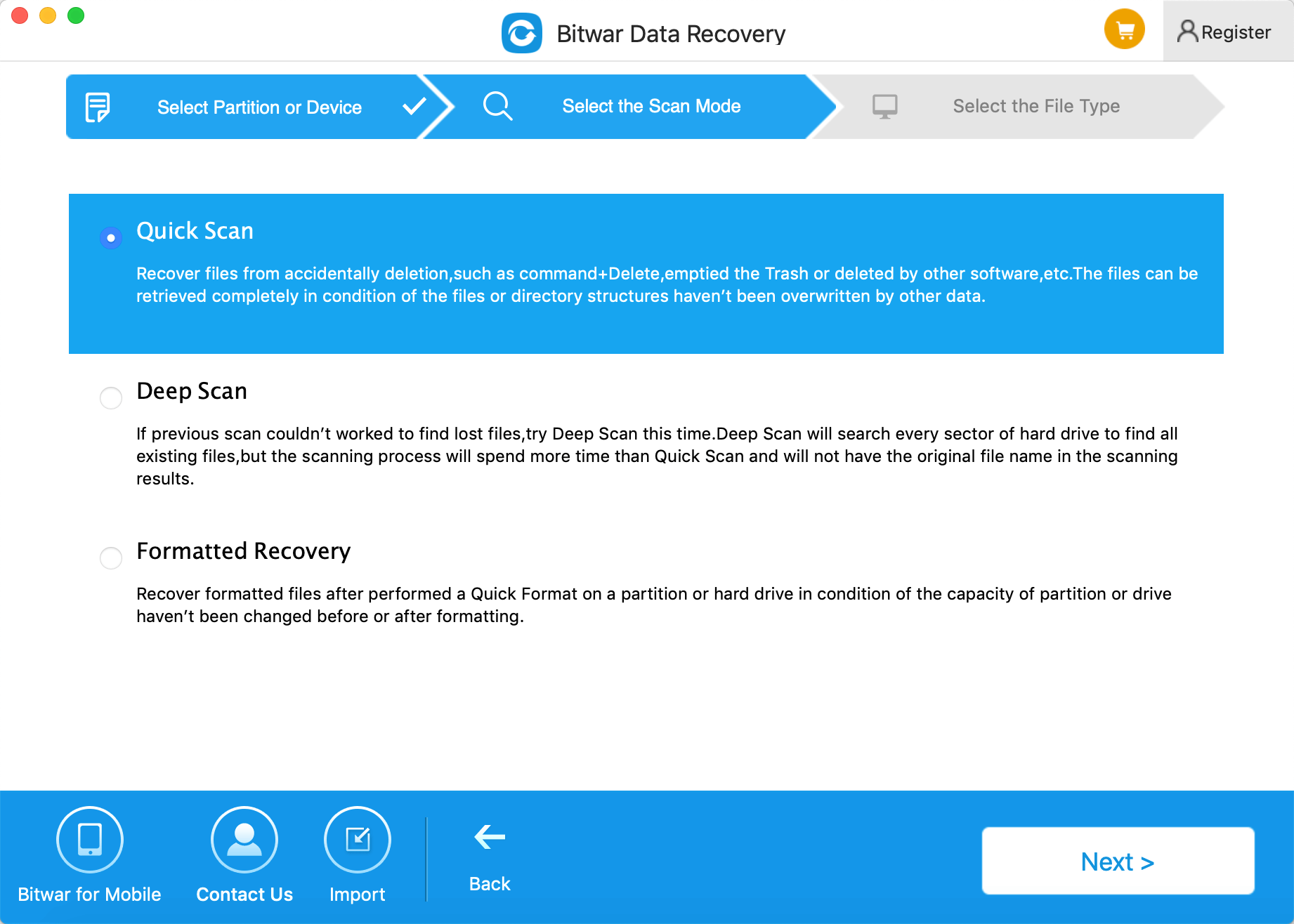
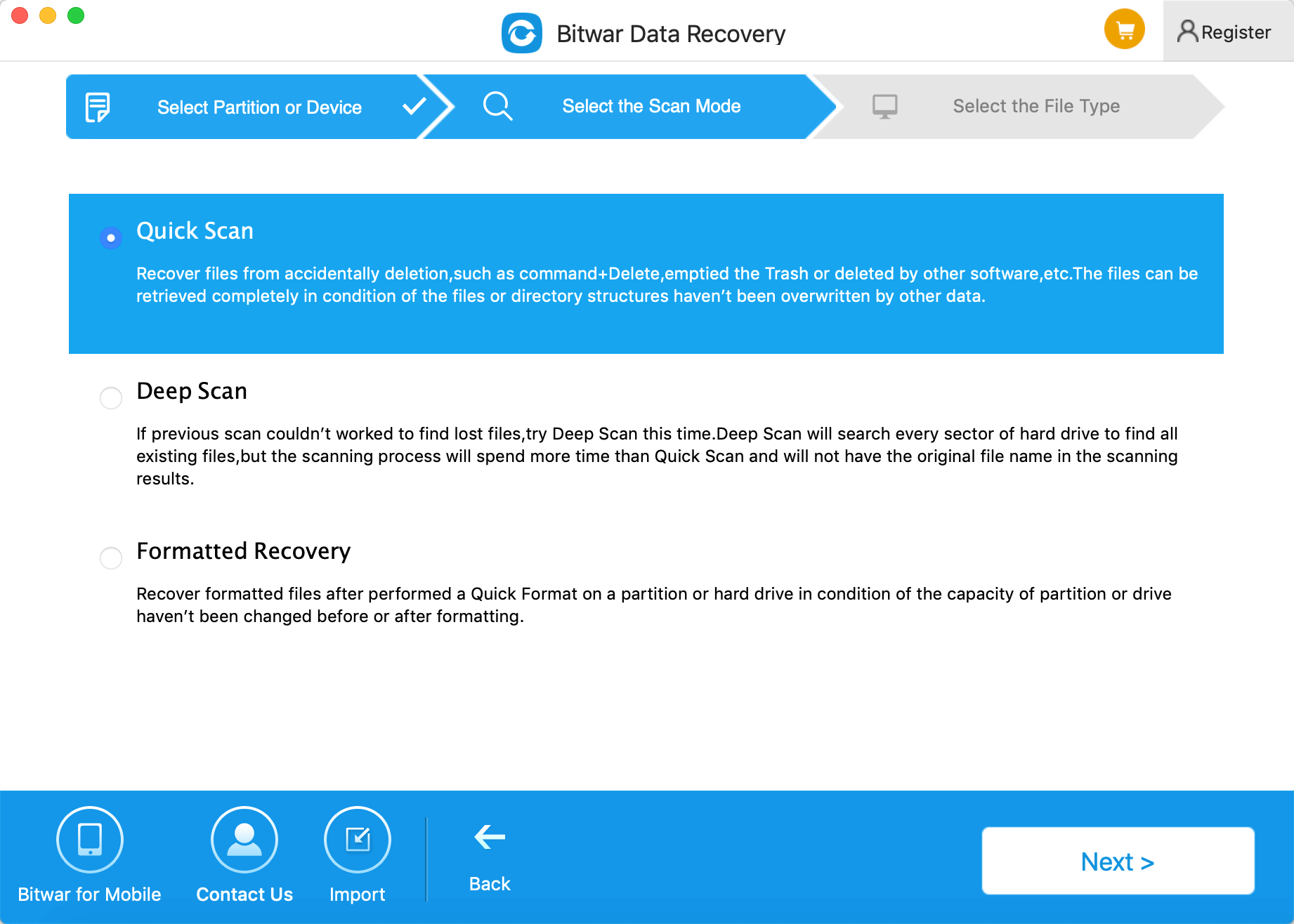
Step 2: Select the Scan Mode

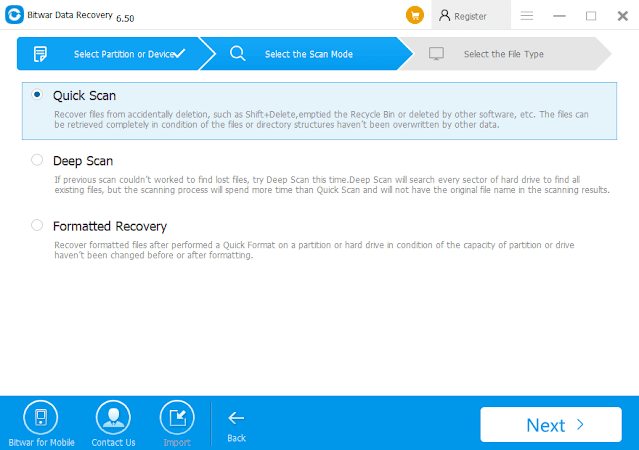
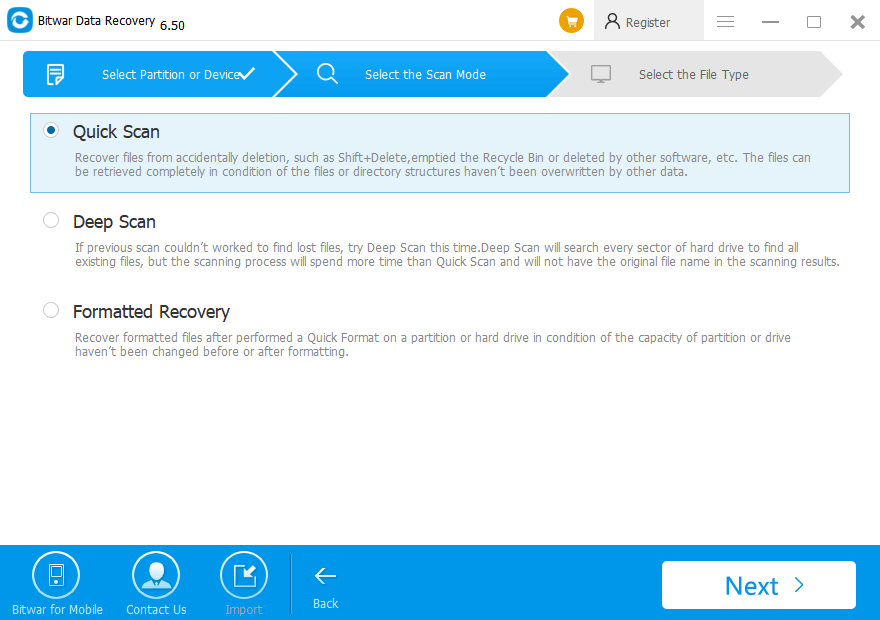
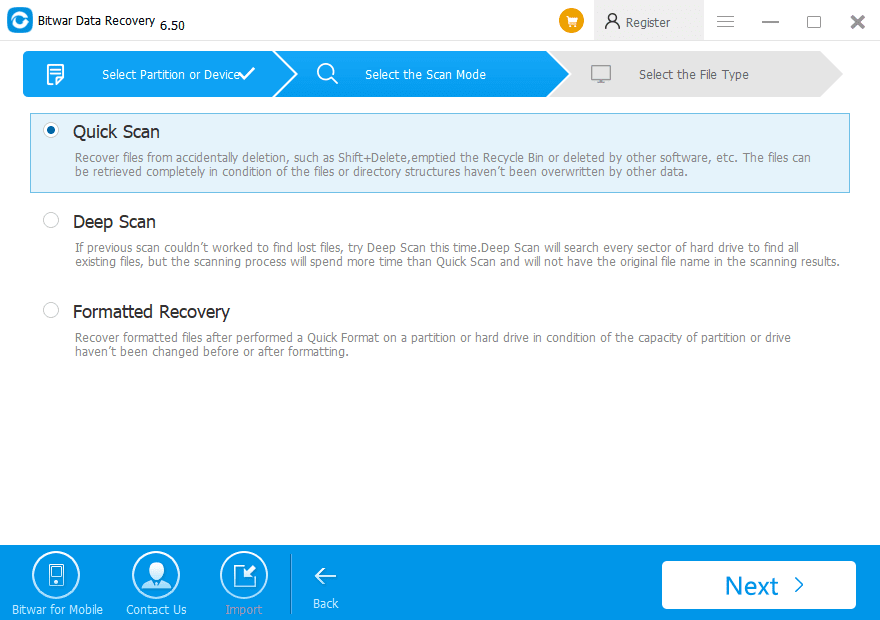
You can choose a scan mode based on data loss reasons. Then click “Next.” If you want to recover the deleted file on the partition of Mac OS X, so you should choose “Quick Scan.

Select Scan Mode

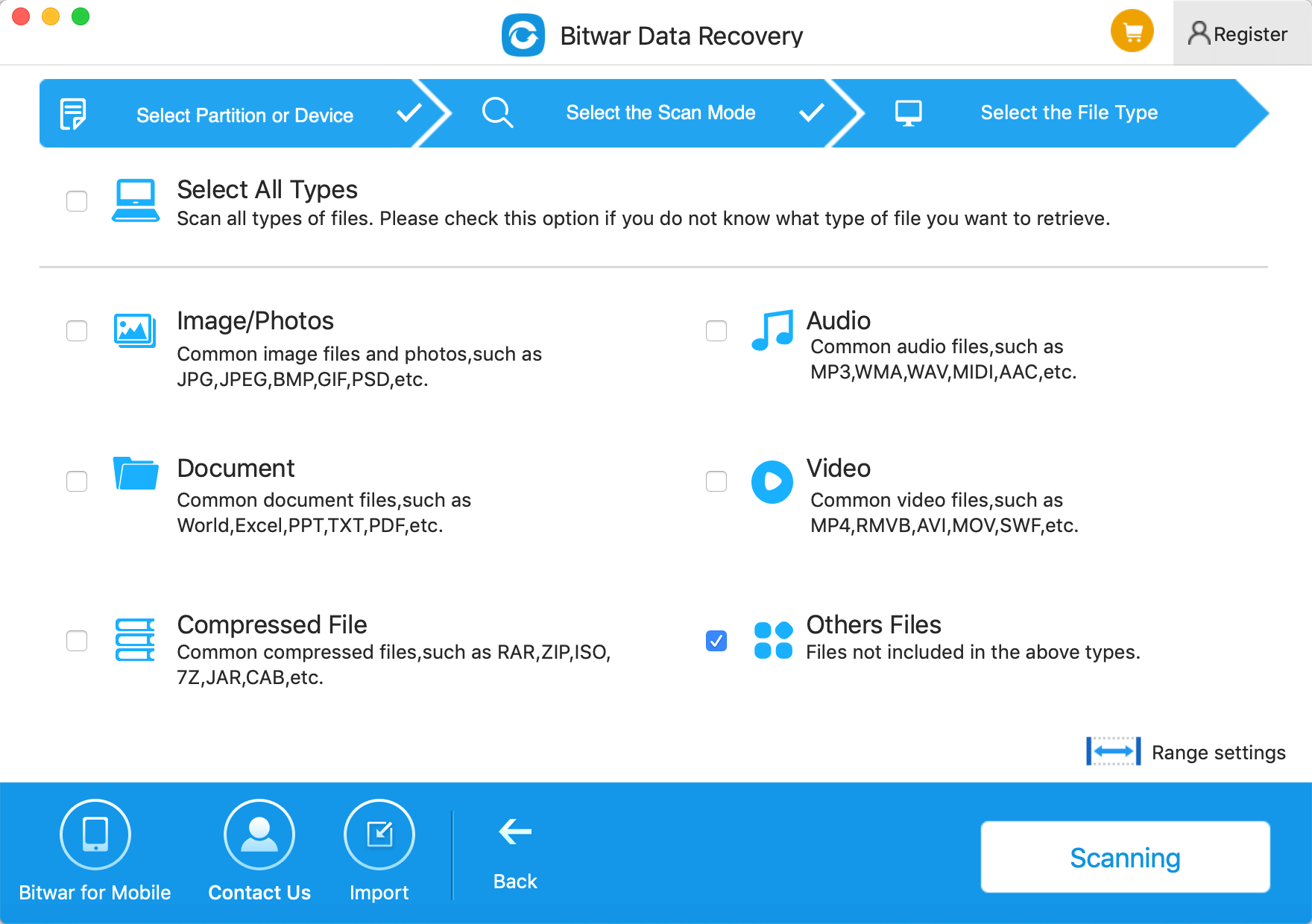
Step 3: Select the file type

Choose the file types which you want the files to be recovered and click “Next.”
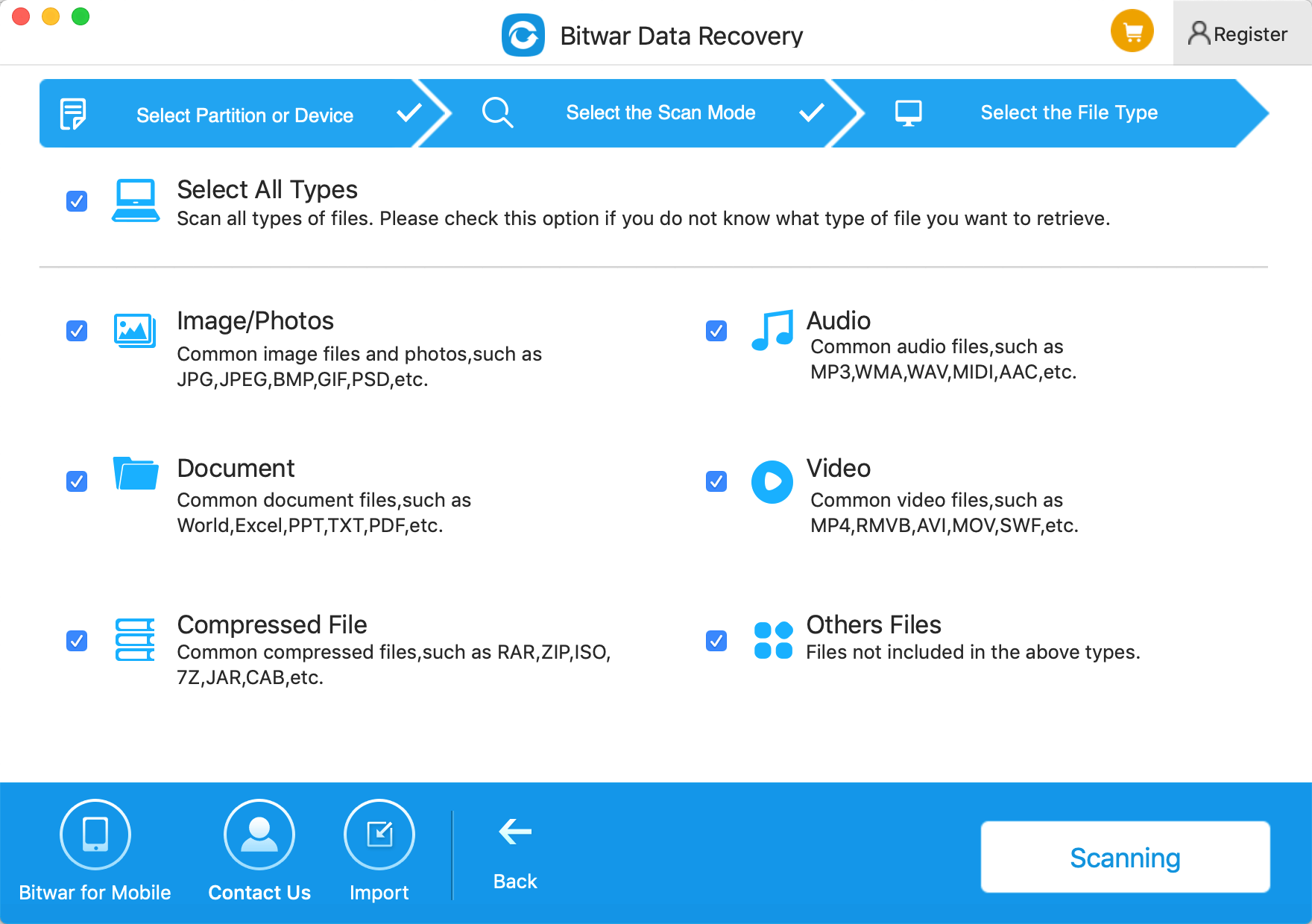
Select File Type

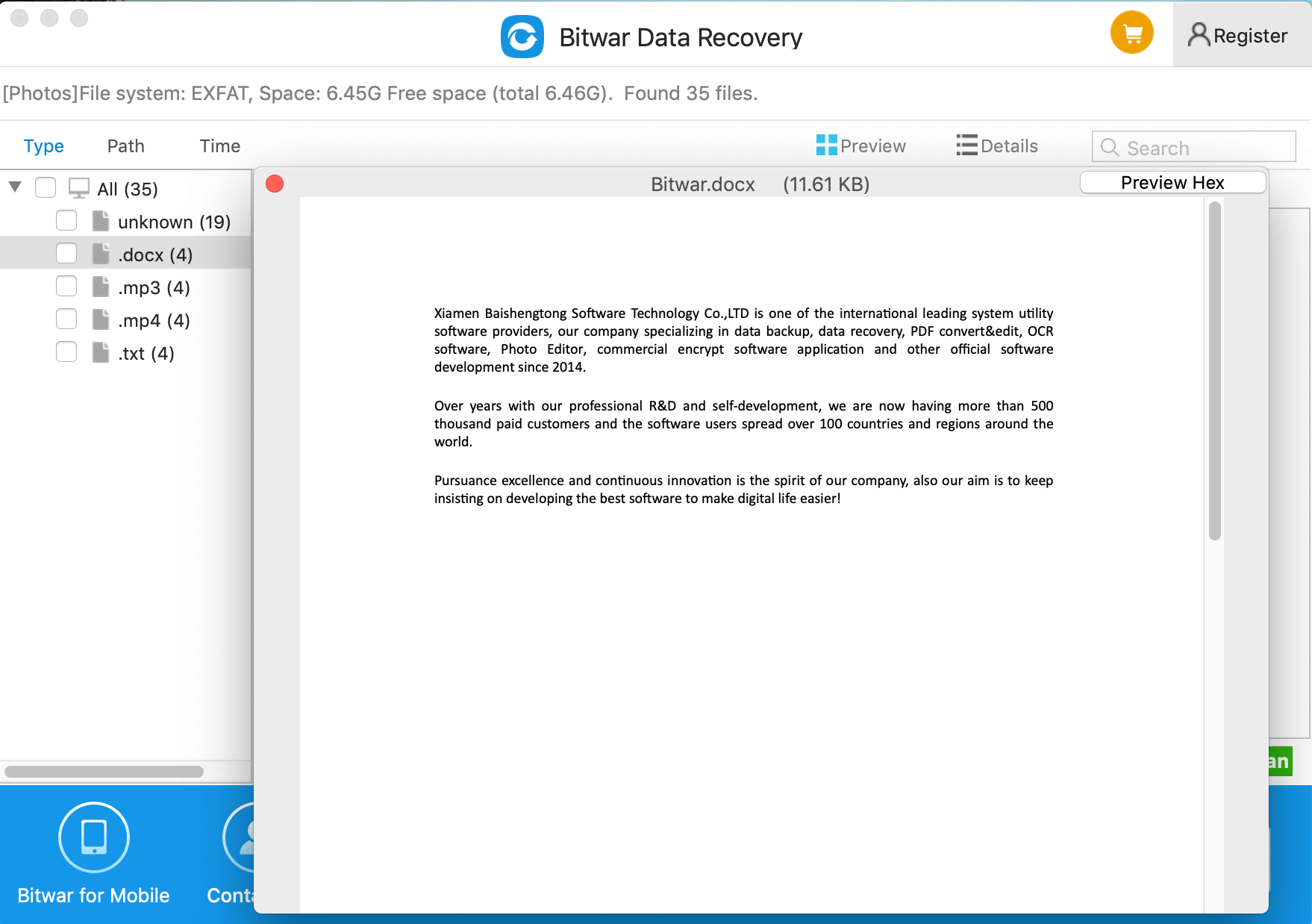
Step 4: Preview, recover and save files

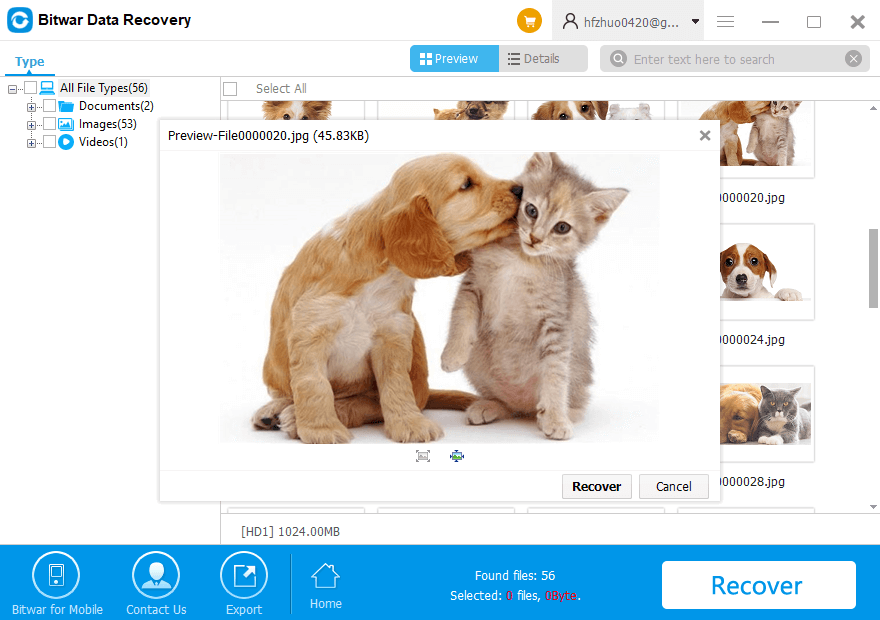
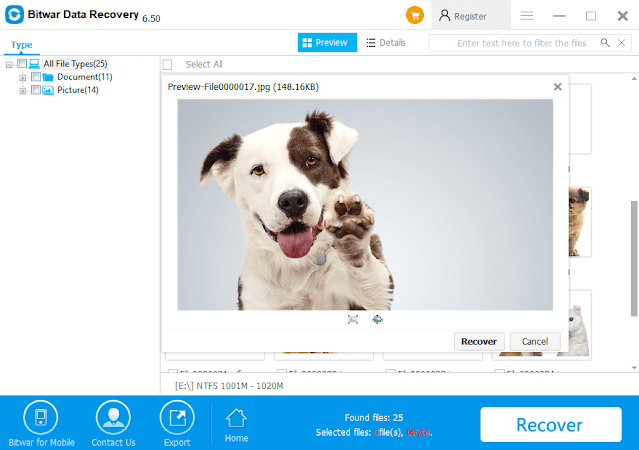
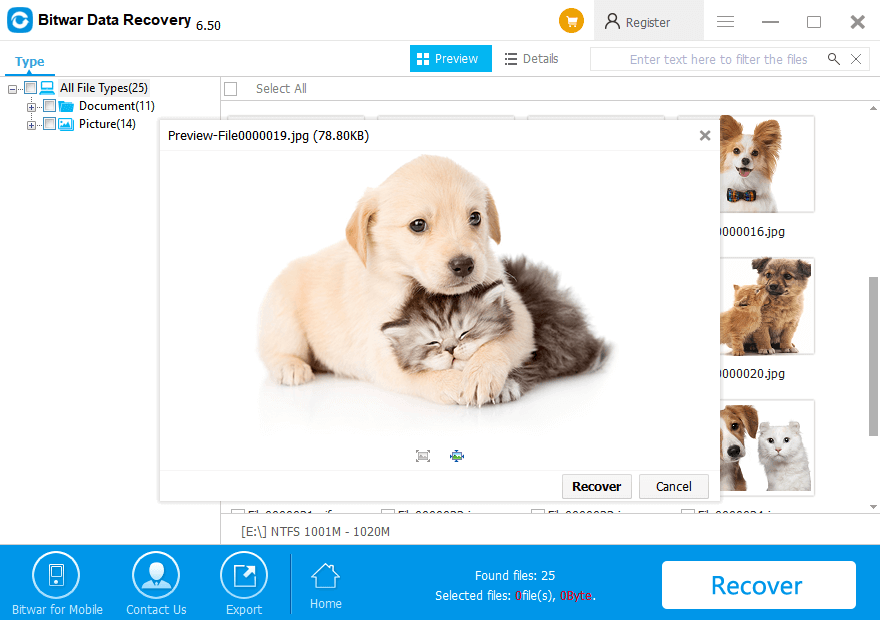
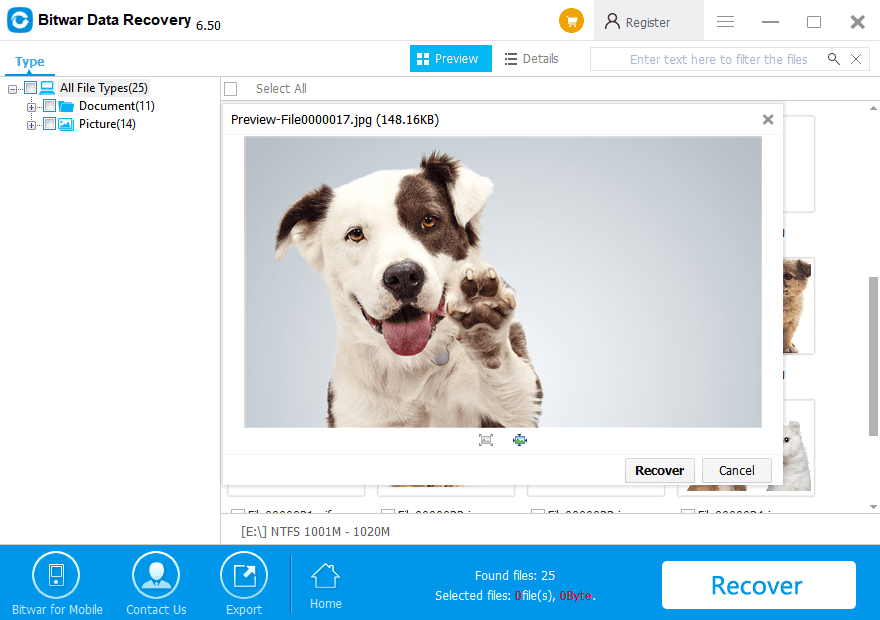
Bitwar Data Recovery supports to preview after scanning. And you can also preview them one by one. Then select those you want and press the recover button to have them saved to a safe path of Mac.
 
Tips: Please DO NOT save the data into the partition or device where you deleted it.
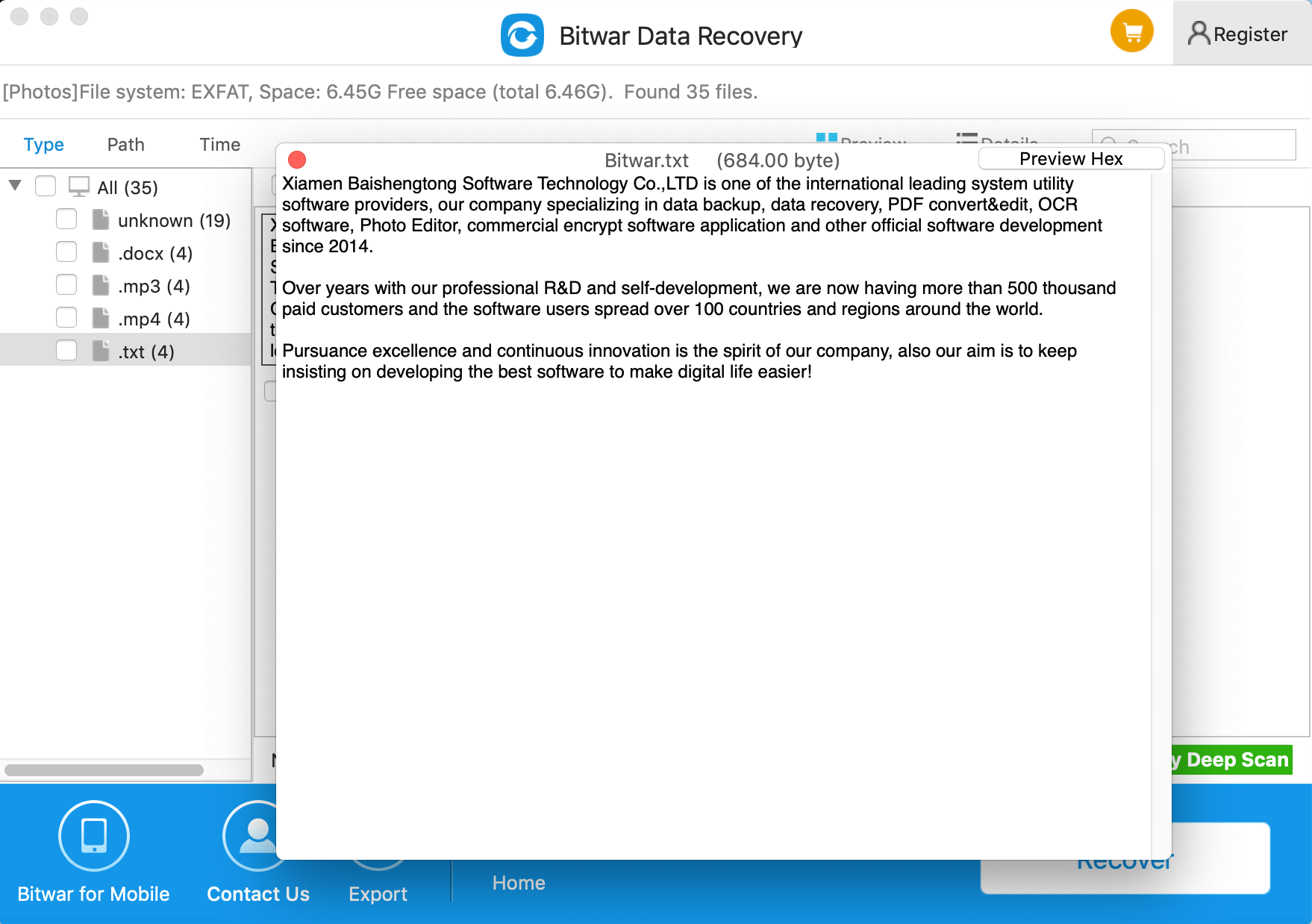
Result

Try It Out!

Please refer here for more about Mac data recovery.
Fix The Parameter is Incorrect

Did you get “The parameter is incorrect” error message and cannot access your external hard drive, USB drive or SD memory card? How can you fix the error without data losing? Here are some useful instructions that can help you to fix the issue and recover your missing data.

Sometimes, when we tried to access files stored on the hard drive, the warning message “I:\ is not accessible, the parameter is incorrect” appeared. Why?
 
The parameter incorrect is probably the most common issue that is associated with the hard drive or external storage drives. You can go on reading the article to find out the helpful solutions when you meet such a problem.

Causes of “the parameter is incorrect” error

There are some reasons for this kind of error:

● USB Port problem; the USB is a link between a computer and an external hard drive, and once it is not functional, the hard drive might be damaged.

● Improper removal of the hard drive; unplugging the hard drive from the computer directly damages the hard drive hence the cause of the error above.

● Bad sectors on the external hard drive; one bad sector on an external hard drive might make the entire partition inaccessible. These bad sectors might damage the whole drive.

● File system corruption In computer, a file system is used to control how data is stored and retrieved. Once file system goes wrong, you may fail to access drive and receive some errors like “the parameter is incorrect,” “Data error (cyclic redundancy check),” “Windows is unable to complete the format,” etc.

 
In computing, a file system is used to control how data is stored and retrieved. Once file system goes wrong, you may fail to access drive and receive some errors like “the parameter is incorrect,” “Data error (cyclic redundancy check),” “Windows was unable to complete the format,” etc.

Recover data first from the drive

Well, when encountering the error “drive is inaccessible, the parameter is incorrect,” experienced users will firstly think of recovering data and files from this drive, and then fix this error. How to effectively retrieve data from the drive that parameter is incorrect?
 
You can consider using recommended software like Bitwar data recovery, and it is designed to recover missing data caused by various reasons. Moreover, this program allows you to preview files before you recover them.
 
Download Bitwar Data Recovery from its official website and install it.

Solutions to fix the error of “the parameter is incorrect.”

Solution 1: Run CHKDSK

CHKDSK is an inbuilt hard drive error checking and repairing utility in Windows which is used to scan hard drive, bad sectors and fix errors in the hard drive simultaneously. You can follow these steps to repair your inaccessible external hard drive:

          1.   Type cmd in Windows search box.
          2.   Right-click on ‘Command Prompt’ and select ‘Run as Administrator.’
          3.   Click ‘Yes’ to grant Admin access.
          4.   Type the command chkdsk X: /f where X is the external hard drive partition letter.
          5.   TIP: Alternatively, you can type chkdsk X: /F /X /R for rigorous scanning and repair.
          6.   Hit the ‘Enter’ button and wait until ‘Chkdsk’ utility repairs the disk errors.
 

NOTE: CHKDSK can only repair soft bad sectors. While repairing soft bad sectors, CHKDSK will damage the files and data resided on those bad sectors. If you don’t want to risk damaging or corrupting your data, please recover your important data first.

Solution 2: Run SFC Scan

Sometimes the error arises within your computer system due to some missing or corrupt system files.
 
       1.  Press ‘Windows+Q’ to open the search bar.
       2.  Type cmd. Right-click on ‘Command Prompt’ and select ‘Run as Administrator’ from the options.
       3.  Type SFC /scannow in the CMD window and hit the ‘Enter’ button to run the SFC scan.
       4.  If SFC scan finds any problem with system files, it can ask for Windows installation DVD or USB installation media to repair corrupt and damaged system files.
       5.  When finished, restart your system and try connecting your external hard drive to the PC.

Solution 3: Use an Antivirus Program

If a virus-infected file resides on your external hard disk, it can make your hard disk inaccessible. You can use good antivirus software to scan your external hard disk for any viral infection and quarantine the virus.

Solution 4: Format the Drive

If none of the above solutions works, formatting external hard drive is the only solution to fix parameter is an incorrect issue. Please note that formatting will erase all the data on your external hard drive.

Why not have a try?

Please refer here for more about the parameter is incorrect error.

Delete Pages from PDF with PDF Converter

Follow the tutorial below to learn how to delete pages from PDF without Adobe with the help of Bitwar PDF Converter!

It is very time-consuming when operating with significant file document such as PDF. Sometimes, users may need to divide or extract out some pages from the PDF file for document sharing or edit. Moreover, users can delete some of the unwanted pages from the PDF file if the is too large for users by using Adobe Acrobat.

How to Delete Pages from PDF

More TricksHow To Extract Pages From PDF File Without Adobe Reader

Somehow, not all users have the Adobe software on their PC because it is expensive to buy. But don’t worry, there is an alternative way to delete pages from PDF file without using Adobe Acrobat Dc!

Delete Pages from PDF with PDF Converter

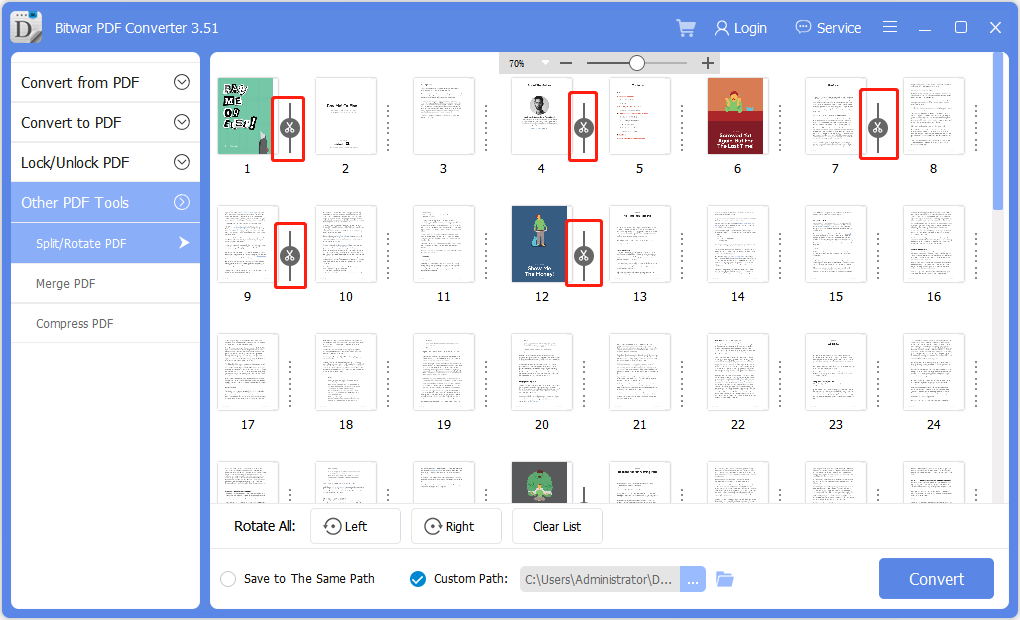
There are a lot of editing PDF tools provided in the PDF Converter. For this situation, users can use the Split PDF tool to delete the unwanted pages out from the PDF file.

Step 1: Open PDF Converter and choose Split PDF tool from the Other PDF Tools menu.

Step 2: Add the PDF file and choose the pages that you want to delete.

Split PDF

Step 3: After selecting pages, click Convert and Open path to preview the new PDF file!

Easy Trick to Learn!

The steps mentioned above are straightforward for all users to follow. Don’t be rush and buy yourself an Adobe software since it is costly and hard to use. Besides, explore all the PDF tools in the PDF Converter, which can be useful when facing different situations on PDF file.

Recover Data From A Corrupt Master File Table

This article offers solutions to fix Windows cannot recover the master file table error effectively. And Bitwar Data Recovery will restore the corrupted master file table and get back your data.

When you try to access a partition on your windows, you may get the error “Corrupt master file table.” Windows will attempt to recover master file table from disk. And it reads “:\ is not accessible. The file or directory is corrupted and unreadable.” What will you do then?

What is “master file table”?

Master file table, the short form MFT, is a file contained in the NTFS file system. MFT is the most critical part in the NTFS file system, as it stores all information about a file such as size, time, date stamps, permissions, and data content. When a file is added to NTFS partition, its entry will be added to MFT. When the file is deleted from an NTFS volume, its NTFS entry will be marked as free for reuse. If the master file table gets corrupt, data in the NTFS file system volume will be inaccessible.
 
There are several solutions you can do to master the corrupt file table.
 
When you get “Windows cannot recover master file table” error on your windows, you should back up and recover the data first. We recommend you to download and try Bitwar data recovery to restore your data. The program works extremely well to recover files from the corrupted hard drive or raw disk in Windows.

Steps to recover data from a corrupt master file table

Download and install Bitwar data recovery on your windows: https://www.bitwar.net/, then follow the guides to recover data from the corrupt master file table.

Methods to Fix “Windows Cannot Recover Master File Table” error.

Solution 1: Defragment

At times, the frustrating error occurs from too many fragmentations. In this case, you can try to eliminate the error by defragging the drive.
 
Open My Computer, right-click the corrupted drive, select Properties, choose the Tools tab. Then click Optimize button and follow the wizard to analyze this corrupted drive and then do defragmentation.

Solution 2: Reinstall the drive

In addition, you may receive the error after installing some new applications, try reinstalling the drive partition to fix this error. However, if the failed drive is a system drive, don’t apply this method.

Solution 3: Repair corrupt MFT with CHKDSK utility

As we all know, CHKDSK is able to scan the hard drive for errors and repair them.

1. First off, input cmd in the search bar of Start Menu.

2. Then, launch cmd as admin.

3. Next, type chkdsk drive letter: /r in the command prompt window.

4. Press Enter key button.

5. When it completes, type exit.

6. Finally, restart your PC to see if the error is gone.

Solution 4: Reformat the drive

The corrupted master file table involves the file system of the drive. File system issues can be resolved simply via disk formatting. If you have backed up the drive data yet, you can reformat the disk to eliminate the error. If you don’t, please use the related data recovery tool to get back data. Reference Guides to recover data from a corrupt master file table. And then, Format the Partition to NTFS as below:
 
1. Open This PC/Computer > Find the RAW partition;
2. Right-click it by choosing Format > Select the file system – NTFS and rename it;
3. Click Start > OK.
 
After this, your corrupt partition has been converted to NTFS, and you can reuse it again.

Let’s Have A Try!

Please refer here for more about Corrupt Master File Table Data Recovery.

Recover Data From Unrecognized Flash Drive

A USB flash drive is similar to a hard drive which stores all the data in its memory.  But there are many issues that can make the USB drive become inaccessible. This article will help you repair the USB without losing data

Why is flash drive not working or unrecognized?

A USB drive just likes any other data storage devices that have the possibility of being corruption or physically damaged. Its issues can be boiled down to two categories of errors, logical one and physical one. The logical mistake can be corrected while physical one cannot be solved without professional knowledge. If physical mistakes occur, the only solution is to seek the help of professionals.
 
When the flash drives unrecognized, This is very tricky! While the error and damage rate of flash drives, in general, are comparatively low. The fact is that when they are damaged for some reasons, a good solution is required to retrieve data from them. Don’t worry, even if you have no idea about how to repair a corrupted USB flash drive without formatting or losing data. 

On this page, we will introduce you an amazing data recovery software which can help you to recover lost data from an unrecognized flash drive.

The best flash drive recovery software

Bitwar Data Recovery is the best flash drive recovery software since it is compatible with all devices including digital camera, hard drives, SD cards, Memory cards, phones, media players and portable drives. Therefore, you can restore audios, videos, pictures, archives, compressed files, documents, etc. Moreover, this program allows you to preview files before recovering them.

How to recover data from the unrecognized flash drive?

Download and install Bitwar Data Recovery and then launch the software. Then connect the unrecognized flash drive to the computer.

Step 1. Select your device that the type contains “Raw” and then click “Next.”

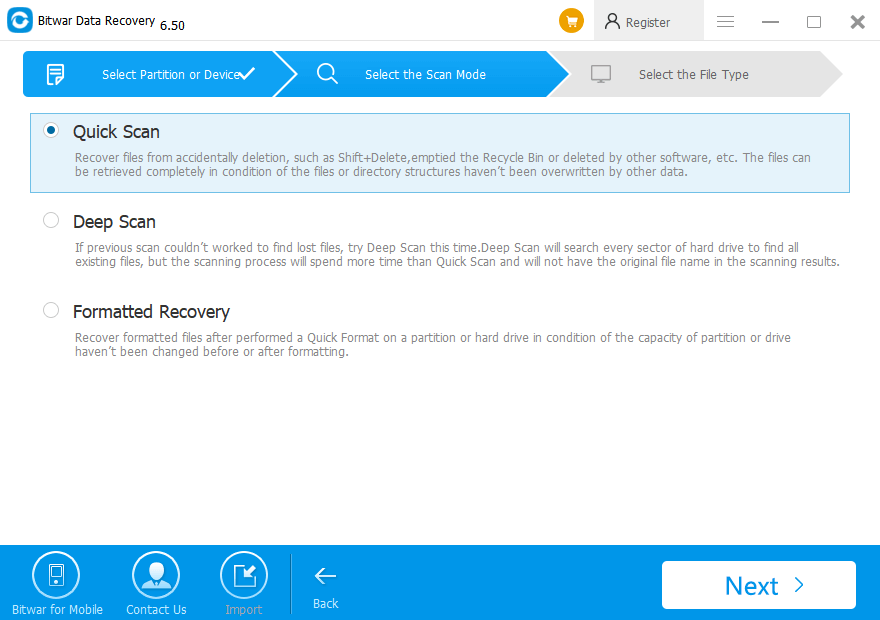
Step 2. Choose “Quick Scan” to scan the lost data from the flash drive first. If it cannot get back the lost data that you want, you need to select “Deep Scan” to scan one more time.

Step 3. Select all types of files and then click “Scan.”

Step 4. Double-click to preview the files and hit “Recover.”

Ways to repair corrupted flash drive

1. Try another USB port or PC

If your flash drive not showing up on the PC, the problem is not necessarily caused by the flash drive itself. The USB port and the computer may go wrong. You can unplug your drive and insert it into another USB port, or insert it to another PC.

2. Run Windows’ repair tool for removable disk

     1. Open “This PC” and find your USB drive.
     2. Right-click your drive and open “Properties.”
     3. Click on the “Tools” tab on the top.
     4. Click the “Check Now” button (or “Rebuild” button if your system is Windows 10).
     5. Select both options: “Automatically fix file system errors” and “Scan for and attempt recovery of bad sectors.”
     6. Click “Start”.

 3. Enable USB device and assign a drive letter

This way is effective when the system reminds you of the undetectable drive. Right-click Start and click “Device Manager” (Or go to Start> Control Panel> Device Manager or Right-click My Computer/ This PC >>Click Manage>>Click Device Manager on the left side.)
 
      1. Expand the list: Disk drives.
      2. Right-click your drive and enable it.
      3. External Disk in Device Manager
      4. After enabling, you also need to assign this drive letter:
      5. Right-click My Computer/This PC >>Click Manage >>Click Storage>Disk Management.
      6. Right-click your flash drive and select the option to “Change Drive Letter and Paths.”
      7. In the pop-up window, click “change.” Assign any available drive letter to the USB drive by clicking it.

4. Reinstall the drivers

It is possible that the drivers that run your flash drive are corrupted before the system recognizes the drive. Therefore, you should try reinstalling the drivers.
 
      1. Right-click “My Computer/This PC” and open “Manage.”
      2. Click “Device Manager” on the left side.
      3. Expand the option of “Disk drives.”
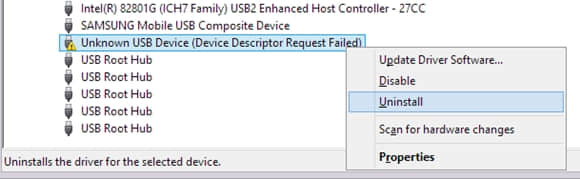
      4. Right-click the name of your drive, click “uninstall” and click “OK.”

fix flash drive

Eject your flash drive safely and restart your PC. Then see whether your flash drive can be detected and recognized.

Have A Try!

Please refer here for more about Inaccessible Flash Drive Recovery.

The Device Is Not Ready

If you come to this article, it means that you meet the problem of  “The device is a not ready” error which occurs both in hardware and software. For this, we list 5 typical solutions to help you get rid of the problem quickly and effectively. If you have very important files on the drive, download Bitar Data Recovery to recover your data.

The Symptom of “The Device is Not Ready” Error 

“The Device Is Not Ready” error is a kind of common error that often occurs when people want to access data in an external data storage device. Its symptoms as follows result in your hard drive not ready problem. 

  • The device shows 0 bytes will pop-up the window.
  • The device is not accessible or the device is not ready also show the same instruction window.
Error

Recover data before resetting the device

Once reset the device, all the old data will lose. If you don’t want to miss anything essential for you, you must recover files from the hardware or software firstly. In this way, Bitwar Data Recovery Software is the best choice for you.

  • Bitwar Data Recovery software is specially designed to retrieve deleted/formatted/RAW files from Windows PC, laptop, hard drive, SSD, memory card, USB drive, SD card, digital camera, multimedia player and other storage devices.

Step 1. Select the inaccessible hard drive or flash disk

Launch Bitwar Data Recovery software on your windows and select the inaccessible hard drive or flash disk and then click “Next”.

Step 2: Select the Scan Mode

There are three modes offered for you to scan data, you can choose “Quick Scan” mode to scan first. If you cannot find files in this mode, try Deep Scan. The deep scan will search every sector of the disk to find all existing files.
 
When you want to recover formatted files from the inaccessible disk, you should select “Formatted Recovery” here.

Step 3: Select the file types

Select the file types that you want to recover. If you don’t know what kind of type of losing data, you can choose “Select All Types” to recover files from the inaccessible disk. Then click “Next” to start scanning.

Step 4: Preview and recover lost files

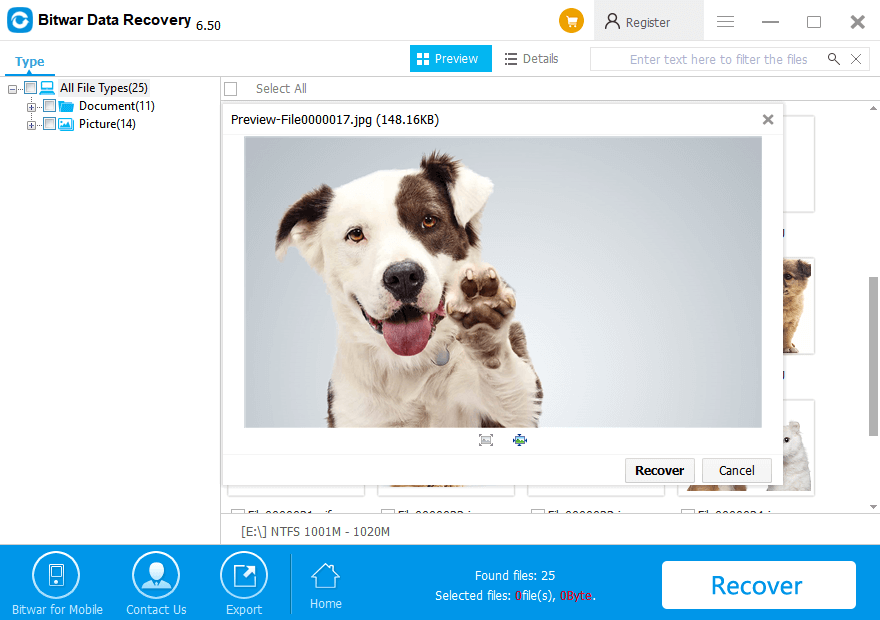
After the scan, you can filter the files by file name, type, path and time. Then double-click the file which you want to preview to make a selective recovery. After determined, click the “Recover” button to save it to another partition or other external device which can be accessed.

Solutions to fix the “The Device Is Not Ready” Error

  • Solution 1: Check the drive connection

The device is not ready error often occurs on external drives, so make sure the device is properly connected to your computer. You can also unplug it to establish the connection or disconnect the device and plug it into a different USB port.
 
If the “device is not ready” error disappears, you can make sure both the digital device and related USB port are not damaged.

  • Solution 2: Read this device on another computer

You can use another connecting cable to connect between the external hard drive and computer to see if the fault is in the connecting cable. Or you can attempt to read this device on another computer, a computer which has read this device before and can work normally should be your first choice.

  • Solution 3: Reinstall the device driver

If the device driver is not installed, corrupted or missing, you will receive the warning message as well. Try to re-install the device driver.
 
Step 1. Type device manager in the search box, right-click it and select Open.
 
Step 2. Expand and navigate devices on the right panel to find out whether the device is ready or not, right-click the device and select Uninstall.

Step 3. Keep your device connected and restart the PC. Windows will attempt to reinstall the driver.
 
Then Restart your computer and check this action whether solved the problem.

Why Not Have A Try?

Please refer here for more about not ready device data recovery.

Mac Unsaved Word Document Recovery

If you’re looking for a way to recover unsaved word documents on Mac OS X, you’re in the right place. This article will tell you how to recover unsaved word documents on Mac OS X from the Temporary Folder and AutoRecovery.

Many scenarios can cause the issue of un-saving Word document: shut down Mac without saving the Word document; the Microsoft Word program crashed and not responsive so that you have to quit it without saving the document; the computer crashed, and you don’t have time to save the word document at all.

However, it is not a big deal. Here are three ways to recover unsaved word documents on Mac.

Solution 1: Recover from the AutoRecovery

The word for Mac includes an AutoRecovery option which is turned on by default. The app will automatically save a copy of an open Word file every 10 minutes. If Word freezes or crashes when you’re working on a document, you can use the AutoRecovery text to retrieve unsaved Word document with the changes or additions that you made in your last Word for Mac session 10 minutes ago.

Step 1. Close Word for Mac.

Step 2. On the Go menu, click Home. Open the Documents folder, and then open the Microsoft User Data folder.

Step 3. Locate all the files that start with the words “AutoRecovery save of.” Select the one you want to recover and open the files with Word program. (No programs can open it by default, and you need to select them manually.) Or you can add the “.doc” file name extension to rename the file, then open it.

Step 4. If it is the files you want and click the File menu and select Save As. Type a new name for the data into the Name field, select a folder for the file, and click the Save button.

Solution 2: Recover from the Recovered items folder in Trash

The word for Mac temporarily saves documents that the user has not yet saved them in the path <Trash -Recovered items folder>.

Step 1. To open the Trash and see if the Recovered items are in there, click its icon in the Dock. A Finder window called Trash opens and display any files it contains.

Step 2. If you find the Recovered items folder, move the copy of the unsaved Word file to a location on your Mac and load it up in Word to continue working on it. 

Solution 3: Recover from the Temporary Folder

The word for Mac saves a copy of the unsaved document named as Word Work File in a Temporary folder.

Step 1. Go to the Finder, navigate to Go -> Go to folder.

Step 2. Type /private/var/folders and find the files named “Word Work File” inside a “Temporary Items” folder.

Step 3. Drag folders or files to the Desktop and Save the Word file by clicking on File > Save As and save it to a safe location.

Solution 4: recover data with Bitwar Data Recovery for mac

If the above solutions fail to get back your unsaved document, you should use Bitwar Data Recovery for Mac to recover the unsaved word document as an alternate solution. It is the most efficient way.  

Bitwar Data Recovery for Mac is excellent that allows you to scan and recover different types of files from different devices. File types like word, excel, PowerPoint, photo, video, etc. can all be restored quickly. Of course, it also supports recovering data from the Temporary data, AutoRecovery, and items in Trash.

Steps to recover unsaved word documents on Mac OS X

Download and install Bitwar Data Recovery on your Mac OS X by clicking the icon below, and then launch it. The software is compatible with OS X 10.11 and later. 

Tips: For the latest macOS 10.13 (High Sierra) system requirements, Mac users are not allowed to access system disk from apps. If you want to recover data from the system disk, please disable the system feature “System Integrity Protection (SIP),” and see the guide on How to Disable System Integrity Protection (SIP) in macOS High Sierra (macOS 10.13)

Step 1: Launch the program and select the partition/devices where the Temporary, AutoRecovery, and Trash folder in and then click “Next.”

Step 2: Select the Quick Scan mode and then click “next.”

There is three scan mode for you to choose from. If you can’t find data from Quick Scan mode, you can try Deep Scan on this step. Deep Scan will search every sector of the hard drive to find all existing files, but the scanning process will cost more time than a quick scan and will not have the original file name in the scanning results.

Step 3: Choose the “Other Files” type if you want to recover unsaved word documents on mac and click “Next” to start a scan.

Step 4: After scanning, preview, and select the files you want and press the Recover button to have them saved on the Mac.

Tips: Please DO NOT save any recovered data into the Partition where you lost it.

Above are the four methods to recover unsaved or deleted Word document files. I am sure you will successfully get the lost data back quickly by referring to the guides.

OK, Let’s Try!

Please refer here for more about Mac data recovery.
Recover Photos from Android Phone

If you deleted or lost outstanding photos on Android phones due to false operation, don’t worry. Here on this page, you’ll find how to recover deleted photos from Android phones with a robust Android data recovery software i.e., Bitwar Android data recovery.

At times, delete photos from an Android phone is quite a common way to release the storage capacity. However, sometimes we may remove those photos we need mistakenly. Don’t panic; there are plenty of ways to recover deleted photos from Android phones. Well, the critical point is how we can find the right one to completely recover deleted photos on Android phones without loss or any harm to the device.
 
There are many reasons for photo loss on Android phones. However, no matter what reason may result in data loss, you should keep in mind that as soon as you find that you have lost some vital data, stop using your phone until you get your photos back. Otherwise, you are likely to lose your precious photos forever.
 
Here, I’d like to recommend you one of the most professional data recovery software for android – Bitwar Android data recovery. It is an efficient and safe tool to recover deleted photos/pictures from Android phones and also with the ability to recover loss of data due to OS update, factory restore, rooting or ROM flashing, locked phone, or backup sync failure, etc.
 
You can always trust this software to recover deleted photos from Android effectively and efficiently. We have Bitwar Android Data Recovery for Windows and Bitwar Android Data Recovery (APP) which can help you get back these accidentally deleted photos.

Steps to Recover Deleted Photos From Android Phone With Bitwar Android data recovery for Windows:

Download Bitwar Android Data Recovery from our website: https://www.bitwar.net/android-data-recovery-software/.

Step 1: Before recovery, we have to turn on USB debugging mode and root our Android Phone first to get the administrator authority. If you have already rooted the phone, pass this step. If not, you can read this article to get more: How to Root your phone.
 
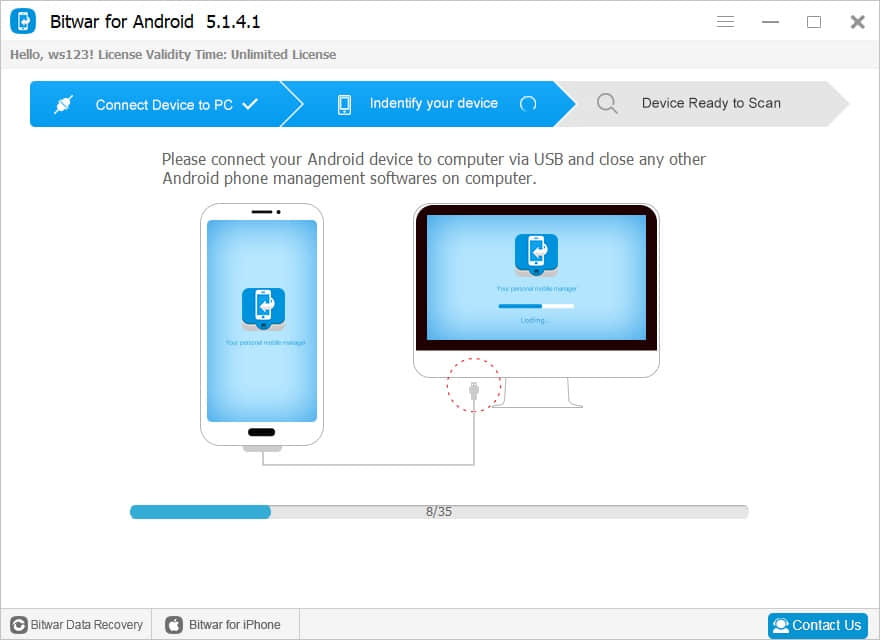
Step 2: If you have rooted your Android phone successfully. Launch Bitwar Android Data Recovery and connect your phone to the computer with your original USB cable.

Connect Phone

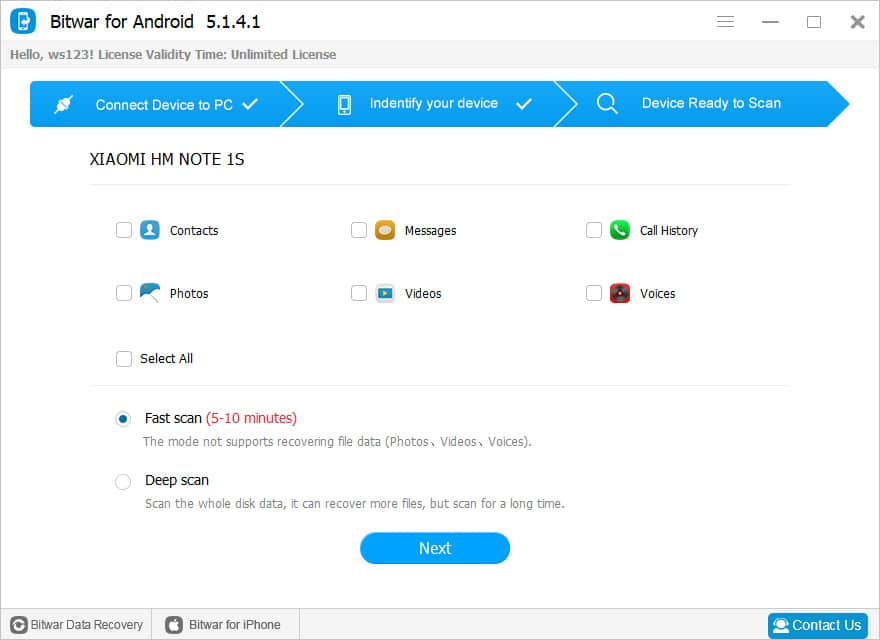
Step 3: Select Photos on the interface and hit “Fast Scan.”

Select File

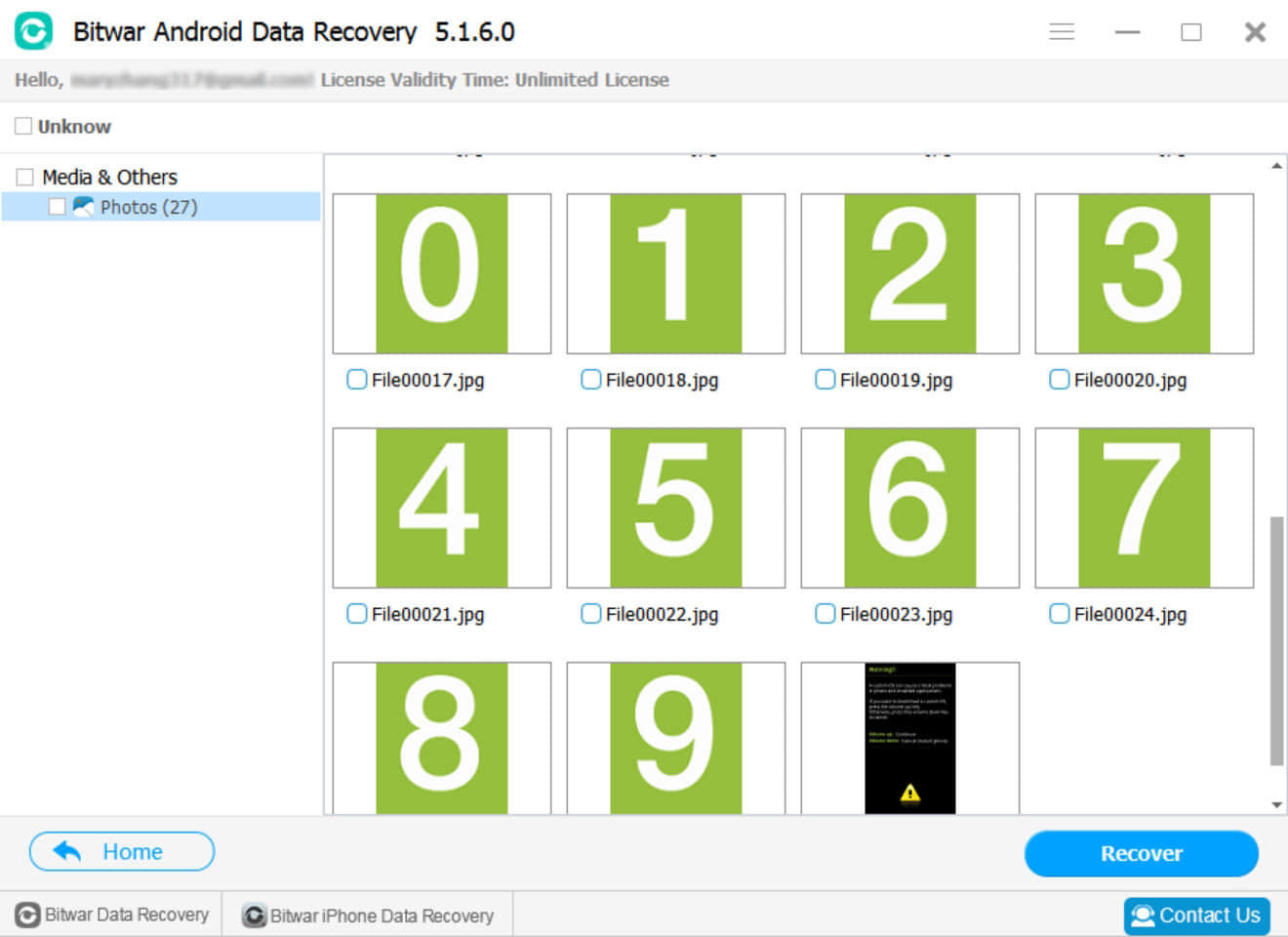
Step 4: You can see the photos are appearing in the scanning result windows. You can preview the picture to check the image is entirely for recovery or not. Then select it and hit the recover button.

Select Photo

After this, you can save a copy of those recovered photos as a backup on the computer and then you can transfer them into your Android phone to continue using them again.

Have A Try!

Please refer here for more about Android data recovery.

Recover Deleted Text Messages from iPhone

How to recover deleted text messages from iPhone when you accidentally deleted them? What should you do when you didn’t have the backup of the text messages? This article shows you the best way to recover deleted text messages from iPhone without backup.

Text messaging/SMS is one of the most popular ways to communicate nowadays. It is reliable and precisely to deliver and send messages to people. All you need to do is typing in your message, press the “send” button.
 
The messages are automatically stored in the smartphone’s inbox. However, when you notice that the Messages file is quite large, you will try to free up storage capacity on your iPhone, the bad news is you’ve deleted the important messages together with the unwanted messages. Is there a way to retrieve deleted text messages on the iPhone?
 
If you have backed up your iPhone regularly, you can easily recover your messages from a backup file. If not, don’t be frustrated, you also can recover deleted text messages from iPhone with third-party data recovery software for iPhone.
 
The professional data recovery software — Bitwar iPhone Data Recovery specializes in both iOS data recovery. With the help of Bitwar iPhone Data Recovery, you can recover deleted text messages from iPhone easily.

Prepare to Restore the Deleted Text Messages

Install Bitwar iPhone Data Recovery

Free download and install Bitwar iPhone Data Recovery on your computer. Bitwar iPhone Data Recovery software has two versions: Mac OS or Windows OS. Choose the correct software to install based on your computer’s operating system.

Tip before recovery

Bitwar iPhone Data Recovery can directly detect whether iTunes is installed on the computer, and download the installation components directly without installation. If there is an installation or a computer that has backed up Apple data using iTunes, it can directly select the feature to scan from the backup.

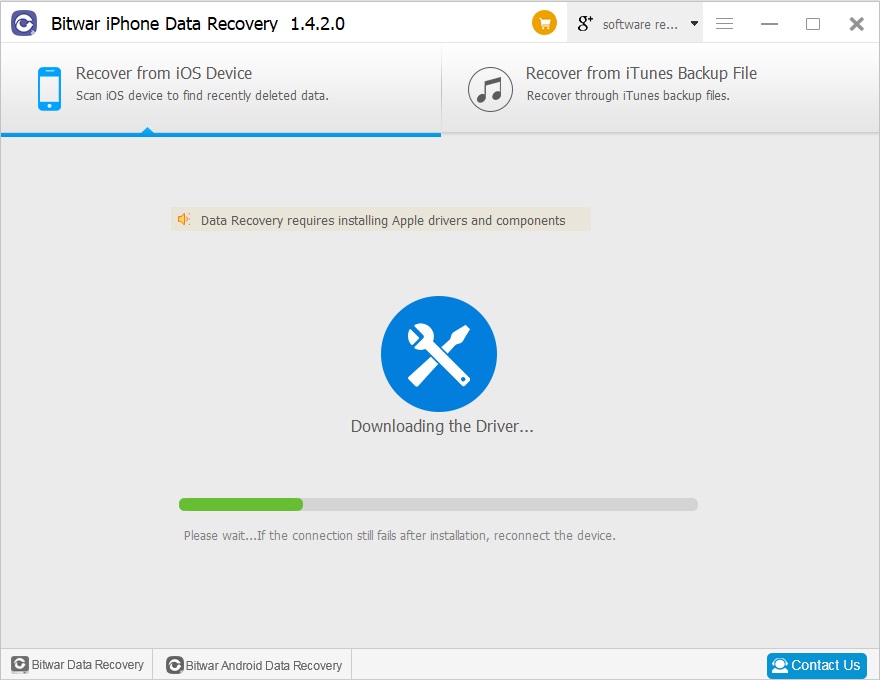
The first time to access the iPhone needs to install the necessary fruit and devices, with a time of 3-5 minutes, please be patient.

Recover from iOS Device

Steps to Recover Deleted Text Messages from iPhone:

Step1: Launch Bitwar iPhone Data Recovery and Connect your iPhone to the Computer

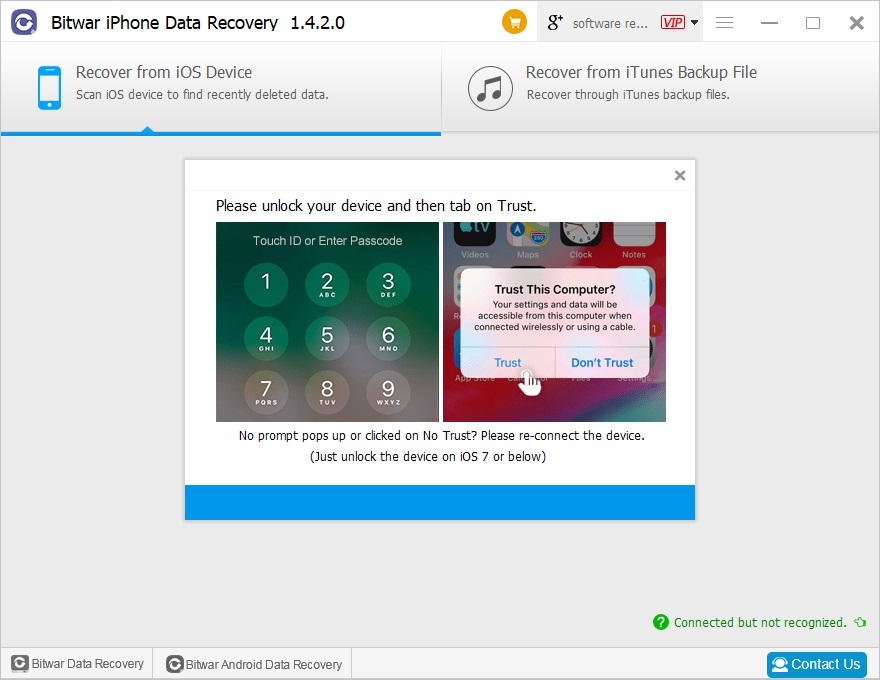
Make sure iTunes is installed previously and Launch the installed Bitwar iPhone data recovery program. Connect the iPhone which deleted text messages to the computer through the original USB cable. select “Recover from iOS Device”.

Connect Phone

Step2: Select the recovered file type

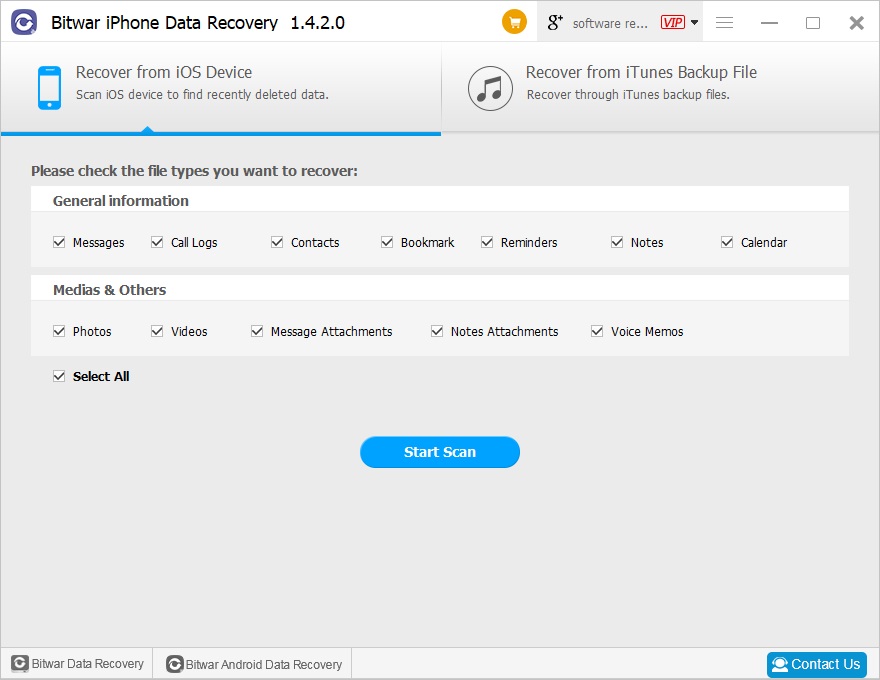
After the program has identified your iPhone, you can select “Messages” or “Select All” and Then click “Start Scan”. The software will quickly scan the iPhone to find all the existing and lost messages out. All you need to do is keep the iPhone connection during the operation.

Select File Type

Step3: Preview and recover the message from iPhone

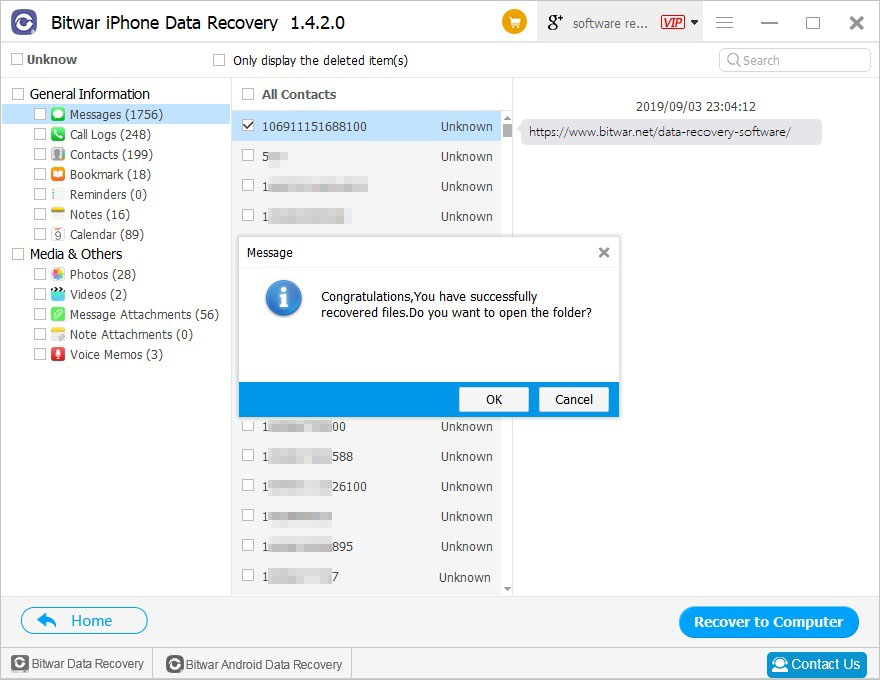
When the scan is finished, the scanned messages will be displayed and listed in the left panel in the program, you can click it and find your target text messages. Then mark the ones and click “Recover” button to have them saved to your computer.

Preview

Easy Recovery!

Please refer here for more about iPhone data recovery.

Fix Location Is Not Available

You may encounter the “location is not available” error in Windows 10. How to fix it? If your data are lost, you can use Bitwar Data Recovery to rescue your data easily and quickly.

Users may have encountered “Location is not available.  X:\ is not accessible. Access is denied.” in the process of using a computer. It means that the hard drive file system gets damaged or corrupted and becomes RAW. Later check its properties, you’ll find that the hard drive shows 0 bytes available.

What is RAW?

RAW isn’t a file system but an error of a partition on a hard disk or any other data storage device.
 
Here are the common RAW partition error causes:
 
        1. Reading errors or bad blocks in large numbers were found.
        2. Virus or Trojan infection.
        3. External Device’s firmware corrupted.
        4. Bad file structures.
        5. Upgrade to Windows 10 may rarely cause the RAW file system.

What’s worse, the partition to access your precious data is unavailable. You may receive a prompt: you need to format the disk in drive before you can use it. Will you try to format it? But don’t worry! What you need to do is try to perform data recovery first. And then format the disk by right-clicking the questioned drive -> Format -> Wait and click OK.
 
Note: Don’t rush to format the disk/partition if any critical data files are still there and waiting for recovery.

Recover data first from the available location

You can recover data with a profession data recovery software, which named Bitwar Data Recovery. It is a fast, reliable, and Free Trial data recovery software with powerful functions. Bitwar Data Recovery is user-friendly and has wizard operation so that you can recover RAW or other lost data with only three steps.

Key Features of Bitwar Data Recovery

       ●You can recover files of hard disk, mobile hard disk, U disk, SD card, memory card, digital cameras, and other devices.
       ●You can recover all types of files, including photos, videos, documents, audios, archives, etc.
       ●You can recover data from formatted partition and recover lost data when the partition is lost.
       ●You can preview lost files, including common photos, Word, Excel, PDF, CAD, RAR, PSD, etc., as many as 300 different file types.

Steps to recover lost data from the location is available on Windows 10

Download Bitwar Data Recovery.  Then install it on your computer, follow the steps to recover lost data from the location on Windows 10 and get a free trial license in the software.

Step 1. Choose the partition/disk which shows as RAW in the type section and then click the Next button.

Step 2. Select the recover mode and file types you need to recover and then click Scan.

Step 3. After the scan, you can filter the data you need with type, path, file name, etc. to shorten the time to find your target data. And double-click to preview the thumbnails of the data. You can check the data easily and quickly with the above operation. After finding the lost data, click Recover to save them to a different partition or external device.

Have A Try!

Please refer here for more about Location Is Not Available.

Design a site like this with WordPress.com
Get started