If files are inaccessible on your PC with the demand “Windows cannot access the specified device, path or file.” Don’t worry, this article introduces the solutions to solve this issue and provides the best data recovery software to help you recover data.
You may see the image below when you are trying to start a program or open a file on your Windows computer. But do you know the possible reasons that make Windows fail to access the specified device, path, or file as normal? And do you want to restore the lost data?
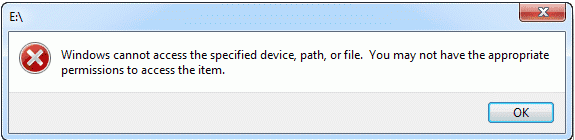
Causes of the error:
You may not have the appropriate permissions to access the item because of the following reasons.
1. You don’t have permissions to the file, the folder or the drive.
2. You are clicking a shortcut to access a file on an external drive or a network location that is now not correctly connected to the PC or is not available.
3. The data has been deleted or moved to another location. Or the file or its shortcut is corrupt.
4. Windows may block the file.
5. The anti-virus software of your computer blocks the file.
Methods to solve the error:
Fix 1: Check the permission of the file or folder
If you don’t have permission to access the file or folder, you may encounter this error. So check what you can do with the file or folder. Follow these steps:
1. Right-click the file or folder, and then select Properties.
2. Select the Security tab.
3. Under Group or User names, click your name to see the permissions you have.
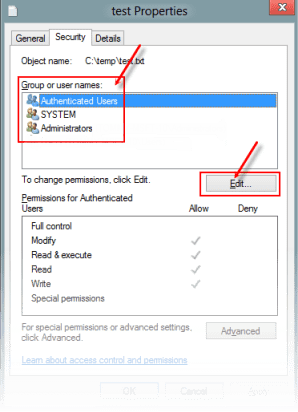
4. Select “Edit,” and then check the checkboxes for the permissions that you need (For example, if you want to modify the file or folder, check the checkbox next to it). If you are not sure which Permission you should select, check all boxes. And then select “OK.”
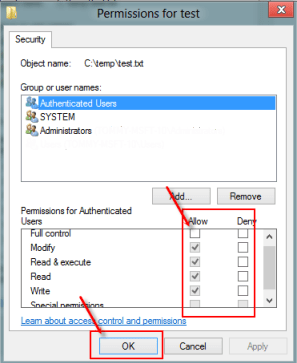
If you have enabled the permissions, this method doesn’t work for you, move to the next method.
Fix 2: Check the file location
You might get this error if the shortcut or installation is attempting to access a location that is not currently available such as a networked or a removable drive. Check the path of the file that Windows cannot access and make sure that the location is accessible. If the shortcut or other file types have been corrupted. You should check for corruption in shortcuts by recreating the shortcut.
Fix 3: Make sure the file has not been moved or deleted
You can also receive this error if the file has been moved or deleted. Browse to the location of the data and make sure the data is in that location.
Fix 4: Unblock the file
In some cases, the data may be blocked by Windows.
1. Right-click the blocked file and then select Properties.
2. In the General tab, select Unblock if the option is available.
Fix 5: Check if your antivirus software is blocking the file
You can check if your antivirus software is blocking a file by temporarily disabling it, and then try to open the file. If your antivirus software is disabled, you should re-enable it as soon as possible.
However, disabling your antivirus software or changing the settings may make your PC vulnerable to viral, fraudulent, or malicious attacks. Microsoft does not recommend that you disable your antivirus software or change the settings.
Fix 6: Recover the deleted or corrupted files
If the file is corrupted or deleted, you can recover them with Bitwar Data Recovery.
Bitwar Data Recovery is a professional data recovery software compatible with various devices, including digital cameras, hard drives, SD cards, Memory cards, media players, and portable drives. Whenever you deleted these files or lost them due to virus attack, accidental formatting, or partition losing, you can get them back by using this software.
Bitwar Data Recovery is clean and user-friendly software. More importantly, it allows you to perform quick recovery but also supports deep scan, which can find out more lost files with a detailed scanning algorithm. What’s more, and it also supports raw recovery.)
Supported OS: Windows 10/8/7/XP/Vista, Mac OS X (10.11 El Capitan, 10.12 Sierra, 10.13 high Sierra) on iMac, MacBook, Mac Pro, etc.

Why not have a try?
Please refer here for more about data recovery.
 Bitwar Data Recovery