How to recover data from external hard disk? In this article, you will find a free download data recovery software — Bitwar Data Recovery to restore your lost data from external hard disk.
Many people use the external hard disk as a backup media that could save photos, video files, and other important data. With the popularity of external/removable hard disk drive, people are used to storing their personal or business data on the external hard disk. The external hard disk certainly brings much convenience in our daily life.
However, a survey from a data recovery company shows that due to hot plugging, plug, and play, accidental deletion, virus attack, etc. data loss in the external hard drive takes the largest portion. That is, external hard disk data recovery is much needed.
Bitwar data recovery is a free trial, safe, easy-to-use and reliable external hard disk data recovery software. It can recover files lost due to deletion, format, raw, virus attack, system crash, etc. on the external hard drive. It also supports to restore data from hardware RAID, local hard drive, USB drive, SD card, memory card, etc.
How to Recover Data from External Hard Disk
Connect your External Hard Disk to PC. Then free download and install Bitwar Data Recovery on your windows.
We recommend that you install the program on a different drive to avoid overwriting the data.
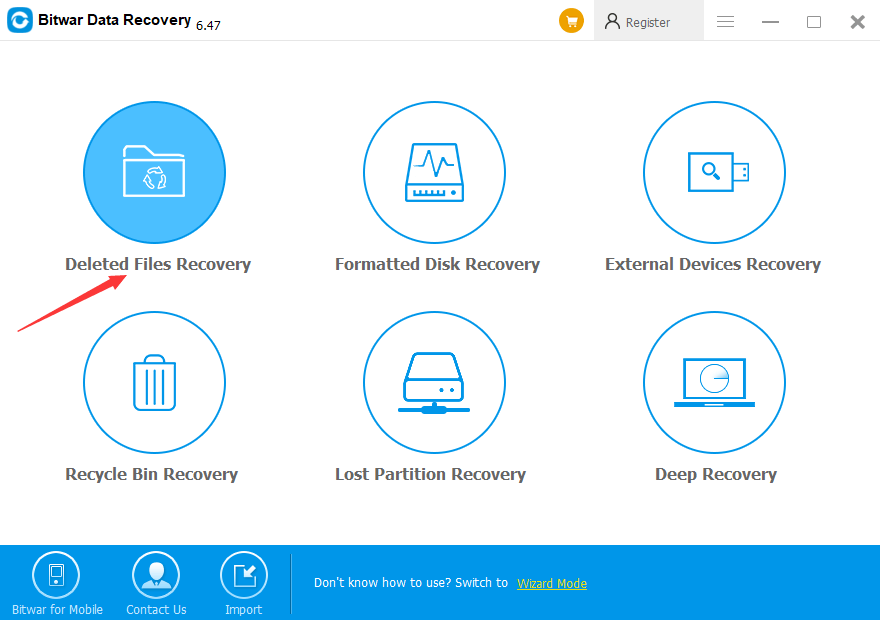
Step 1. Choose the scan mode
Launch the program, choose a proper mode on standard mode, you should select “Deleted Files Recovery” when you want to recover data from External Hard Disk.
Step 2. Select the partitions or devices
Select the External Hard Disk you lost files and select file types. then click the “Next” button.
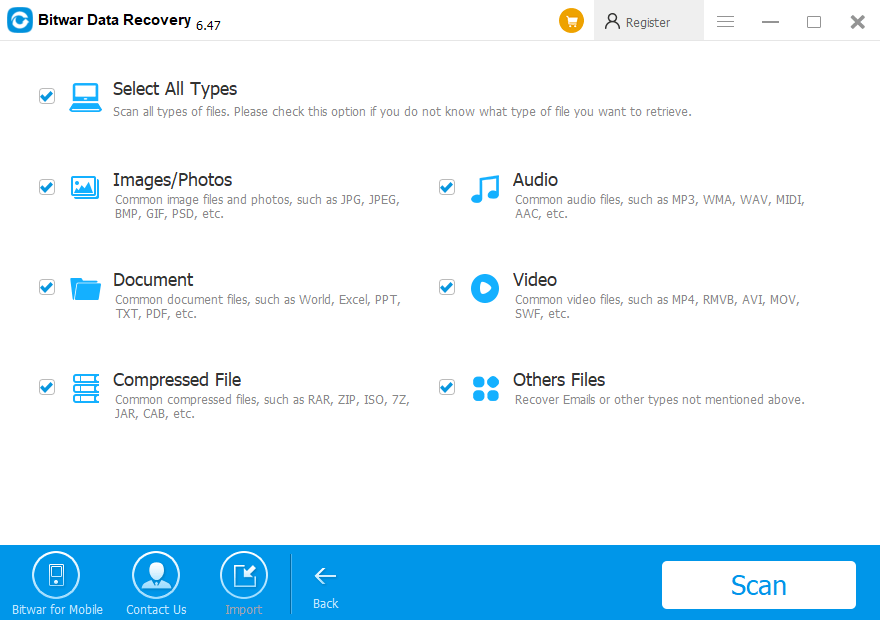
Step 3. Select the file types
You can choose a certain file type, such as Images/Photos, Video, Audio, etc. Or you can also choose “Select All Files” option. Then click the “Scan” button.
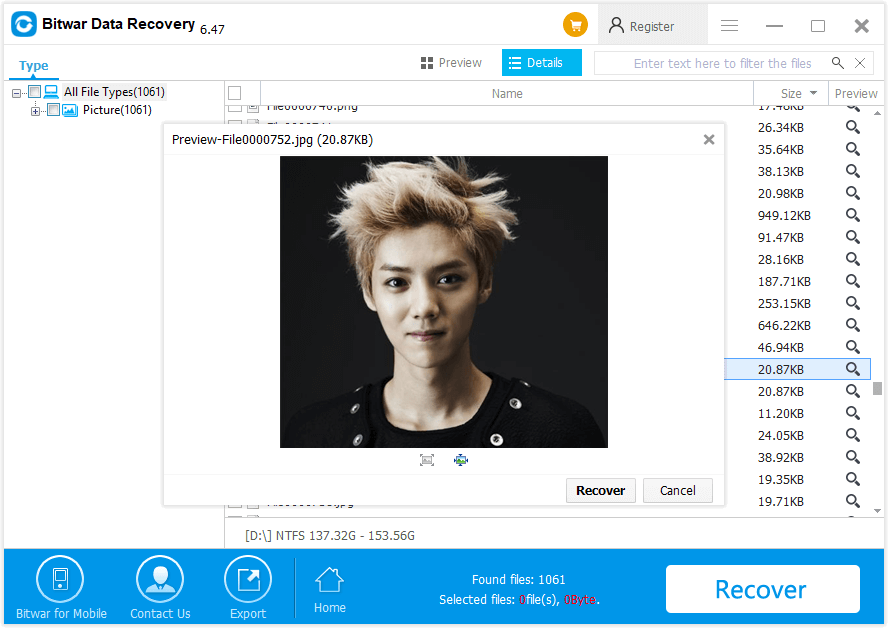
Step 4. Preview and Recover the files
After the scan, you can filter what you need from the scanning results according to the file name, type, path and time. you can preview them before recovery. Then select them and click “Recover” to get them back.
Tips: you’d better save all the recovered files on the partition of the computer or different device. please don’t save any files to the External hard disk until the recovery ends.
Let’s try it now!
Please refer here for more about External Hard Disk Recovery.
 Bitwar Data Recovery