This article will walk you through some of the best ways to resolve and fix “The directory is invalid ” issue and restore all the mportant data using the best data recovery software – Bitwar Data Recovery software.
Many Windows 10 users have reported, “The directory is invalid” issue, this issue occurs when the system is upgraded to Windows 10 and trying to plug in their USB flash drive, hard disk or memory or SD card. There will be no access to the external storage device, thus, preventing you from accessing your stored as well.
There is no need to worry when you encounter the issue as this article will provide the best effective solutions to fix the issue and recover all your vital data using a data recovery tool for Windows.
Possible Causes
Some of the prime reasons that cause “The directory is invalid” issue is given below:
- Faulty or damaged ports.
- Disk errors.
- Incorrect disk drivers.
Best Solutions to Fix “The Directory is Invalid” Issue on Windows
Solution 1: Change Ports
The easiest check to follow when you face “The directory is invalid” issue is by changing the ports. Try to insert the storage device into some other port as the previous port that you used could be dead or non-functional. If the issue is not solved, follow the below solutions to overcome the problem.
Solution 2: Check Disk Error
Disk check is an in-built software that checks for disk errors via scan and tries to fix them.
Step 1. Go to This PC by pressing Wins + E on the keyboard.
Step 2. Select Properties by right click on the Local Disk.
Step 3. Click on the Tools tab and select the Check button.
Step 4. Then, choose the Check option.
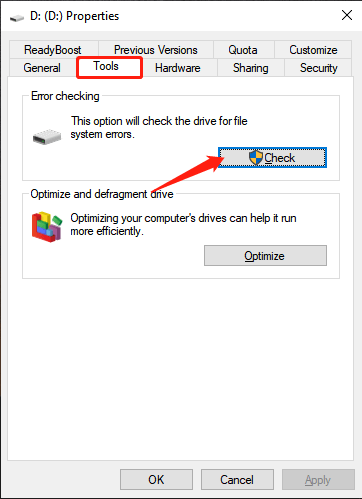
Step 5. Follow the instructions given on the screen for windows to find and fix the errors detected.
Step 6. Restart the computer system and check if the issue is resolved or not.
Solution 3: Update Disk Drives
“The directory name is invalid” issue can be caused due to wrong disk driver or when they are not updated. In such a case, we can try to fix the problem by updating the disk drivers.
Step 1. Open the Run window by pressing Wins + R key at the same time.
Step 2. Type devmgmt.msc command in the Run window and hit Enter to execute and open Device Manager.
Step 3. From the Device Manager window, expand Disk Drives.
Step 4. Right-click on the external drive, USB flash drive, or SD card and select Update Driver Software.
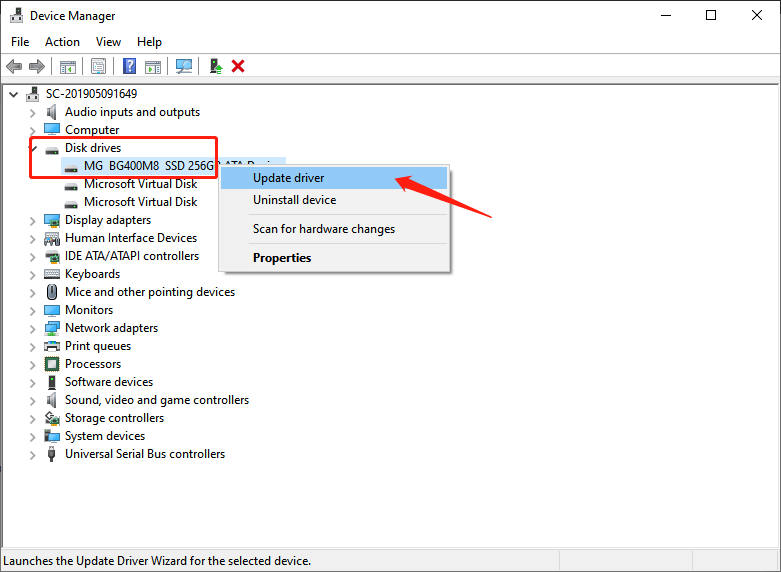
Follow the steps above and update the device drivers. After updating, restart your computer and check if the issue is resolved or not.
Recover Data with Data Recovery Tool
Bitwar Data Recovery software is capable of recovering any software data such as audio, video, images, docs, and others from any storage device such as an external hard drive, USB flash drive, memory card and SD card in no time. The software has a user-friendly interface and simple to use.
Follow the guided steps below to restore data on Windows:
Step 1. Download Bitwar Data Recovery and install it on the computer.
 Bitwar Data Recovery