Summary: This article is going to explain to you the steps that can help eliminate the error “CHKDSK is not available for RAW Drives”. Follow the below steps to get rid of the issue.
At the onset, it is important to know what are CHKDSK and Raw Drives. CHKDSK stands for “Check Disk”, it is a command that runs in Command Prompt to validate the system’s integrity. The prime function of CHKDSK is to check for the errors in a disk and then fix them up. RAW Drive is a hard drive partitioning, which implies that the Windows Operating System does not recognise the file system.
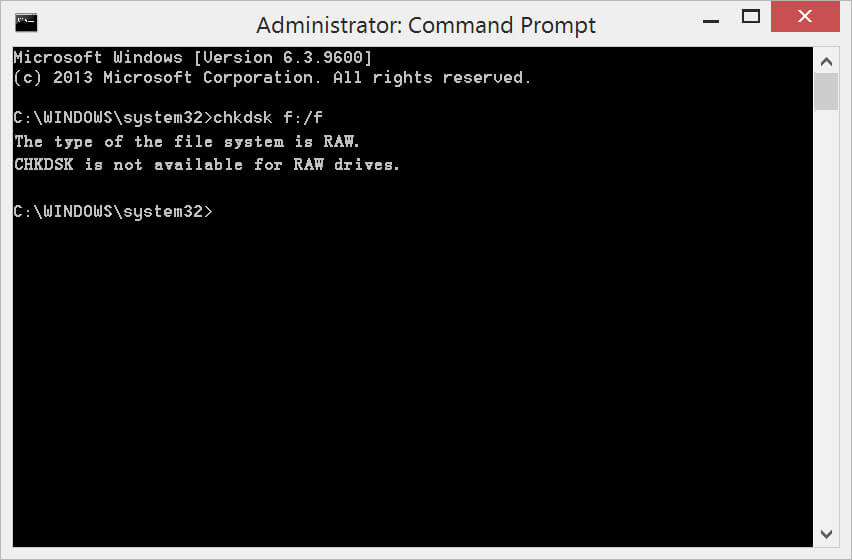
The error message “The type of the file system is raw, CHKDSK is not available for RAW Drives” is displayed when you run the command “CHKDSK” over raw USB flash drives, raw hard drives, raw pen drives and raw SD cards etc. when they are not working the way they are meant to work or simply when damaged.
What causes to give an error “CHKDSK is not available for RAW Drives”?
First of all, CHKDSK is found in all the versions of Windows like Windows XP, 7, 8 and 10. This error message in Windows often appears due to corrupted or damaged disk because of:
- Unsafe ejection of a disk or a drive.
- An antivirus attack.
Additionally, some of the common scenarios associated with RAW Drives are:
- X Drive is not formatted. (X stands for the drive letter)
- The Volume Does Not Contain a Recognized File System.
- X Drive is not accessible. (X stands for the drive letter)
Don’t Miss: Quick Fix on How to Repair Hard Disk Not Detected By Computer
Possible ways to fix the error message stating “CHKDSK is not available for RAW Drives”
Given below are some of the solutions to fix “CHKDSK is not available for RAW Drives” for Windows XP, 7, 8 and 10.
Solution 1: Error Checking
Step1: Enter “My Computer/This PC” and right-click on the RAW drive.
Step2: Turn to Tools page and then Click “Check” from the Error-checking section.
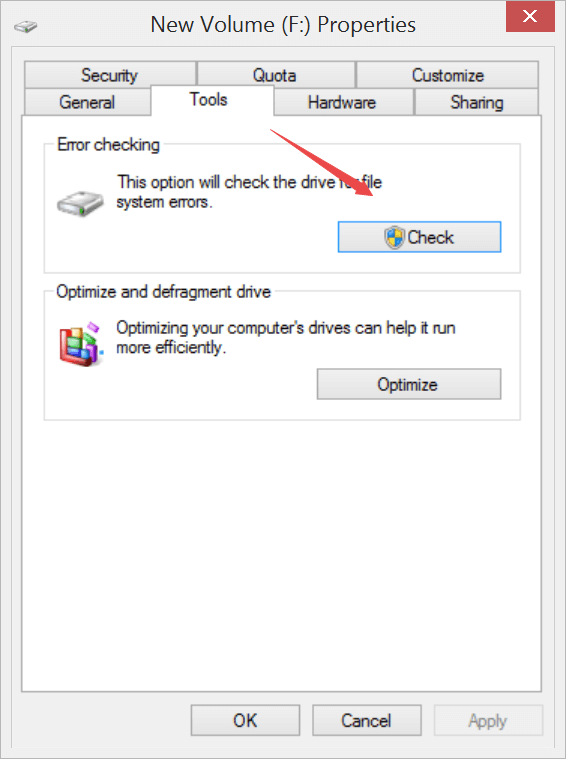
Step3. Wait for the system to scan your drive and then fix the CHKDSK is not available for RAW Drives without formatting.
Solution 2: Reformatting
It is the best solution when the RAW drive does not contain any critical data, and you don’t mind formatting it.
Step1: Press WIN key + R and type “Diskmgmt.msc” to run the Disk Manager, and then right-click on the RAW Drive.
Step2: Select the option “Format”.
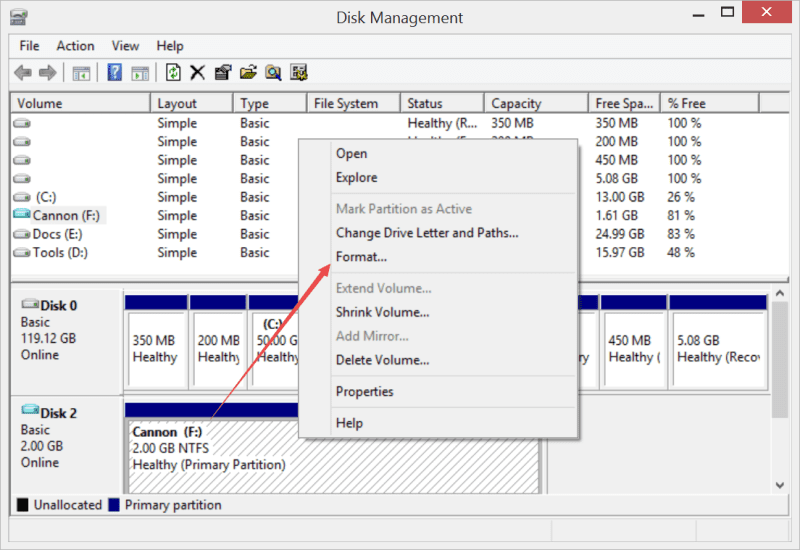
Step3: Now, choose the option “NTFS File System” and change it to other information (format options, volume label and allocation unit size).
Step4: After this, click on the “Start” button to reformat RAW Drive to NTFS.
What if you do have the vital data stored on the drive and you don’t want to lost them by formatting the disk, how can we retrieve inaccessible data? Don’t worry, we are having below methods to get back your data first and then fix the error.
Solution 3: Fix using Command Prompt
Recover Data without Format
Before you go ahead with this option to fix “CHKDSK is not available for RAW Drives”, it is advisable to recover important data from the RAW Drive. A free data recovery software will make the fix even simpler as there will be no risk of losing the precious data. Therefore, we would recommend using “Bitwar Data Recovery” software due to high reliability and safety for your data.
Let us first see the steps to recover data using Bitwar Data Recovery Software:
- Download Bitwar Data Recovery Software for both Mac and PC. After downloading, install the software on the system.
- Launch the software and click on the Drive this showing as NTFS_RAW. (RAW is the current status of your drive, and NTFS is the drive’s former type of file system). Hit “Next” to continue.
- Check on “Quick Scan” mode to recover lost files from the RAW partitioning or device, and then select the file types you want to recover.
- While the process of scanning, click on the option “Preview” to generate thumbnails for each file to confirm the files are still functional, if yes, hit on the Recover button to get back the files.
 Bitwar Data Recovery