Summary:
This article provides detailed information about steps to be taken when the SD card not full but says full. Check it out to find out how to fix this error!
A Secure Digital card, commonly known as SD card is a super mini flash memory card that houses a large volume of memory. SD cards are small-sized and can be connected to a number of portable devices such as video cameras, DSLR’s, computers, laptops, mobile phones, and audio players etc.
These cards are available in size ranging from 8GB to 256 GB. Using these cards is very simple, just plug it into the slot provided in your device and you are good to go.
But, sometimes you may see that these cards, as soon as they get connected to the device, prompt a message, “SD card not full but says full”. Do not worry! If you ever face this kind of issue then, this article will be of great help to you as it explains a couple of ways to get over this error.
Possible Reasons Why SD Card Not Full but says Full
You know that the SD card which you are using is empty, and when you attach it to some device, let’s say to your digital camera, it displays a message that SD card is full.
Well, there can be a couple of reasons behind the display of this message, and below we have listed the prime reasons that can cause this error.
- SD card not properly formatted.
- There are hidden files in the SD card which you are not able to see.
- The SD card is physically damaged.
In case of the damaged card, there is no way out, but to replace it with a new one, and for other concerns, we have listed solutions below in details.
Proven Ways to Sort the Issue of SD card Not Full but says Full
There are many ways to resolve the issue when even your new SD card full but can’t see files. Here we are going to talk about some of the best ways to help with the concern, just pick the solution which is best suitable for you.
Restore SD Card to Full Capacity with CMD
As we already know the Command Prompt is capable of many things regarding computer administration but in case you don’t know, it is also capable of restoring SD cards as well. Here are the steps that can help:
- Open the command prompt as an administrator on your system by clicking on the start button and type “cmd” followed by a right click.
- Type the command “diskpart” in the command prompt and hit enter.
- After this, type “list disk” command, it will display the list of all disks connected to your computer, and press enter after writing the command.
- Now, run the command “select disk #” to select the USB disk you wish to restore. (Replace # to the exact disk number)
- Type the command “clean” and hit on enter.
- After Showing Diskpart succeeded in cleaning the disk, make a new partition on the USB drive using “create partition primary” command.
- Now, in the final step type, the command “format fs=fat32 quick”, which will format the freshly created partition to FAT32 file.
Now, go to “Windows Explorer” and check if the SD card is restored to full capacity. If not follow the next solution!
Recover your SD card with Bitwar Software Recovery Software
Another solution to the error related to SD card says full but nothing on it that is to recover the SD card with one of the best free data recovery software.
This can be really helpful if you know there is some important data in your SD card but you can’t access it due to the certain errors like already mentioned above. It can restore the data easily and then you can fix the device without any headaches.
All you need to do is, just follow the steps in order to get back data using this highly efficient file recovery software.
Step 1: Download Bitwar SD Card Recovery Software from the official website: https://www.r-datarecovery.com. It is completely compatible with both Mac and PC.
Step 2: Connect the SD card to your computer.
Step 3: Now, launch the recovery program. On launching, you will see “External Devices Recovery”, click on it. Select the SD card that you wish to retrieve and then click on the “Next” button.
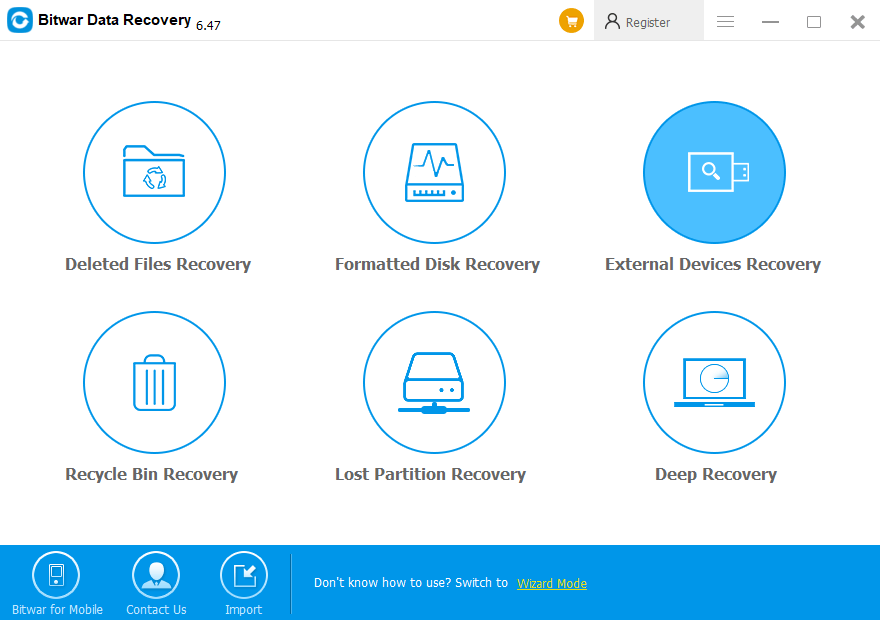
 Bitwar Data Recovery