Summary:
Windows 10 stuck on the loading screen is a very common issue nowadays, this post introduces several solutions to deal with this issue effectively.
One day you boot your Windows 10 PC and see that Windows 10 Stuck on Loading Screen. Actually, many Windows 10 users have encountered such an issue.
If Windows 10 is stuck on restarting, loading some screen with the spinning dots animation moving endlessly, welcome mode, login screen, starting Windows or not boot, you need to fix it to access and edit your files.
Usually, it’s not a big problem and users can simply force the computer to reboot and get Windows 10 start normally. If it cannot be solved, you can get into Safe mode or Advanced Startup mode to fix it. Here, we will share how to access Safe Mode or Advanced Startup Options when the issue appeared.
Safe Mode or Advanced Startup Options let you repair your Windows 10 PC by restoring it to previous working condition. In safe mode, it offers you all system tools like the CMD, System Restore, etc. and you can uninstall software or drivers which might have caused the issue. Advanced Startup option offers you System Restore, System Image Recovery, Startup Settings, Startup Repair, and several such recovery or repair options. So when your computer doesn’t boot normally, it is stuck in an endless reboot loop or stuck on some screen. In such a condition, you should focus on getting into Safe Mode or boot to the Advanced Startup Options screen.
Solutions to fix the Windows 10 stuck on loading screen issue
Solution 1: Boot Windows 10 in Safe Mode
Step 1. Press Power button to restart Windows 10 > continuously press the F8 key at Login to bring up Safe Mode;
Step 2. If you encountered this issue when you were trying to update Nvidia Drivers, then after entered into the Safe Mode, you can make a rollback of the Nvidia drivers and remove the video card driver in Device Manager. Then try to restart your computer in normal mode.
Step 3. Virus or malware may cause “Windows stuck on loading screen” issue and the installed antivirus software conflicts with the current Windows OS. So you can scan and remove virus, and uninstall anti-virus software later;
Step 4. Check and fix system drive bad sectors that cause Windows 10 boot stuck or failure error. If bad sectors exist in system partition, the computer may not be able to load or get stuck at the loading screen. Then you can repair bad sectors with the chkdsk command.
Solution 2: Boot to the Advanced Startup Options screen.
When you access the boot menu, press F11 to open the Choose an option screen, from here, press Troubleshoot and then Advanced Options to reach the following screen.
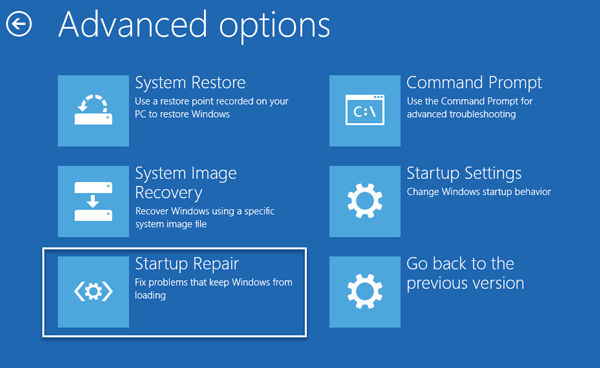
Once you can go here, try any of these options:
1. System Restore: Please follow these operations: press “Start” button > select “Control Panel” > search for “Recovery” > click “Open System Restore” > press “Next” > choose the restore point you want to use > select “Next” > choose “Finish”.
2. System Image Recovery: Lets you recover your Windows using a system image file.Similar to “Startup Repair.”
3. Startup Repair: Since you can’t boot Windows 10 normally, you need to use a Windows 10 installation CD or enter the Safe Mode to open command prompt window and type “bootrec.exe /fix” to do a system repair.
4. Command Prompt: Using the CMD you can access the more advanced built-in Windows tools
5. Startup Settings: It lets you change Windows startup options
6. Go back to the previous build.
The best data recovery software
Bitwar Data Recovery software is completely free to download and can recover lost or deleted files, photos, audio, music, emails from any storage device effectively, safely and completely.
Download Bitwar data recovery and install it.
Note: please don’t install the software or store any data on the partition that contains lost files.
 Bitwar Data Recovery