Summary
“The disk you inserted was not readable by this computer” error message generally occurs when you access an external hard drive on Mac. But don’t worry. This page offers 6 easy and efficient methods to fix the error. Download Bitwar Data Recovery for Mac to help if necessary.
When you get the message “The disk you inserted was not readable by this computer”, you will be unable to access the data in th2 drive. Actually, “the disk you inserted was not readable by this computer” is one of the most common errors that Mac users have met. Many reasons can cause such the error, including virus infection, file corruption, internal file system errors, faulty connections, Mac malfunctions, upgrading Mac OS, as well as drive corruption. But don’t panic, just follow the instructions below to fix the problem.
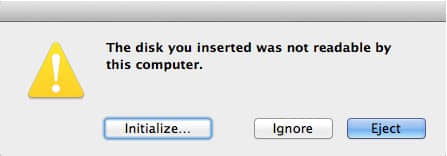
Solutions to fix “The Disk You Inserted Was Not Readable by This Computer” on Mac
Solution 1. Check the Mac computer
Just connect a different storage device to Mac, if you can see it in Finder, the problem may refer to the external device. So try re-connecting the external device to Mac. Just remove it safely from Mac and then re-plug it. Then, attempt to access it to see if the error persists. If this error still pops up, you could move on to try other ways.
Solution 2. Check the file system format
Check the detailed information of the external device. If it is the file system that Mac isn’t compatible with, you can understand why it is unreadable on High Sierra. In this situation, to fix “disk is unreadable” error, you can change its file system.
After the above some basic checks, if error “the disk you inserted was not readable by this computer” still occurs, you should recover the data from the error disk first. Because the solutions next will delete or overwrite the data on the disk,
Solution 3. Repair unreadable external device in Disk utility
You can use the Disk Utility built-in Mac to do a disk repair. Disk Utility allows you to format, manage and repair the disk. It’s helpful for you to fix many drive issues including the “The disk you inserted was not readable by this computer” error.
Disk Utility’s “First Aid” is a Mac built-in tool to verify and repair certain disk problems.
Step 1: Launch Disk Utility.
Step 2: Select the unreadable drive on the left side.
Step 3: Select the “First Aid” tab.
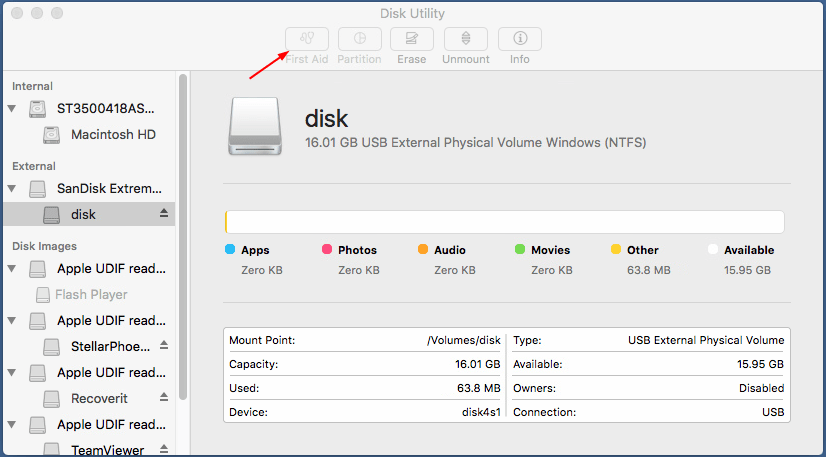
Step 4: Click Repair Disk at the bottom of the screen.
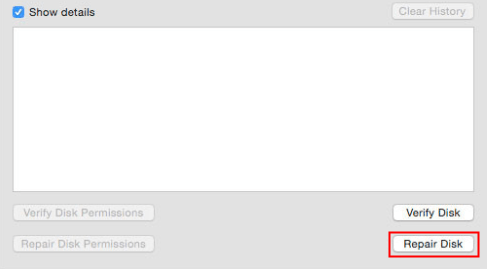
Step 5: After repairing finishes, check to see if Mac reads your external drive.
If Disk Utility reports that the disk appears to be OK or has been repaired, you’re done.
Recover data from the unreadable external drive
You need to recover important data from unreadable external drive if you’re not sure what third-party data recovery program you can trust, you can do it with Bitwar Data Recovery for Mac. It is a reliable & easy-to-use data recovery software that can recover data from unreadable external hard drive, hard drive, USB flash drive, SD card, memory card, digital camera on Mac OS. To recover the corrupted files, you just need a few clicks:
Install the Bitwar Data Recovery for Mac
Free download Bitwar Data Recovery for Mac, then install it on your Mac OS. This software is compatible with OS X 10.11 and later.
Tips: For the latest macOS 10.13 (High Sierra) system requirements, Mac users are not allowed access to system disk from apps. If you want to recover data from the system disk, please disable the system feature “System Integrity Protection (SIP)”, and see the guide on How to Disable System Integrity Protection (SIP) in macOS High Sierra (macOS 10.13)?
Steps to recover data from External Hard Drive on Mac
Step 1: Select the External Device
Launch the program and connect your external device to the mac, and make sure your Mac recognizes it. Then select it and click “Next”.
 Bitwar Data Recovery