Summary: This article contains step-wise solutions on how to fix “Windows detected a hard disk problem” error on internal or external hard drive. Whenever a problem with the hard drive has been detected, don’t panic, read on below tutorials to repair disk errors to save your data!
https://www.bitwar.net/data-recovery-software/
Facing hard disk failure message such as “Windows detected a hard disk problem” on Windows 7, 8, 10 that causes quiet frustration and it has been a wide-spread problem of many Windows users.
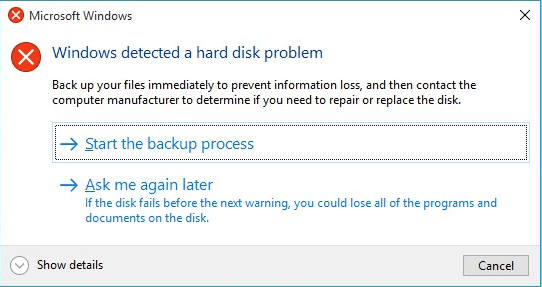
This error is generated if the operating system is damaged by the risk of losing your data. Before diving to any solutions, it would be better to first identify the reasons for hanging the hard disk problem.
Windows Detected a Hard Disk Problem Backup Your Files Immediately
We all know that when a hard disk problem occurred, the hard disk becomes inaccessible, thus, if you want to secure your data, you can always rely on Bitwar Data Recovery for Windows or Mac.
It’s professional data recovery software that helps you recover data from inaccessible hard disk, formatted partition or even can recover data from lost partition.

The software offers easy steps to recover lost data, firstly, select device or drive where you have lost data, secondary, select a recovery mode and choose your target recovering file types (e.g. document or photo). Thirdly, scan and preview the data, and then hit the recover button to save the data into different device or partition. That’s all.
How to Repair Corrupted Hard Disk after Encountering “Windows Detected a Hard Disk Problem”
Fix 1. Utilize System File Checker
What is not known by many users is that Windows offers basic tools to fix hard disk error windows 10. The key is users have to find out which system file is damaged and this can be fixed with System File Checker.
Step 1. Go to Start Menu, type “cmd” to open Command Prompt.
Step 2. Right-click and hit Run as administrator.
Step 3. In Administrator: Command Prompt window, type “SFC /Scannow” and press Enter.
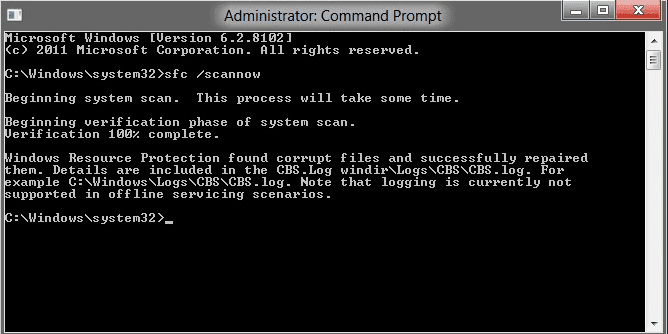
The processing will not take too much longer. This will give you a quick result whether there is interiority violation since the process includes scanning all protected files and replace corrupted files with backups copies. Make sure to complete the verification before closing the window.
 Bitwar Data Recovery