Summary: Error message such as “You need to format disk in Drive before you can use it” is kind of annoying problem when you plug the external disk or USB pen drive with the computer.
https://www.bitwar.net/data-recovery-software/
It disables you to access the files in your drive, however, never hit Format Disk. This article will provide you with massive reasons into why not and best solutions on how to fix external hard drive asking to format error without losing data.
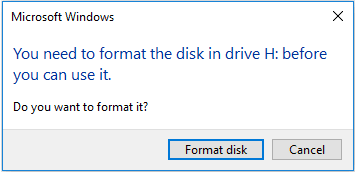
Reasons Why External Hard Drive Says It Needs to Be Formatted
The external hard drive is a device with portable storage with relatively high capacities, can be plugged into your computer or thru FireWire for wireless connection. It is often used to back up especially large size files. Like any other removable device e.g. USB flash drive, pen drive and SD card, external hard drive when usually forcedly unplugged from the computer without using Safely Remove Option causes the device being corrupted and unreadable or disk management displays file system as RAW.
Other Reasons for You need to format disk in Drive before you can use it Error
- Virus attack
- Bad sectors in the external hard drive
- Abrupt power outages while the external hard drive is working
- File system not recognized by the target environment e.g. Windows
A simple reminder: Upon unplugging your external hard drive using Safely Remove Option, a warning message will pop up “This device is currently in use. Close any programs or windows that might be using the device and then try again”, do it and once done restart your computer.
Use CHKDSK or Check Disk Utility to check your external hard drive for issues
Take note of the drive letter in the error e.g. “You need to format the disk in drive H: before you can use it, do you want to format it”. Your external hard drive letter is H. Right click on the Start Menu and select Command Prompt or type “cmd” and hit Enter to run it as administrator. In the popup command window, type “chkdsk drive letter:f”, since your drive letter is “H”, then simply type “chkdsk H:f” and hit Enter.
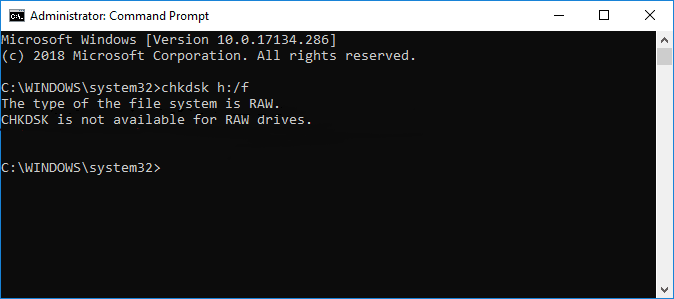
The windows will start repairing errors and damaged files. After that, try to plug in your external hard drive, consider restarting your PC. If you encounter the message “the type of the file system is RAW, CHKDSK is not available for RAW drives,” we’ll move on to the promising solution – recover your data.
Recover data with Bitwar Data Recovery software from not formatted external hard drive
Here is the quick guide in using Bitwar Data Recovery:
Step 1. Just download and install the Bitwar Data Recovery by in Windows or for Mac. Then click Launch.
Step 2. Launch the software and select the external hard drive to recover your files and go Next.
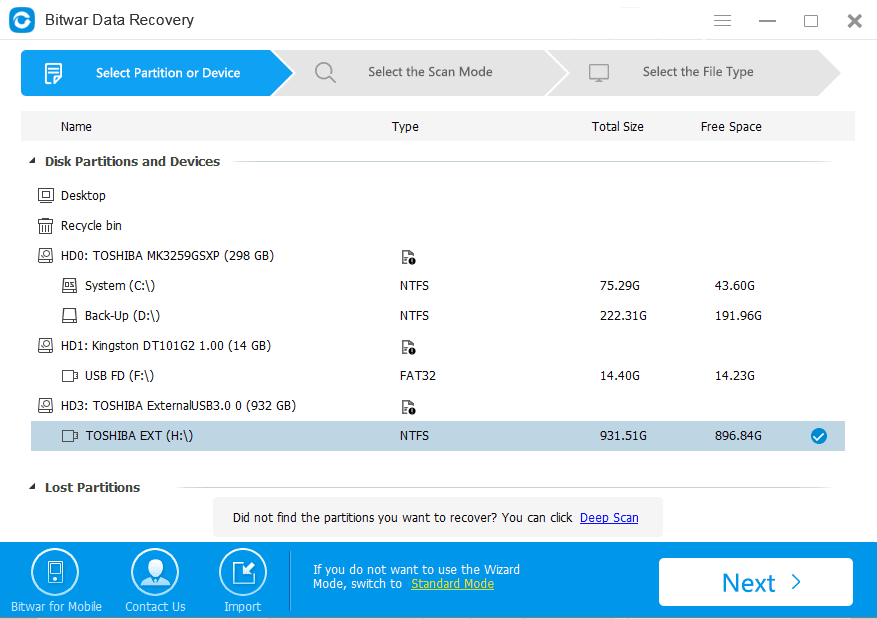
Step 3. Choose the scan mode and select the file(s) you wish to recover. Click Next.
Read more? Please refer to:
6 Methods to Fix You Need to Format Disk in Drive Before You Can Use It
 Bitwar Data Recovery